Viewing the canvas
You can zoom, pan, rotate and flip the view without changing the drawing. View changes aren’t undo steps.
View menu
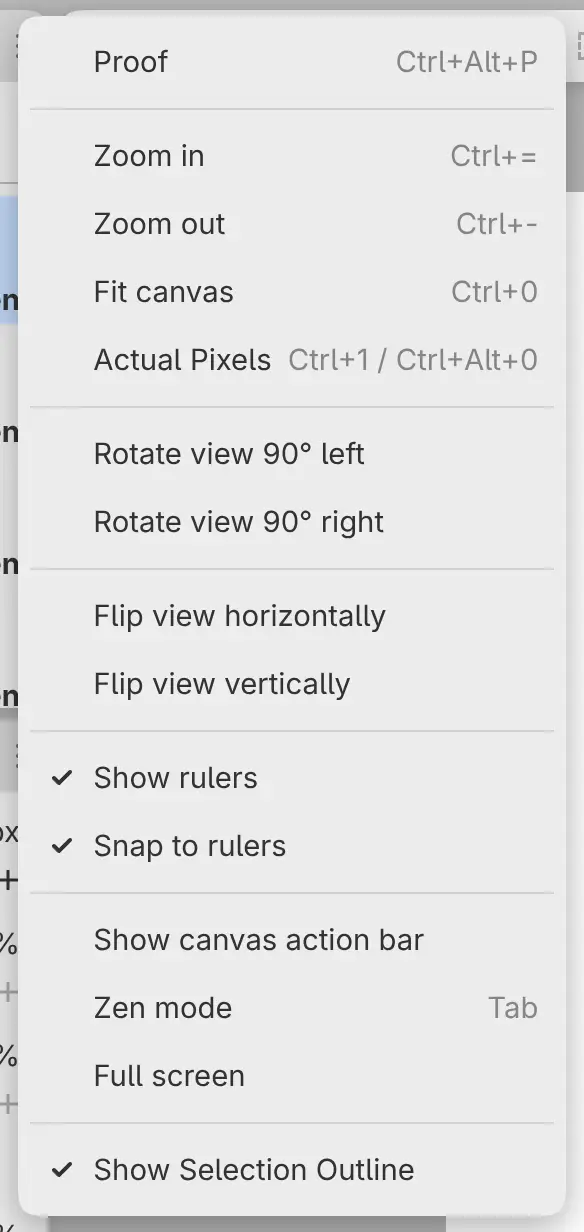
The View menu has the view commands with their keys. In Sketch, open it from Main Menu in the title bar.
Zooming
Do one of the following:
- Choose View > Zoom in or View > Zoom out.
- Press Ctrl+= or Ctrl+-.
- Hold Ctrl and scroll. On macOS and iPad, hold Control, not Command.
- Pinch with two fingers on a touch screen, or on the trackpad on macOS and iPad.
- Select a zoom level in the zoom readout’s menu, or a zoom button in the Navigator panel.
- Push the right stick of a game controller up or down.
The zoom ranges from 2% to 1600%. Ctrl+scroll zooms around the pointer, and pinching zooms around your fingers. Scroll zoom speed in Preferences sets how far each scroll step zooms.
Fit canvas
Choose View > Fit canvas or press Ctrl+0 to show the whole drawing, centered. Fit canvas also sets the view rotation to 0° but keeps flips.
A drawing is fitted when it opens, and not again when you resize the window.
Actual Pixels
Choose View > Actual Pixels, or press Ctrl+1 or Ctrl+Alt+0, to show one image pixel per screen pixel (100%). The zoom readout’s menu also has 25%, 50%, 200% and 400%. At these levels, with the view rotated 0°, 90°, 180° or 270°, image pixels line up with screen pixels.
Panning
Do one of the following:
- Scroll. Hold Shift and scroll to move sideways.
- Hold Space and drag.
- Drag with two fingers on a touch screen.
- Select the Hand tool or press H, then drag.
- Drag in the Navigator panel.
- In the web editor, drag with the middle or right mouse button.
- Push the left stick of a game controller.
Scroll pan speed in Preferences sets the distance per scroll step.
Rotating the view
Do one of the following:
- Choose View > Rotate view 90° left or View > Rotate view 90° right.
- Twist two fingers on a touch screen, or on the trackpad on macOS and iPad.
- Type an angle or drag the rotation slider in the zoom readout’s menu.
- Select a rotate button in the Navigator panel.
No key rotates the view by default. To go back to 0°, select Reset rotation in the zoom readout’s menu.
Flipping the view
Do one of the following:
- Choose View > Flip view horizontally or View > Flip view vertically.
- In Paint, select Flip view horizontally at the right end of the Commands toolbar.
- Select a flip button in the Navigator panel or the zoom readout’s menu.
While a flip is on, its menu item has a check mark and its button looks pressed. Strokes land where you draw them on the flipped view. To flip or rotate the drawing itself, see Image size and rotation.
Zoom readout
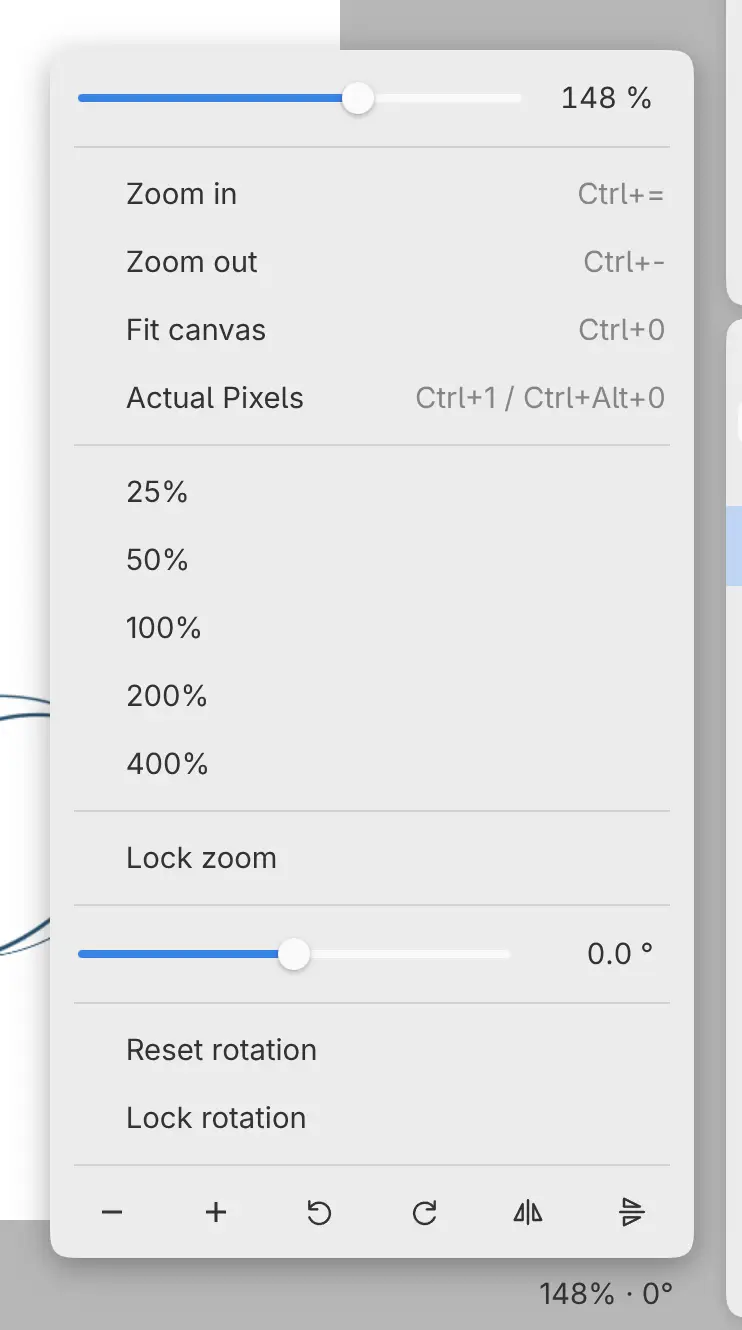
The right end of the footer shows the zoom and rotation, for example “100% · 0°”. Select the readout to open a menu with zoom and rotation fields and sliders, the zoom commands and levels, Reset rotation, the locks, and buttons that zoom, rotate and flip the view.
Choosing a row closes the menu. The buttons and typed values leave it open.
Sketch hides the footer. To show it, turn on Show footer in Window > Customize Title Bar….
Lock zoom and Lock rotation
Turn on Lock zoom in the zoom readout’s menu to stop pinching, Ctrl+scroll and the game controller from zooming. Lock rotation stops two-finger twisting. Commands, keys, zoom levels and typed values still work while a lock is on.
Navigator panel
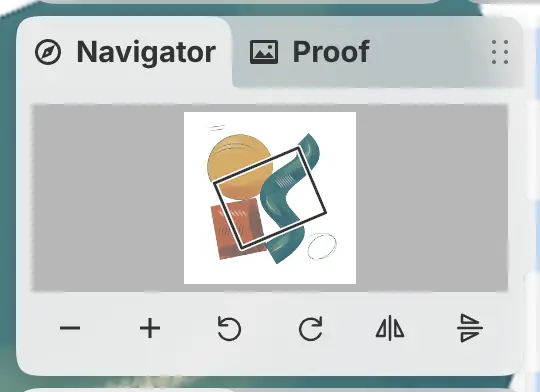
The Navigator panel shows the whole drawing with an outline around the part in view.
To show the panel, do one of the following:
- Choose Window > Navigator.
- In Paint and Photo, select the Navigator icon at the right of the window.
Drag the outline to move the view, or select a point outside it to center the view on that point. The buttons below the drawing zoom, rotate and flip the view.
Full screen
Do one of the following:
- Choose View > Full screen.
- In the Windows and Linux apps, press F11.
- In the web editor, select Full screen at the right of the title bar.
- On macOS, choose View > Enter Full Screen.
Repeat the step to leave full screen. Full screen isn’t available on iPad or Android.
In the web editor, F11 turns on the browser’s own full screen. Leave it with the browser’s controls. While the web editor is in full screen, Paint and Photo show the time and, where the browser reports it, the battery level in the title bar.
Each drawing’s view
Each open drawing keeps its own zoom, rotation, flips and locks, also after a
restart. Switching drawing tabs or workspaces doesn’t change the view. A .capy
file doesn’t store the view.