Pen
The pen settings are on the Pen & Input page of Edit > Preferences.
Pressure response
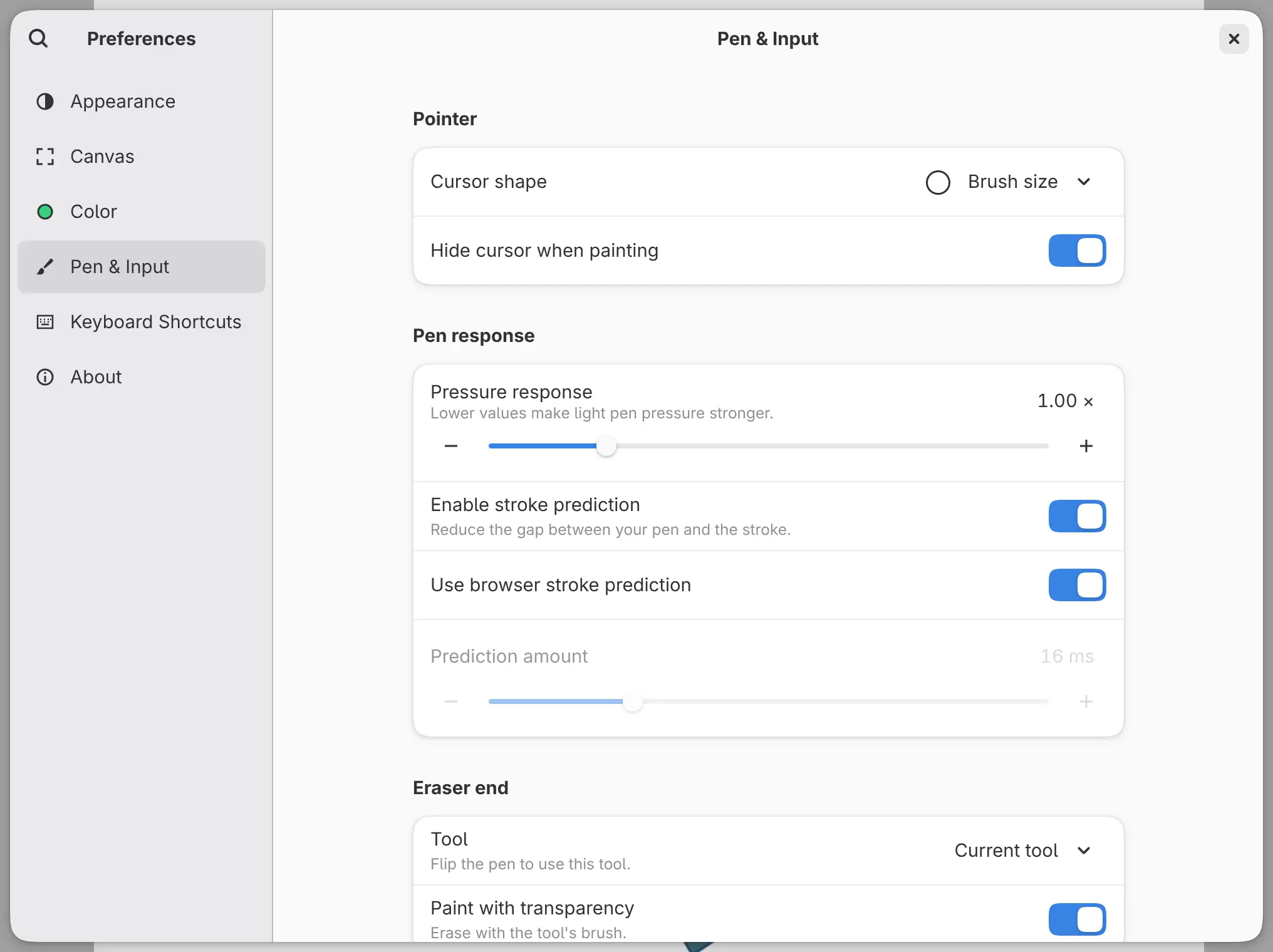
You can change how the pen responds to light pressure with Pressure response under Pen response. Lower values make light pressure stronger, and higher values need more force. The range is 0.25 × to 4.00 ×. At the default, 1.00 ×, the pen’s pressure is used unchanged.
The setting applies to every brush and tool, including Paint selection and Quick Mask. Strokes you have already drawn don’t change.
Stroke prediction
Stroke prediction draws a short stretch of the stroke ahead of the pen tip, and the real stroke replaces it as you draw. The settings are under Pen response:
- Enable stroke prediction switches both kinds of prediction on or off.
- Use system stroke prediction, for example Use Windows stroke prediction, uses the prediction of the system or the browser.
- Prediction amount sets how far ahead Capy Canvas predicts on its own, from 0 to 64 ms.
Both switches are on by default, and Prediction amount is 16 ms. While Enable stroke prediction is off, the other two settings are unavailable.
| System | The system’s prediction |
|---|---|
| iPad | Available |
| Windows | Available when Windows offers it |
| Android | Android 14 and later, with a stylus the system supports |
| Web | In browsers that offer it |
| macOS, Linux | Never available |
Where the system’s prediction isn’t available, its switch is unavailable and Prediction amount sets the prediction. While the system’s prediction is in use, Prediction amount is unavailable (hidden on iPad).
The cursor follows the pen, not the predicted stroke.
Cursor shape
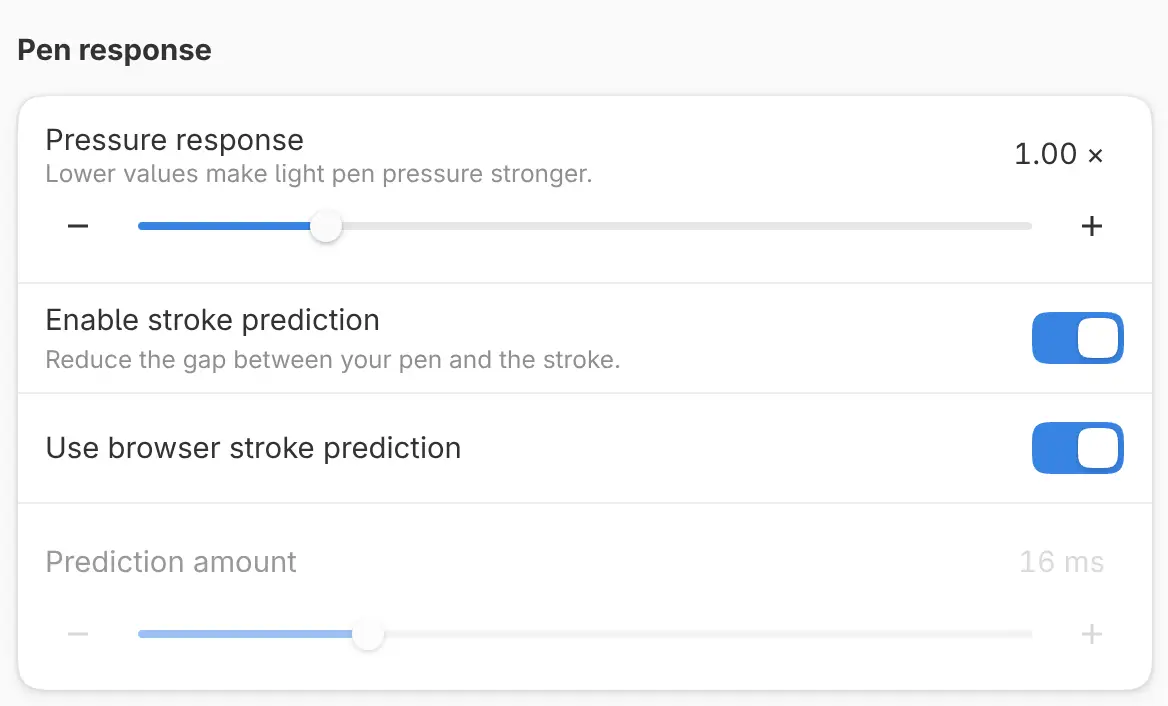
You can choose the pointer shown over the canvas with Cursor shape under Pointer.
| Choice | Shows |
|---|---|
| Brush size | The outline of the brush tip at its size, shape and rotation (the default) |
| Cross, Triangle | A cross or a small triangle |
| Dot | A tiny cross |
| Single-pixel dot | One pixel of the screen |
| Sight | A cross with a dot in the center |
| Tool | The tool’s icon, with its working point at the pointer |
| Tool and brush size, Brush size and cross, Brush size and dot, Brush size and single-pixel dot | The brush outline together with the other mark |
| None | Nothing for a pen on a display. A mouse, trackpad or tablet without a screen shows Sight. |
The shape applies to painting tools and Paint selection. Other tools show their icon when the shape includes Tool, and a cross otherwise.
Hide cursor when painting
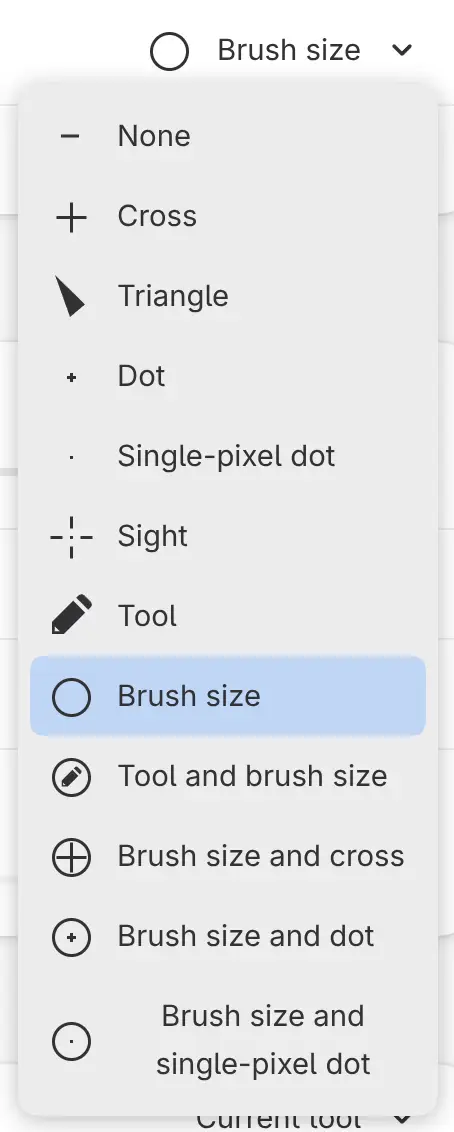
With Hide cursor when painting on (the default), the cursor disappears while the pen touches the canvas or the mouse button is down with a painting tool. The brush outline stays visible while you erase.
Eraser end
You can choose what the eraser end of your pen does. The Eraser end group isn’t shown on iPad.
- Tool: Current tool (the default) keeps the tool you are using. Eraser, Pen, Pencil, Paint Brush, Airbrush and Blend switch to that tool while you use the eraser end, and the previous tool comes back afterward.
- Paint with transparency: when on (the default), the eraser end erases with the tool’s brush. When off, the eraser end paints. This switch is hidden while Tool is Eraser.
Pen buttons
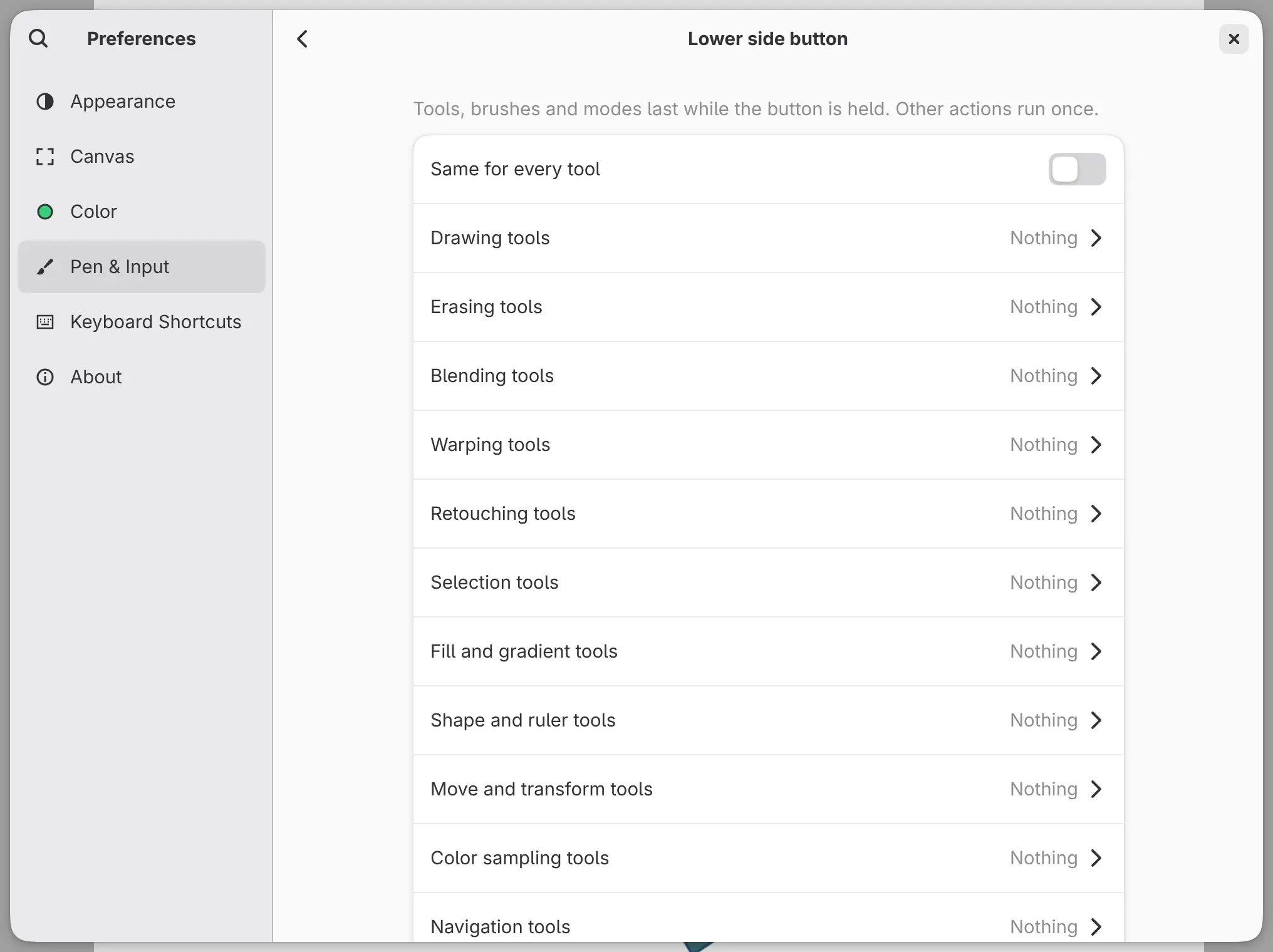
You can give each side button of your pen an action, and a different one for each kind of tool.
To set a pen button:
- Select the button under Pen buttons.
- Select Action, or turn off Same for every tool and select a kind of tool, such as Drawing tools.
- Choose an action. Nothing clears the button.
Tools, brushes and modes, such as Pan or Sample color, last while you hold the button. Other actions run once. A press during a stroke takes effect after the stroke.
Every button starts as Nothing. A button set to Nothing keeps the action your tablet driver or system gives it.
| System | Buttons listed |
|---|---|
| Linux | Lower side button, Upper side button, Third side button |
| Windows | Lower side button |
| macOS, Android, web | Lower side button, Upper side button |
| iPad | None |
On Linux and Android, buttons on a tablet’s pad are set as keys on the Keyboard shortcuts page.
Apple Pencil double-tap and squeeze
On iPad, double-tapping the Apple Pencil and squeezing an Apple Pencil Pro follow the iPad’s own setting in Settings > Apple Pencil.
- “Switch between current tool and eraser” switches to the Eraser and back.
- “Switch between current tool and last used” switches to the tool you chose before.
The other choices do nothing in Capy Canvas. Squeeze acts when you let go. When the Apple Pencil hovers over the screen, the cursor appears.
Tips for your device
Choose your device to see a few tips for it.
Windows
Capy Canvas uses Windows Ink for the pen. On Windows, Pen buttons lists one side button, the Lower side button.
macOS
If the pen lands in the wrong place, check which screen your tablet is mapped to in its settings. Use Command wherever these guides say Ctrl, and Option wherever they say Alt.
Linux
The Linux app needs a Wayland session and a graphics card that supports Vulkan. If pressure doesn't work or the cursor lands in the wrong place, check your desktop's tablet settings.
iOS / iPadOS
Most Apple Pencil models support pressure and tilt, but Apple Pencil (USB-C) doesn't support pressure. Fingers and palms never draw.
Android
Use a pen that supports pressure. A rubber-tipped stylus counts as a finger, and fingers never draw.