Keyboard shortcuts
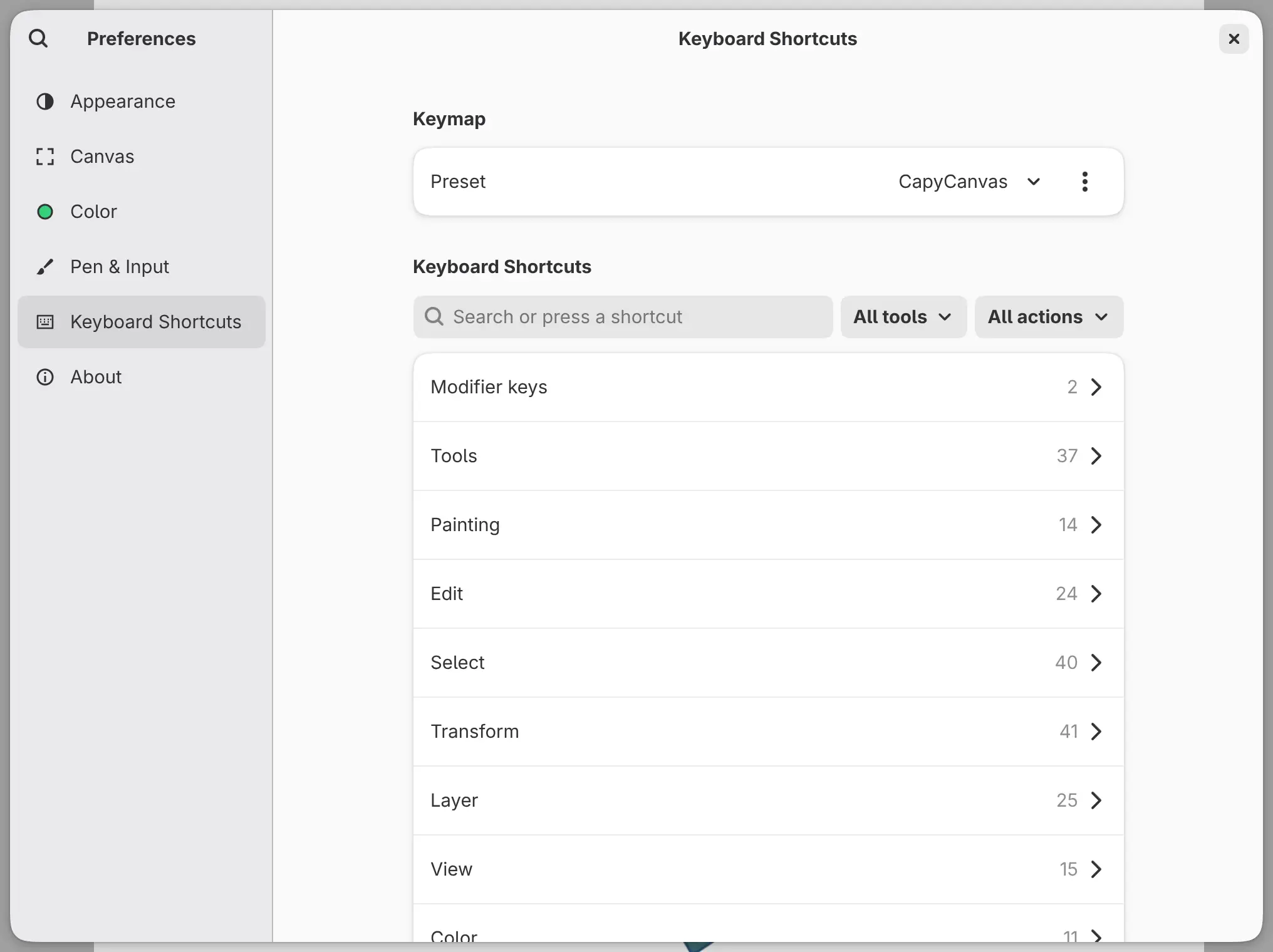
You can change the keys of commands, tools and brushes on the Keyboard Shortcuts page of Preferences.
On macOS and iPad, Command replaces Ctrl, and Option is the Alt key. The web app shows Ctrl on every computer, and on a Mac, Command works as Ctrl.
Opening Keyboard Shortcuts
Do one of the following:
- Choose Help > Keyboard Shortcuts.
- Press Ctrl+Shift+?.
- Choose Edit > Preferences and select Keyboard Shortcuts.
Keymap presets
You can use keys modeled on another app. Choose a Preset under Keymap: Capy Canvas (the default), Photoshop Style, Krita Style, Clip Studio Paint Style, Procreate Style, GIMP Style or Affinity Style.
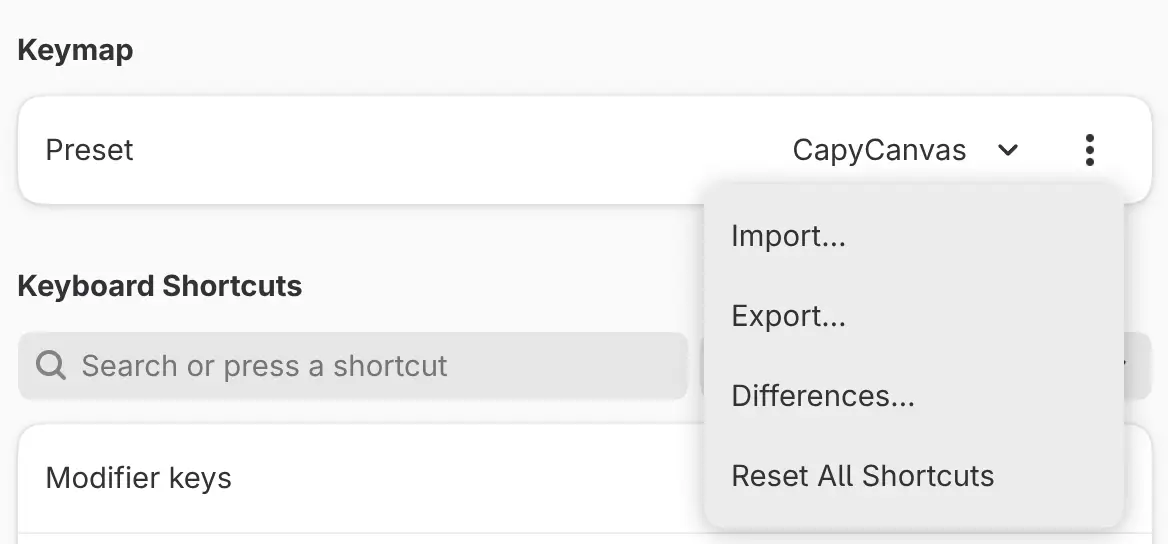
A preset changes only some keys and keeps the keys you changed yourself. Differences… in the Keymap options menu (⋯) lists what the preset can’t match in its source app.
Finding a shortcut
Type a command’s name or a key in Search or press a shortcut, or press the key itself in the field. A single letter finds keys, not names.
To see what the keys do with one kind of tool, choose it in the All tools list, for example Selection tools. The All actions list beside it narrows the rows to With shortcuts or Customized.
Changing a shortcut
To add a key to a command:
- Select the command in a category or in the search results.
- Select Add Shortcut.
- Press the key or combination.
- Select Add.
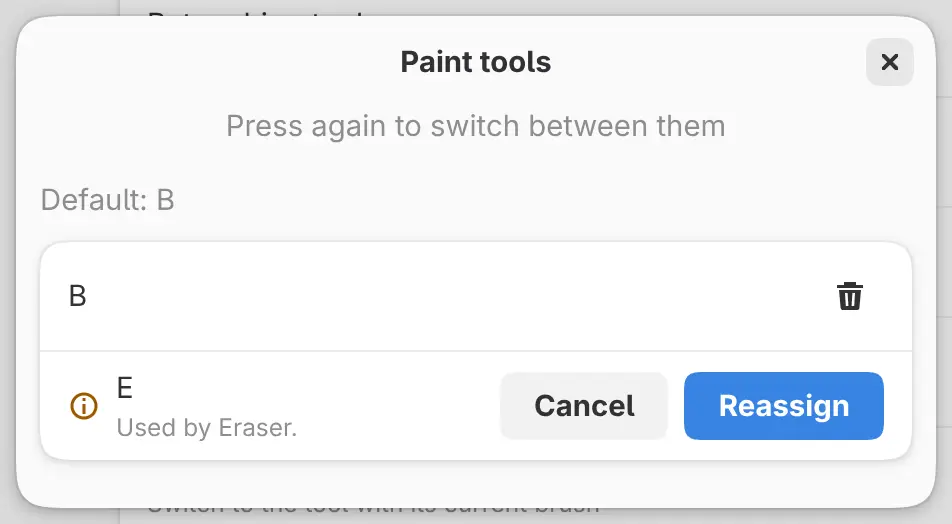
If another command uses the key, the editor names that command and the button becomes Reassign. Reassign moves the key to the command you are editing.
A command can have up to four keys. The delete button next to a key removes that key, and Reset to Default restores the default keys.
Two commands can share a key only when one of them works in a narrower place, such as with certain tools. That command takes the key while it can run.
Modifier keys
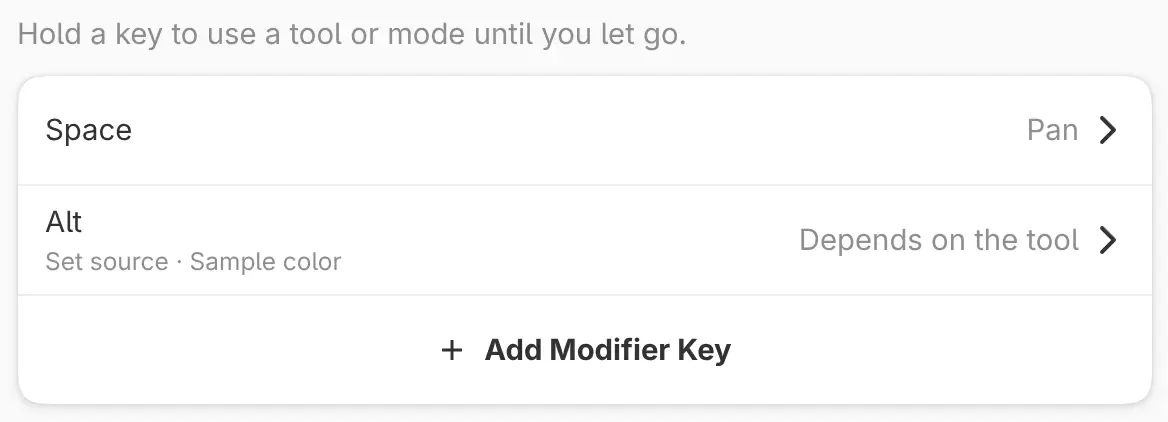
You can make a key work only while you hold it. By default, Space pans. Alt picks a color with drawing, blending, fill and gradient tools, and sets the source with retouching tools.
To add a modifier key:
- Open Modifier keys and select Add Modifier Key.
- Press the key and select Add. The key’s page opens.
- Select Action and choose an action, or turn off Same for every tool and choose one for each kind of tool.
To change a modifier key later, select it in Modifier keys. Its page also has Remove Modifier Key.
Any key except Escape can be a modifier key, including a combination such as Shift+Space. A key can’t be a modifier key and a shortcut at once.
Tapping or holding a tool key
Tap a tool key to switch tools. Hold the key while you draw, and the previous tool comes back when you let go. Brush keys and mode keys such as Zen mode work the same way.
Undo, Redo and the brush size keys repeat while held.
Importing and exporting keymaps
Choose Export… from the Keymap options menu to save your keys, modifier
keys, finger taps and pen buttons as a .capykeys file. Import… loads such a
file after showing what it adds, changes and removes. Nothing changes until you
select Import.
Reset All Shortcuts
Reset All Shortcuts in the Keymap options menu clears your changes to keys, modifier keys, finger taps and pen buttons. The preset stays.
Memo: Reset All Shortcuts doesn’t ask for confirmation and can’t be undone.
Keys in the web app
The browser keeps some keys, such as F11 and Ctrl+W, and those can’t be assigned in the web app. Transform, New…, Close and Full screen have no key there, and Search Commands… uses Ctrl+K only.
Other buttons
You can assign these buttons like keys:
- game controller buttons, on Windows, macOS, iPad, Android and the web
- tablet pad buttons, on Linux and Android
- media and volume keys, on Windows, Linux, Android and the web
A game controller’s left stick pans the canvas, and its right stick zooms.
Default keys
P, B, J and S each select a family of tools. Press the key again for the next tool in the family.
| Tool | Key |
|---|---|
| Pen / Pencil | P |
| Paint tools (Paint Brush, Airbrush, Decoration) | B |
| Blend / Liquify | J |
| Retouching tools (Clone Stamp, Healing Brush, Spot Healing Brush) | S |
| Eraser | E |
| Lasso selection | M |
| Auto select | W |
| Fill | F |
| Gradient | G |
| Figure | U |
| Ruler | Shift+U |
| Operation | O |
| Transform | Ctrl+T |
| Crop | C |
| Hand | H |
| Eyedropper | I |
| Pan while held | Space |
| Sample color or Set source while held | Alt |
| Decrease brush size, Increase brush size | [, ] |
| Quick Mask | Q |
| Command | Key |
|---|---|
| Undo | Ctrl+Z |
| Redo | Ctrl+Shift+Z, Ctrl+Y |
| Undo Layout Change | Ctrl+Alt+Z |
| Redo Layout Change | Ctrl+Alt+Shift+Z |
| Cut, Copy, Paste | Ctrl+X, Ctrl+C, Ctrl+V |
| Copy Merged | Ctrl+Shift+C |
| Paste in Place | Ctrl+Shift+V |
| Select all pixels | Ctrl+A |
| Deselect pixels | Ctrl+D |
| Reselect | Ctrl+Shift+D |
| Invert selection | Ctrl+Shift+I |
| Reset to Black / White | D |
| Fill selection | Shift+Backspace |
| Clear Selected Pixels | Delete, Backspace |
| Copy Selection to New Layer | Ctrl+J |
| Cut Selection to New Layer | Ctrl+Shift+J |
| Merge Down | Ctrl+E |
| Fit canvas | Ctrl+0 |
| Actual Pixels | Ctrl+1, Ctrl+Alt+0 |
| Zoom in, Zoom out | Ctrl+=, Ctrl+- |
| Proof Colors | Ctrl+Alt+P |
| Gamut Warning | Ctrl+Shift+Y |
| Zen mode | Tab |
| Full screen | F11 |
| New… | Ctrl+N |
| New Window | Ctrl+Shift+N |
| Open… | Ctrl+O |
| Import Image as Layer… | Ctrl+Shift+O |
| Save | Ctrl+S |
| Save As… | Ctrl+Shift+S |
| Export… | Ctrl+Shift+E |
| Close | Ctrl+W |
| Search Commands… | Ctrl+K, Ctrl+Shift+P |
| Preferences | Ctrl+, |
| Keyboard Shortcuts | Ctrl+Shift+? |
New layer, Swap colors and the other selection tools have no default key.