Tone filters
The Tone filters are in Filter > Tone and in the Tone category of the Filters panel. You change their settings in the Properties panel.
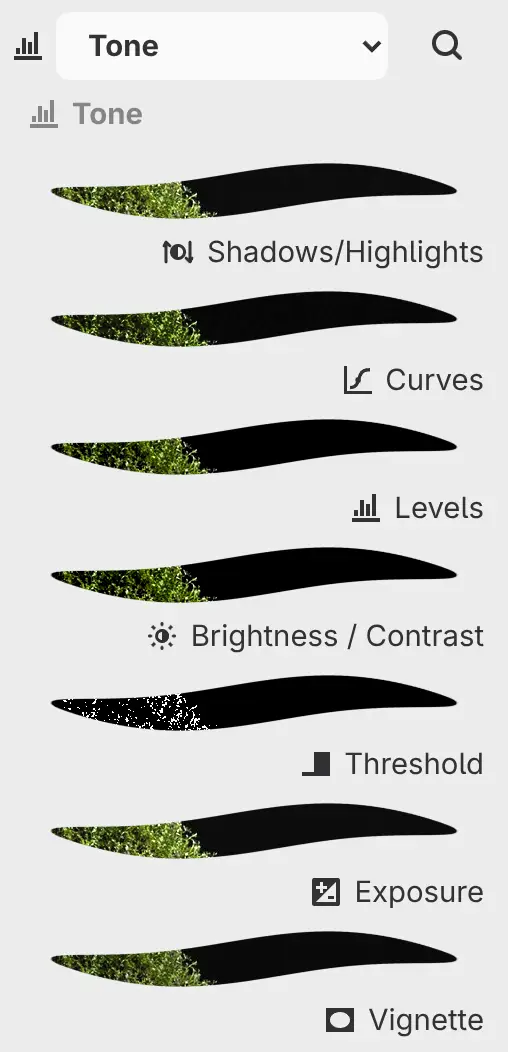
Shadows/Highlights
Lifts dark areas with Shadows and pulls down bright areas with Highlights, judged by the brightness of the surrounding area. At 100%, each changes exposure by up to 2 stops.
| Setting | Range or choices | Default |
|---|---|---|
| Shadows | 0–100% | 0% |
| Highlights | 0–100% | 0% |
Curves
Changes tones with a curve for all channels on the RGB page and one for each channel on the Red, Green and Blue pages. The channel curves apply before the RGB curve.
| Setting | Range or choices | Default |
|---|---|---|
| RGB, Red, Green, Blue pages | One curve each | Straight line |
| Sample point, Target adjustment | Set the curve from the image (see Adding and editing filters) | |
| Curve space | Encoded RGB, Log HDR. Shown only in an HDR drawing or while set to Log HDR. | Encoded RGB, or Log HDR in an HDR drawing |
| HDR range | 0–15 EV, or up to 127 EV typed. Shown only with Log HDR: the number of stops above SDR white that the curve reaches. | 4 EV |
| On the graph | How |
|---|---|
| Add a point | Press an empty spot. A curve holds up to 32 points. |
| Move a point | Drag it, or select it and press the arrow keys. Shift moves it farther. The end points move only up and down. |
| Set exact values | Select a point and type in Input and Output below the graph. |
| Remove a point | Double-click it, drag it off the graph, or select it and press Delete or Backspace. |
| Start over | Select Reset curve. |
Levels
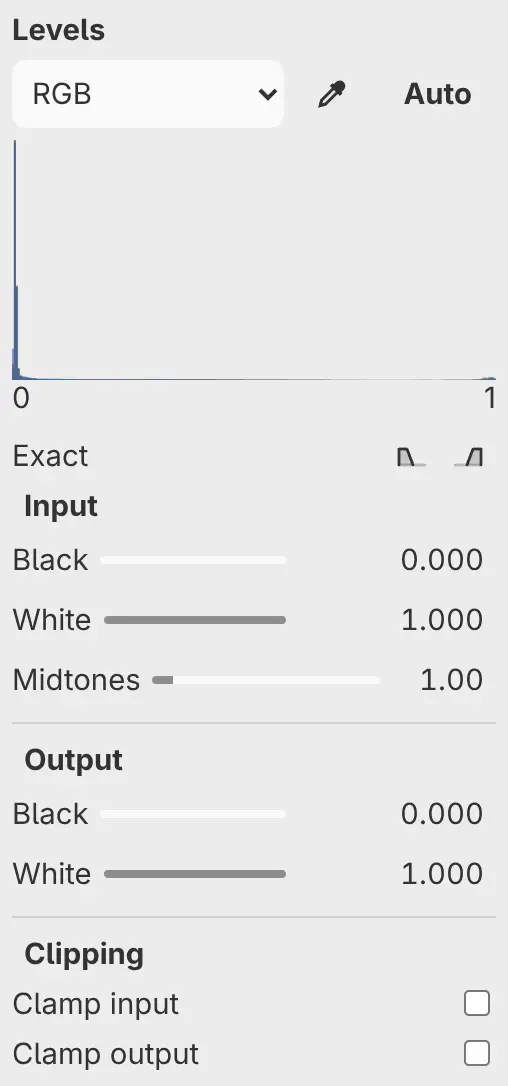
Sets the black point, white point and midtones of the input, then maps them to the Output range. The Red, Green and Blue pages apply before the RGB page.
| Setting | Range or choices | Default |
|---|---|---|
| Auto, Sample point | Set the input from the image (see Adding and editing filters) | |
| Shadows, Highlights (below the histogram) | Mark clipped areas on the canvas | |
| Black (Input) | 0–1, any value typed. Stays below the input White. | 0 |
| White (Input) | 0–1, any value typed | 1 |
| Midtones | 0.1–10. Above 1 brightens. | 1 |
| Black (Output) | 0–1, any value typed | 0 |
| White (Output) | 0–1, any value typed | 1 |
| Clamp input | Clips tones outside the input Black and White, on every page | Off |
| Clamp output | Clips the result to the output range, on every page | Off |
Brightness / Contrast
Contrast spreads or squeezes tones around middle gray, and Brightness then lightens or darkens all tones by the same amount.
| Setting | Range or choices | Default |
|---|---|---|
| Brightness | −100 to 100 | 0 |
| Contrast | −100 to 100. 50 doubles the contrast and −50 halves it. | 0 |
Threshold
Turns pixels darker than Threshold black and the rest white.
| Setting | Range or choices | Default |
|---|---|---|
| Threshold | 0–1, any value typed | 0.5 |
Exposure
Changes exposure in stops. Offset lifts or lowers the blacks.
| Setting | Range or choices | Default |
|---|---|---|
| Exposure | −10 to 10 EV, or up to ±126 EV typed | 0 EV |
| Offset | −0.5 to 0.5 | 0 |
| Gamma | 0.1–10. Above 1 brightens the midtones. | 1 |
Vignette
Darkens the image outside an ellipse with the proportions of the canvas, or brightens it when Strength is negative. At ±100%, the edges change by up to 2 stops.
| Setting | Range or choices | Default |
|---|---|---|
| Strength | −100% to 100% | 40% |
| Radius | 10–150% of half the canvas size | 95% |
| Softness | 0–100% of the radius used for the fade | 55% |
| Center X, Center Y (under Position) | 0–100% of the canvas width and height | 50% |