Workspaces
A workspace is a saved arrangement of the title bar, toolbars and panels. Capy Canvas includes three: Sketch, Paint and Photo. It opens in Paint the first time, and after that in the workspace you used last.
Sketch
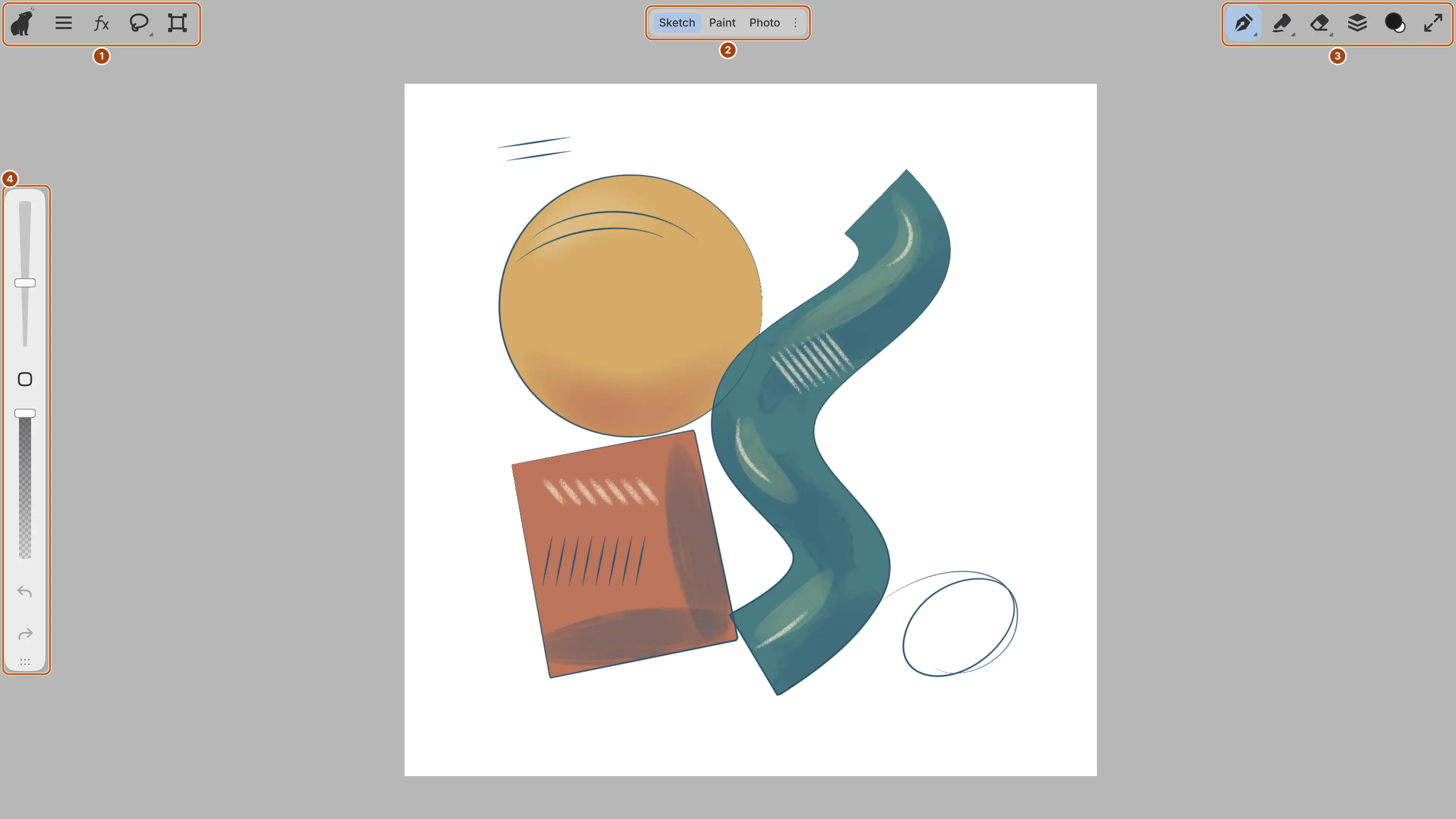
Sketch has no docked panels: the tool and panel buttons in the title bar open drawers.
- Capy (Zen Mode), Main Menu, Filters panel, Select and Transform.
- The workspace switcher.
- Brush, Sculpt, Eraser, Layers panel and Brush color. The web editor adds Full screen.
- Brush size slider, Color Picker, Brush opacity slider, Undo and Redo.
| Button | Panels in the drawer |
|---|---|
| Brush | Brushes, Tools, Tool |
| Sculpt | Sculpting, Tools, Tool |
| Eraser, Select | Tools, Tool |
| Transform | Tool Set, Tool |
| Filters panel | Filter Type, Filters, Properties |
| Layers panel | Layers |
| Brush color | Color |
Main Menu opens the menus (on macOS, they’re in the system menu bar instead). Select chooses the selection tool you used last.
Sketch hides the footer with the zoom readout. To show it, turn on Show footer in Window > Customize Title Bar….
Paint
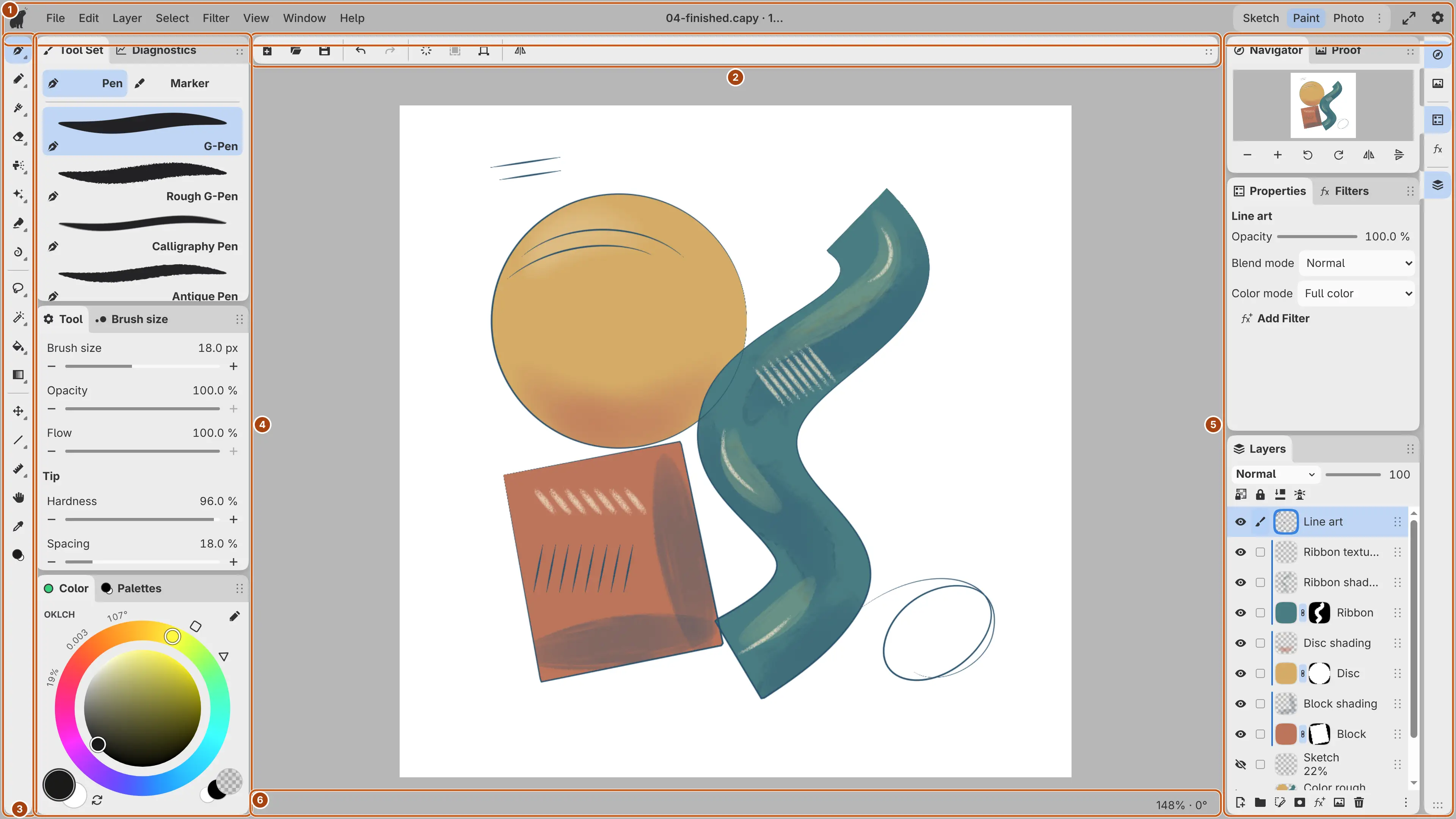
Paint docks panels in columns on both sides of the canvas.
- Capy (Zen Mode) and the menus, the drawing title in the middle, then the workspace switcher and Settings. The web editor adds Full screen.
- New…, Open…, Save, Undo, Redo, Clear Entire Layer, Fill selection, Transform and Flip view horizontally.
- Pen, Pencil, Paint Brush, Eraser, Airbrush, Decoration, Blend, Liquify, the selection tools, Fill, Gradient, Operation, Figure, Ruler, Hand, Eyedropper and Brush color.
- Tabs for Tool Set and Diagnostics, Tool and Brush size, and Color and Palettes.
- Icons for Navigator and Proof, Properties and Filters, and Layers.
- The zoom and rotation readout, described in Viewing the canvas.
A small triangle in the corner of a tool button marks a group of tools, and the button shows the tool you used last in that group.
The right column opens when Paint loads, as long as the Paint layout is unchanged. To close it, press Esc or select the highlighted icon.
Photo
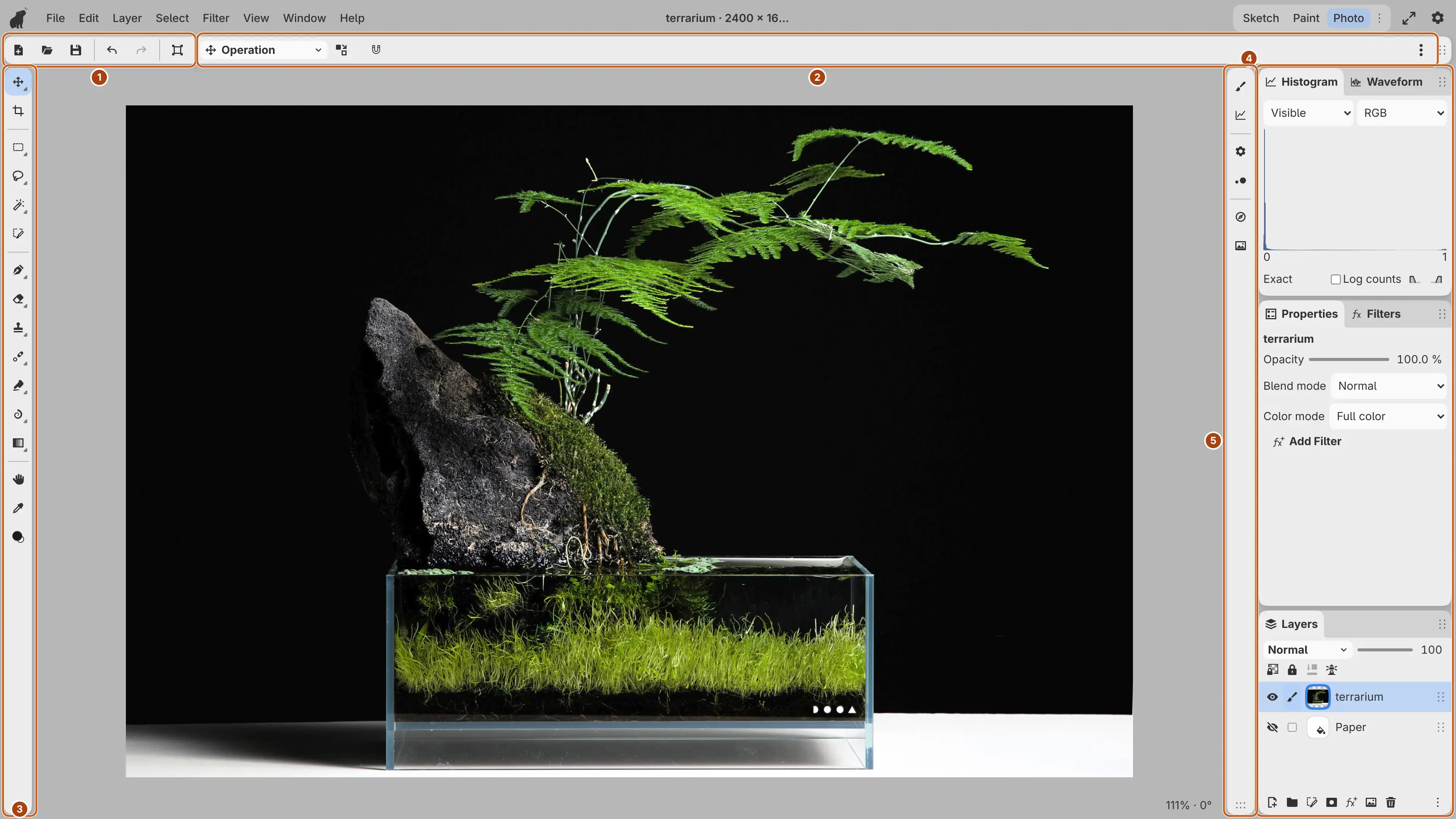
Photo keeps the photo-editing panels open at the right. Its title bar matches Paint.
- New…, Open…, Save, Undo, Redo and Transform.
- Tool Options, the settings of the current tool.
- Operation, Crop, the selection tools, Brush, Eraser, Clone Stamp, Spot Healing Brush, Blend, Liquify, Gradient, Hand, Eyedropper and Brush color.
- Histogram and Waveform, Properties and Filters, and Layers.
- Icons for Tool Set and Diagnostics, Tool and Brush size, and Navigator and Proof. Each icon opens its group alone as a drawer.
Color and Palettes are hidden in Photo. Choose colors with Brush color, or show the panels from the Window menu. Figure and Ruler aren’t in Photo’s Tools toolbar.
Switching workspaces
You can switch the window to another workspace. The drawing, its view and the tool settings don’t change.

Do one of the following:
- Select the workspace in the workspace switcher in the title bar.
- Choose Window > Workspaces and the workspace.
- Type the workspace’s name in command search.
No key switches workspaces by default.
The current workspace is highlighted in the switcher. In a narrow title bar, the switcher becomes a Workspaces menu.
You can’t switch during a stroke or a drag, or to a workspace that is open in another window.
Workspace options
You can choose which workspaces appear in the switcher.
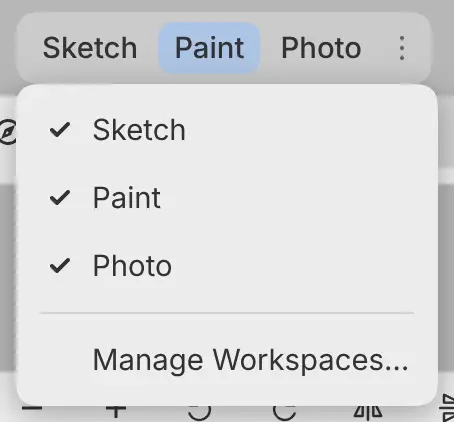
To open the Workspace options menu, do one of the following:
- Select ⋮ at the right end of the switcher.
- Right-click the switcher, or hold it with a pen or a finger.
- With the switcher focused, press Shift+F10 (not on macOS or iPad).
Turn on a workspace to show it in the switcher. Manage Workspaces… opens the list of all workspaces (see Managing workspaces).
The switcher shows the same workspaces in every workspace and window. A new workspace is added when you create it, and the current workspace appears even when it’s turned off.
What a workspace keeps
Each workspace saves layout changes automatically. There is no command to save a layout.
| Kept by each workspace | Shared by every workspace |
|---|---|
| Panels, columns and tabs, and their sizes | Open drawings and their view |
| Toolbars and their tools | The current tool and every brush’s settings |
| Title bar items and size, and Show footer | Colors and palettes |
| Zen mode | Selection, fill and gradient options |
| Layout history and the starting layout | Preferences and keyboard shortcuts |
You can’t rename or delete Sketch, Paint or Photo. To return one to its starting layout, choose Window > Workspaces > Restore Starting Layout….