Quick Mask
You can edit a selection as a painted mask in Quick Mask.
Entering Quick Mask
Do one of the following:
- Choose Select > Quick Mask.
- Press Q.
- Select Quick Mask on the selection bar.
The current selection becomes the mask. With no selection, the mask starts empty. The tool changes to the current brush, except when Tonal range is active.
You can’t enter Quick Mask while a transform is open.
What Quick Mask shows
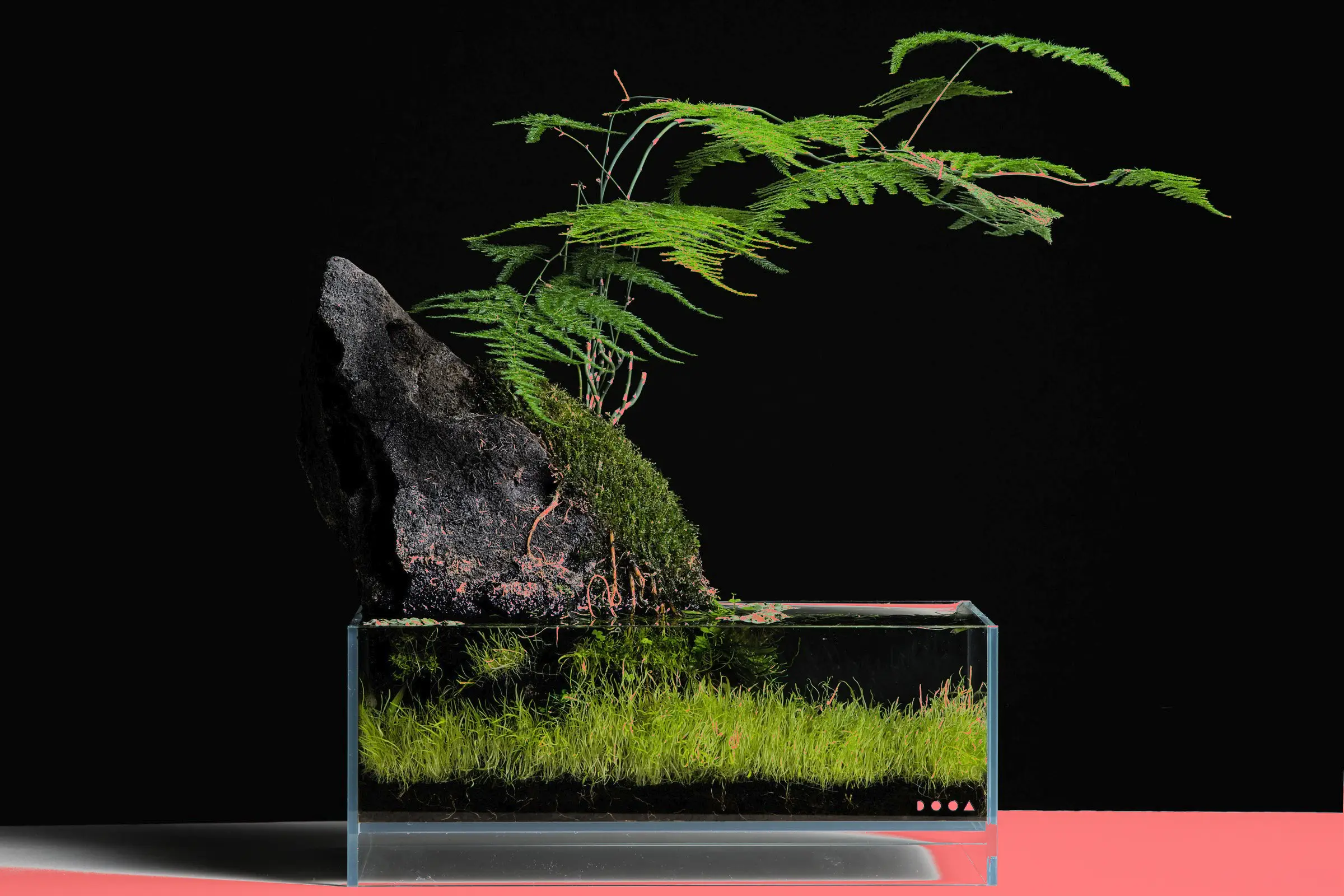
An overlay, red at 50% by default, marks the mask on the canvas. In Paint selection mode it covers the selected area, and in Grayscale mask mode the area outside the selection.
A row named Quick Mask appears at the top of the Layers panel, selected. Its eye button shows or hides the overlay, as does Show Mask Overlay in command search. The Color panel shows the mask colors in place of the drawing colors.
Painting the mask
Paint with a pen, pencil, airbrush or eraser to change the mask. Other brushes don’t paint in Quick Mask. Fill, Gradient and Paint selection also change the mask.
- In Paint selection mode, any color selects. The eraser and the transparent color deselect.
- In Grayscale mask mode, the gray value of the color sets the mask: white selects, black deselects, and grays select partly.
The mask has its own foreground and background colors, copied from the drawing colors when Quick Mask starts. Press D (Reset to Black / White) for a black foreground and a white background. To swap the mask colors, run Swap Mask Colors from command search.
Commands that change the artwork, such as Clear Selected Pixels and Transform, are unavailable in Quick Mask.
Quick Mask bar
The canvas bar at the bottom of the canvas is captioned “Quick Mask”:
- Invert: Invert selection.
- Fill and Clear: Fill Mask fills the whole mask, and Clear Selection Coverage empties the mask.
- Refine: Grow…, Shrink…, Feather…, Border… and Smooth…. Transform Outline is unavailable here.
- Save: Save as Selection Layer (see Selection layers).
- Exit: Return to Artwork.
With the canvas bar hidden, the Quick Mask bar doesn’t appear.

Quick Mask menu
While Quick Mask is on, the Layer menu becomes the Quick Mask menu. Right-click or hold the Quick Mask row for the same menu.
- Return to Artwork
- Save as Selection Layer
- Modify: Invert selection, Select all pixels, Clear Selection Coverage, Fill Mask, Grow…, Shrink…, Feather…, Border… and Smooth…
Overlay settings
The Properties panel shows the mask’s settings while Quick Mask is on.
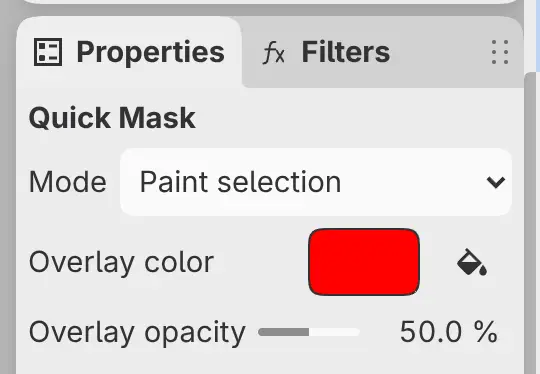
Mode
Paint selection (the default) or Grayscale mask. The mode is one setting for Quick Mask and every selection layer, in every drawing. The Grayscale mask command in command search switches it too.
Overlay color
Sets the color of the overlay. Red by default.
Overlay opacity
From 0 to 100%. The default is 50%.
Leaving Quick Mask
Do one of the following:
- Choose Select > Quick Mask or press Q.
- Choose Layer > Return to Artwork.
- Select Exit on the Quick Mask bar.
- Press Escape.
- Select the load button beside the thumbnail on the Quick Mask row.
The mask becomes the current selection. Deselect pixels (Ctrl+D) also leaves Quick Mask, and removes the selection.