Eyedropper
You can pick a color from the canvas to paint with it. After the pick, the tool you were using returns.
Starting the Eyedropper
Do one of the following:
- Press I (O in the GIMP Style keymap).
- Choose Eyedropper in command search.
- In Paint and Photo, select Eyedropper in the Tools toolbar.
- In Sketch, select Color Picker on the bar at the left edge, between the size and opacity sliders.
To stop without picking, press I or select the same button again, press Escape, or choose another tool or brush. A finger tap without a hold also stops the Eyedropper.
Picking
Move over the canvas to preview the color in the Color panel. The paint color changes only when you pick.
| Input | Preview | Pick |
|---|---|---|
| Mouse | Hover | Click |
| Pen | Hover, or press the pen down | Lift the pen |
| Finger | Touch | Lift the finger |
With a finger, the sample point is above the fingertip.
Transparent pixels pick nothing, and picked colors are always opaque. Picks are taken in the drawing’s color space. In an HDR drawing, a pick can be brighter than SDR white. While you edit a mask, the pick sets the mask color.
Picking while you paint
Hold Alt with a brush, Blend, Liquify, Fill or Gradient tool selected. Each click picks a color. Release Alt to return to the tool.
The Krita Style and GIMP Style keymaps use Ctrl instead. On the Keyboard Shortcuts page this shortcut is Sample color while held. You can also assign a pen button to the Eyedropper on the Pen & Input page (Pen).
Holding a finger
Hold one finger still on the canvas to start picking with any tool. Lift the finger to pick and return to the tool.
- The hold takes half a second on the web and on iPad. Android, Windows and Linux use the system’s long-press time.
- Moving the finger before the picker starts cancels the hold.
- The hold works only with one finger on the canvas and nothing else in progress.
- While you hold, tap with a second finger to switch Source between Visible color and Selected layer.
Style
Choose Style in the Tool Options bar while picking (at the top of the window in Photo):
- Color Picker shows a round magnifier. The top half of its ring shows the sampled color, and the bottom half the current color.
- Eyedropper shows a pipette cursor with its tip on the sampled point.

Touch always uses the magnifier. Selecting Color Picker in Sketch sets Style to Color Picker. A small layers mark appears when Source is Selected layer.
Source and Sample size
Set these in the Tool panel or the Tool Options bar while picking. In Sketch, double-click or double-tap Color Picker to open them.
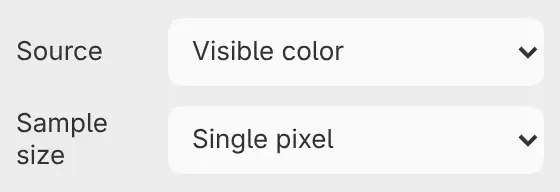
Source
Visible color (default) samples the drawing as you see it, and Selected layer the selected layer’s own paint, before its opacity, masks and clipping. Selected layer is offered only for an unlocked paint layer.
Sample size
Single pixel (default), 5 px circle, 15 px circle, 51 px circle or 101 px circle. A circle averages the pixels inside it.