How filters apply
A filter is a layer with no paint of its own. Its settings stay editable in the Properties panel.
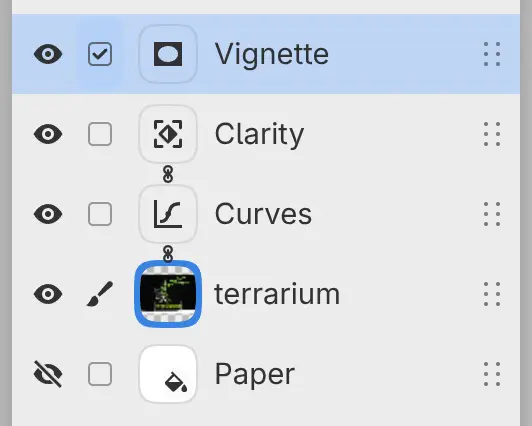
| Filter on its own layer | Attached filter | |
|---|---|---|
| Added with | The Filters panel, the Filter menu, Adjust in the selection bar | Add Filter |
| Changes | Every layer below it in its group | Only the layer it is attached to |
| In the Layers panel | A row of its own | A row joined to the row below by a chain link |
Filter on its own layer
A new filter goes above the selected layer and the layers clipped or attached to it. Inside a group, the filter changes only the layers below it in that group, unless the group is set to Pass Through.
Attached filter
You can attach filters to a paint layer, a photo layer or a group that isn’t set to Pass Through. Select the layer, then select Add Filter at the bottom of the Layers panel or the Properties panel, or in the layer’s menu.
Attached filters apply from the bottom of the chain up, after the layer’s mask and before its opacity and blend mode. On a clipping base, they also change where the clipped layers show. Blurs and distortions such as Gaussian Blur and Swirl can spread the layer’s paint past its edges.
Moving, duplicating or hiding the layer does the same to its attached filters. If you delete the layer, its attached filters stay as filters on their own layers.
Apply to layer and Apply to layers below
You can switch a selected filter between the two kinds.
Do one of the following:
- Choose Layer > Layer Settings > Apply to layer or Apply to layers below.
- Select the chain-link button in the Layers panel header, in the place of Clip to Layer Below.
- Drag the filter onto a layer’s thumbnail to attach it to that layer.
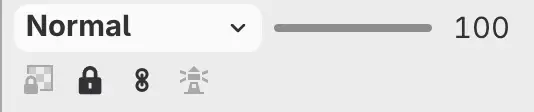
Apply to layer attaches the filter to the nearest layer below. Apply to layers below puts the filter on its own layer, above the layer it was attached to and that layer’s clipped layers.
The button is unavailable while the filter or the layer below is locked. When the layer below is not a paint layer, photo layer or group, its tooltip reads “No layer below to attach to”.
Selections as filter masks
If a selection is active when you add a filter, the selection becomes the filter’s mask. One Undo removes the filter and restores the selection.
Apply Effect to Layer Below
You can merge a filter into the layer below it as paint.
Select the filter, then do one of the following:
- Choose Layer > Apply Effect to Layer Below, or choose it from the filter’s layer menu.
- Press Ctrl+E.
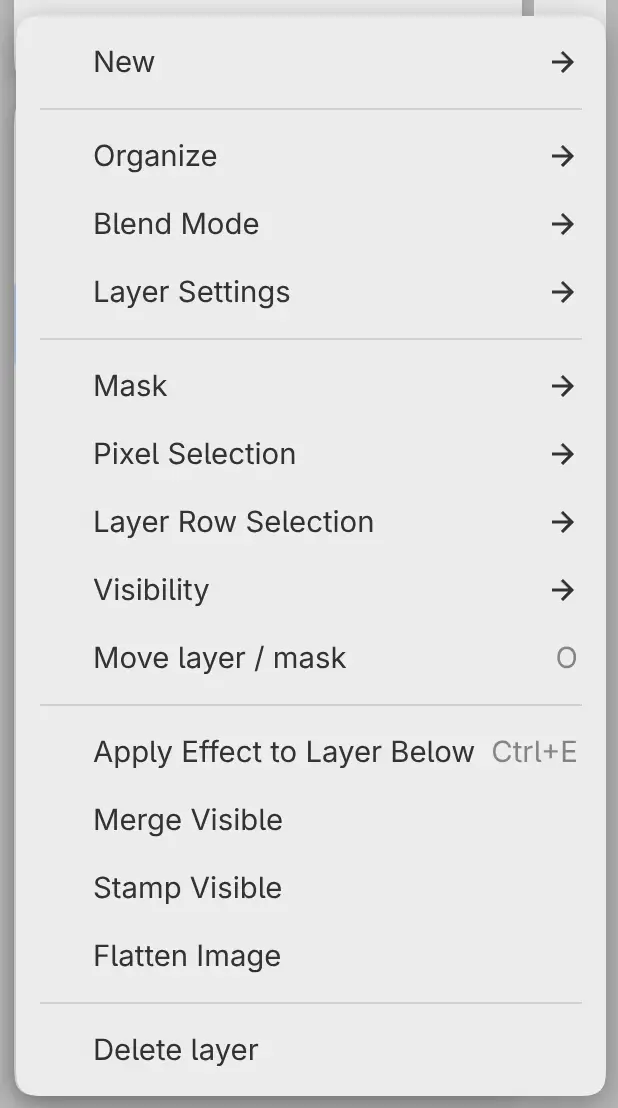
A filter on its own layer is applied only to the layer directly below it. For an attached filter, the layer and its whole chain of filters become paint. If that layer is clipped or has layers clipped to it, the command reads Merge Clipped Layers (see Merging layers).
The filter and the layer below must be visible, unlocked and set to Normal. The command is unavailable when the layer directly below is a filter attached to another layer.