Pen pressure
You can calibrate the pressure from your pen before brushes use it.
Opening pressure calibration
Open Preferences, select Pen & Input, then select Adjust… beside Pen pressure.
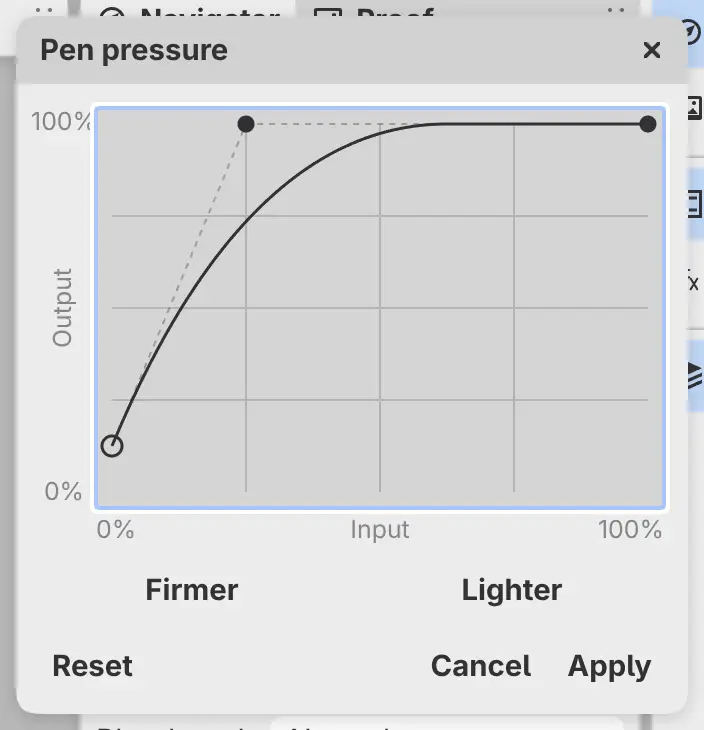
Pressure curve
The horizontal axis is the pressure sent by the pen, and the vertical axis is the pressure used by the brush. A marker on the curve follows the current pen pressure.
Click the graph to add a control point. Drag points to shape the curve. Double-click an interior point or drag it outside the graph to remove it.
Select Firmer to require more pen pressure for the same output. Select Lighter to increase the output from lighter pressure. Reset restores the built-in curve.
Testing on the canvas
Draw on the current canvas while the dialog is open to test the curve with the active brush and its settings.
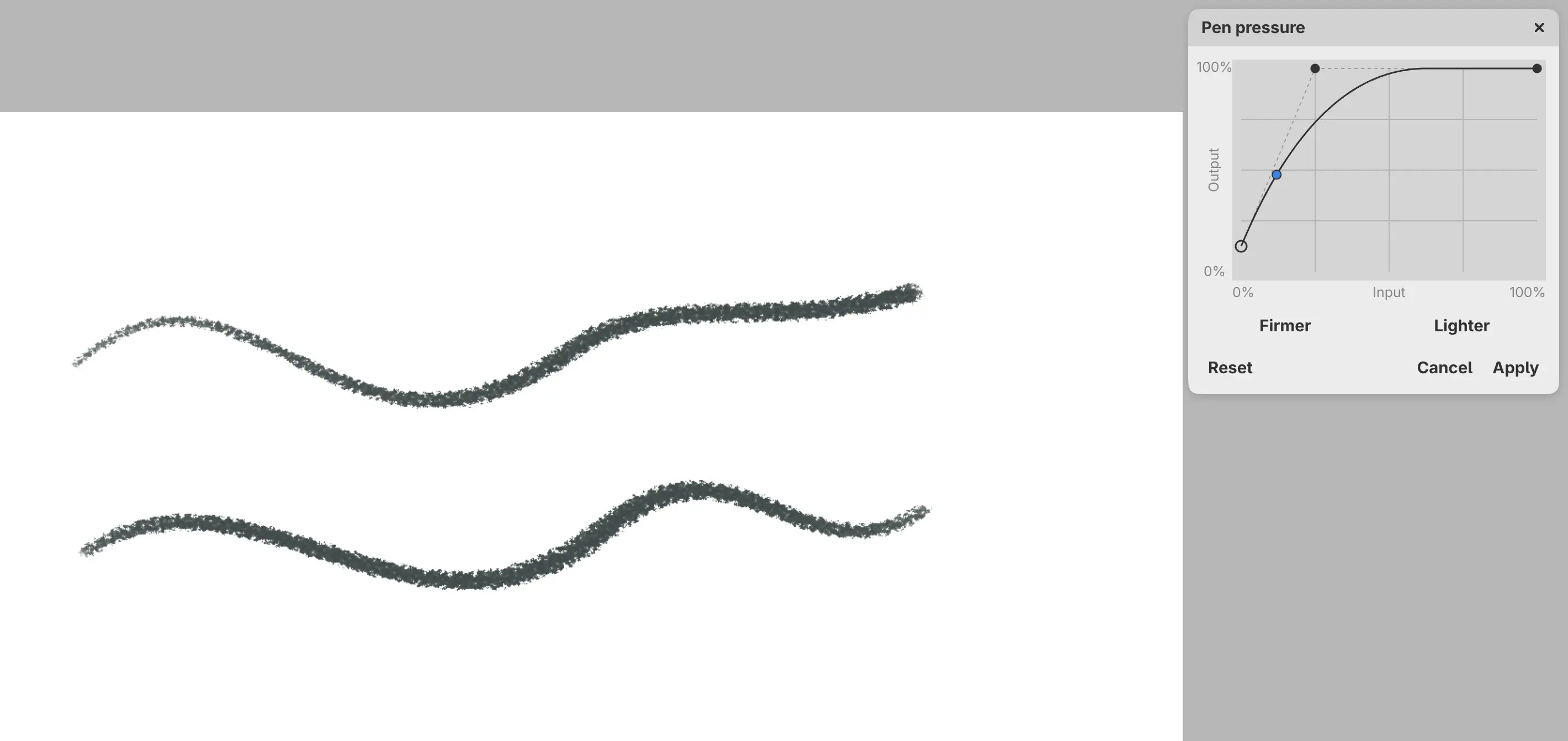
Test strokes are ordinary artwork edits and remain in the drawing’s undo history. Undo or erase them when you finish testing.
Select Apply to keep the curve. Select Cancel to restore the curve that was active when the dialog opened; it does not remove test strokes.