Selection tools
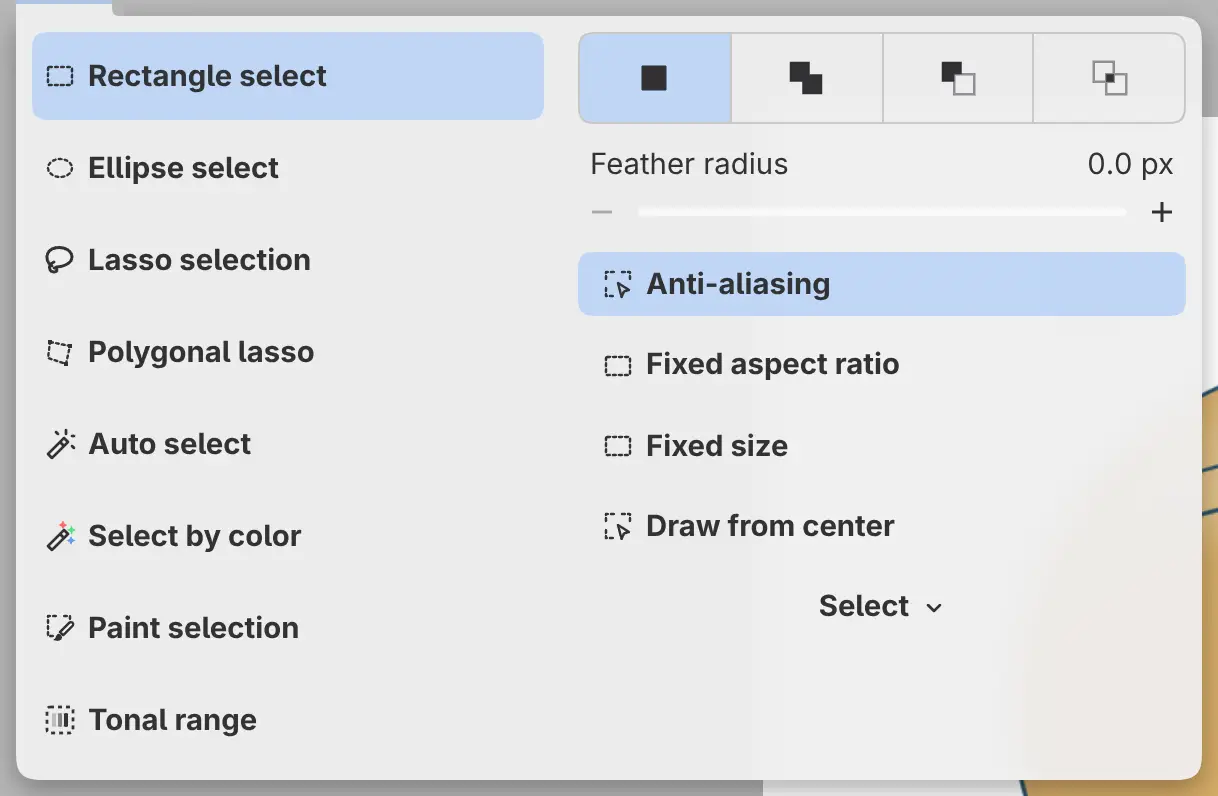
You can select part of a drawing with the selection tools. A tool’s settings are in the Tool panel, and in Photo also on the Tool Options bar at the top of the window.
| Tool | Selects | Key |
|---|---|---|
| Rectangle select | A rectangle you drag | |
| Ellipse select | An ellipse you drag | |
| Lasso selection | A shape you draw freehand | M |
| Polygonal lasso | A shape you click corner by corner | |
| Auto select | A connected area of similar color | W |
| Select by color | Every pixel of similar color, connected or not | |
| Paint selection | The area you paint | |
| Tonal range | Pixels in a band of brightness (see Select by brightness) |
Choosing a selection tool
Do one of the following:
- Type the tool’s name in command search.
- Press M for Lasso selection or W for Auto select.
- In Paint, select Select or Auto select / Select by color in the Tools toolbar.
- In Photo, select Rectangle select / Ellipse select, Lasso selection / Polygonal lasso, Auto select / Select by color or Paint selection in the Tools toolbar.
- In Sketch, select Select in the title bar. Select it again to open a drawer with every selection tool beside the Tool panel.
A toolbar button that holds several tools shows the one you used last. To choose another, right-click or hold the button, or select the tool in the Tool Set panel. Select in the Sketch title bar returns to the last selection tool you used.
Tonal range has no button on the Paint or Photo toolbars.
Choosing a selection tool in Quick Mask, or while you edit a selection layer, keeps that mode on.
Mode
You can combine the next area you select with the current selection.
Select New selection, Add to selection, Subtract from selection or Intersect with selection in the Mode row of the Tool panel. New selection is the default.
To change the mode for one selection, hold a key as you start it:
- Shift: Add to selection
- Alt: Subtract from selection
- Shift+Alt: Intersect with selection
- Ctrl: New selection
While you hold the key, the Mode row shows the mode it picks. Paint selection has only Add to selection and Subtract from selection.
Anti-aliasing and Feather radius
Anti-aliasing is on by default. Feather radius softens the edge of each new selection by up to 100 px, and starts at 0.
Paint selection has neither setting. Tonal range has Feather and no Anti-aliasing.
Rectangle select and Ellipse select
Drag from one corner to the opposite corner. After you start dragging, hold Shift for a square or a circle, or Alt to draw from the center.
- Fixed aspect ratio keeps the selection at the ratio set in Ratio width and Ratio height, 1 : 1 by default.
- Fixed size draws a selection of the Width and Height you set, in pixels. The default is 256 × 256.
- Draw from center puts the center of the selection where you start dragging.
Turning on Fixed aspect ratio turns off Fixed size, and the other way round. A click without a drag leaves the selection as it was.
Lasso selection
Draw around the area. When you lift the pen or release the mouse button, the closed shape becomes the selection.
Polygonal lasso
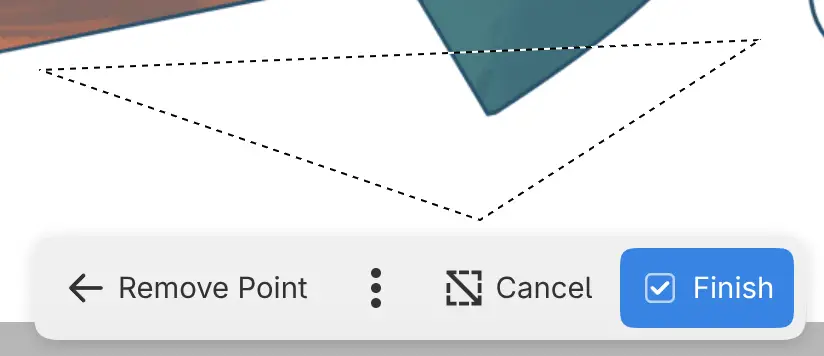
Click each corner of the shape. To finish, do one of the following:
- Click the first corner again.
- Press Enter.
- Select Finish on the canvas bar, or Finish selection in the Tool panel.
A polygon needs at least three corners.
- To remove the last corner, press Backspace or Delete, or select Remove Point on the canvas bar or Remove last point in the Tool panel.
- To cancel the polygon, press Escape, or select Cancel on the canvas bar or Cancel selection in the Tool panel.
- To snap the next edge to 45° steps, hold Shift. To snap every edge, turn on Constrain edges to 45° in the Tool panel.
While you place corners, the canvas bar at the bottom of the canvas shows Remove Point, Cancel and Finish.
Auto select and Select by color
Click a color on the canvas. Auto select takes the connected area around that point, and Select by color takes matching pixels anywhere in the image.
Source
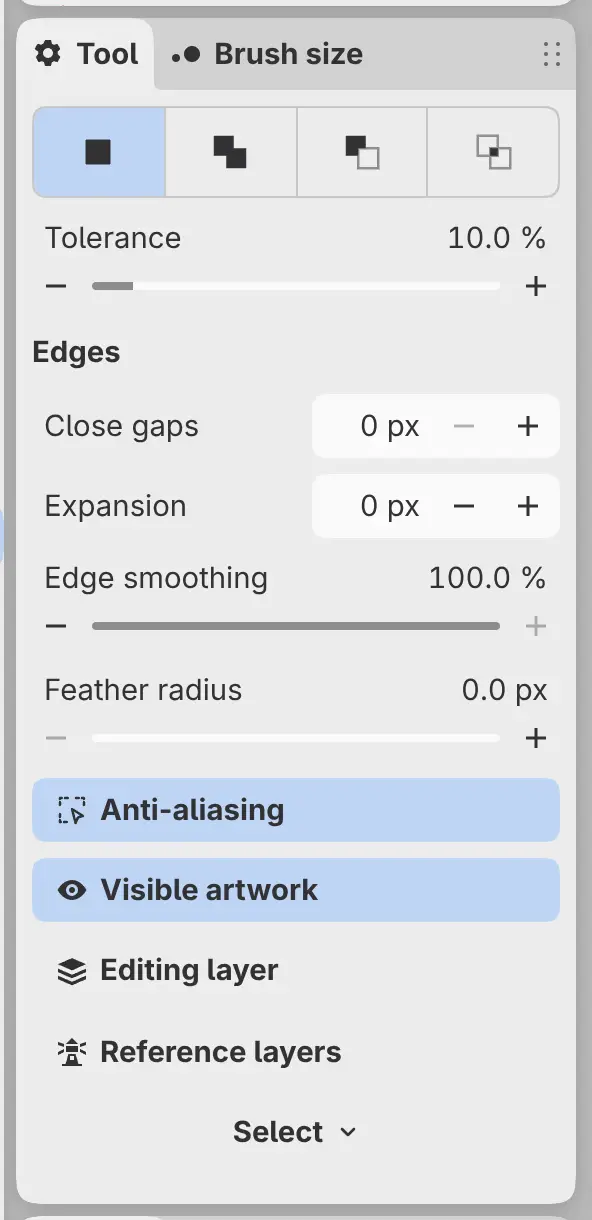
Sets where the tools look for colors: Visible artwork (the default), Editing layer, or Reference layers, the layers marked with Use as reference.
Tolerance
Sets how far a color can be from the color you click and still be selected. The default is 10%.
Close gaps
Closes gaps up to this width in the edges around the area, from 0 to 32 px. Auto select only.
Expansion
Grows the selection by up to 32 px, or shrinks it with a negative value.
Edge smoothing
Softens the stepped edges of the selection. At 0%, the edges follow whole pixels. Hidden while Anti-aliasing is off.
Auto select and Select by color share one Source setting, and share Tolerance and the Edges settings with the Fill tools.
Paint selection
Paint over the area with a round brush. A closed loop you paint fills in.
- Add to selection or Subtract from selection sets what the brush does.
- Pressure controls size is off by default.
- Size, Hardness and Opacity set the round brush.
Hold Shift while painting to add, or Alt to do the opposite of the current setting. The eraser end of a pen subtracts. A subtracting stroke does nothing while there is no selection.
The Select button
Select below a selection tool’s settings in the Tool panel opens the Select menu. The Tonal range settings have no Select button.