Copy and paste
You can copy pixels from a layer or from the visible image, and paste them as a new layer. The commands are in the Edit menu and in command search.
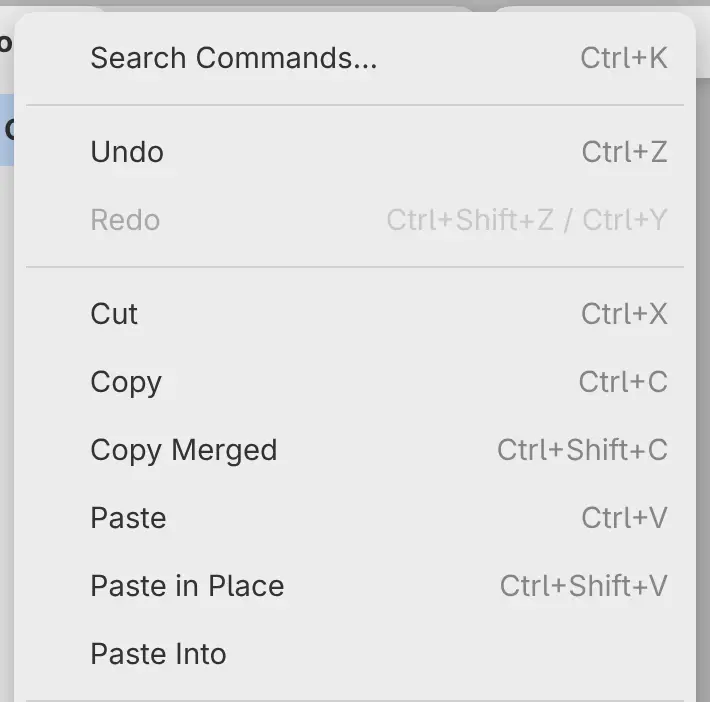
| Command | Key |
|---|---|
| Cut | Ctrl+X |
| Copy | Ctrl+C |
| Copy Merged | Ctrl+Shift+C |
| Paste | Ctrl+V |
| Paste in Place | Ctrl+Shift+V |
| Paste Into |
Copy on the selection bar holds Copy, Copy Merged and Cut.
Copy
Copies the active layer’s own pixels inside the selection, without the layer’s opacity, mask and attached filters. With no selection, it copies the whole layer within the canvas.
Cut
Copies like Copy, then erases the selected pixels from the layer. You can’t cut from a layer with Alpha lock on.
Copy Merged
Copies the visible image inside the selection, as it appears in an export.
What you can’t copy
Groups, filter layers and selection layers have no pixels of their own. To copy from a group, select a layer inside it. You can’t copy artwork in Quick Mask, and Copy and Cut are unavailable while you edit a mask.
A large copy shows a progress note with Cancel.
Paste
Adds the clipboard as a new active layer.
- A copy from Capy Canvas lands where it was copied from if that spot is in view, or in the center of the view otherwise.
- An image from another app opens in the transform box. Apply places the image and Cancel discards the paste (see Move and Transform).
Paste in Place
Adds the clipboard as a new layer where it was copied from, with no transform box. An image from another app lands in the center of the view at full size.
Paste Into
Works like Paste in Place, and gives the new layer a mask that shows only the selection. The selection is then removed. Paste Into needs a selection.
Pasting between apps
Other apps receive a copy from Capy Canvas as an 8-bit sRGB PNG image. Pasting back into Capy Canvas uses the copy at its full bit depth while it is still on the clipboard.
A copy pasted into a drawing with other color settings becomes a photo layer, converted from its own color profile.
While you type in a text field, the clipboard keys cut, copy and paste text.
In the web editor, a pasted image can be up to 512 MiB. In a browser that can’t paste images, choose File > Import Image as Layer… instead.