Copy and paste
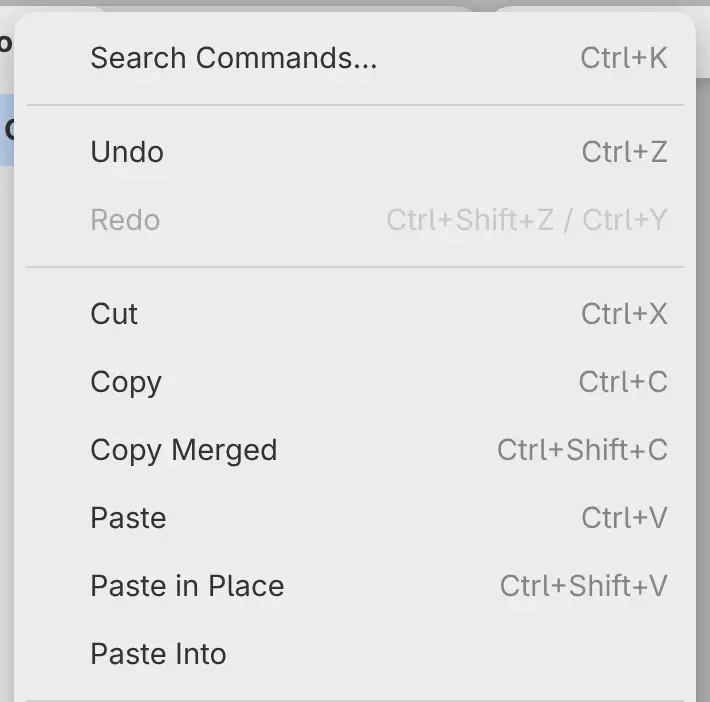
Clipboard commands are in the Edit menu and command search.
Copy and Cut
Copy (Ctrl+C) copies the selected layer’s pixels inside the selection, without its opacity, mask or attached filters. With no selection, it copies the layer within the canvas.
Cut (Ctrl+X) copies the same pixels and erases them. It is unavailable on a locked layer or one with Alpha lock.
Copy Merged (Ctrl+Shift+C) copies the visible result inside the selection, including Paper lighting. Groups, filter layers and selection layers have no pixels of their own.
Copy Pixels works like Copy, and on an Object layer copies its images as pixels.
Paste
Paste (Ctrl+V) adds clipboard artwork as a new layer and opens transform handles when placement is needed. An image from another app becomes an Object layer, preserving its source until you rasterize it.
A copy made inside Capy Canvas returns to its copied position when that position is visible. Otherwise it lands in the center of the view.
Paste Special
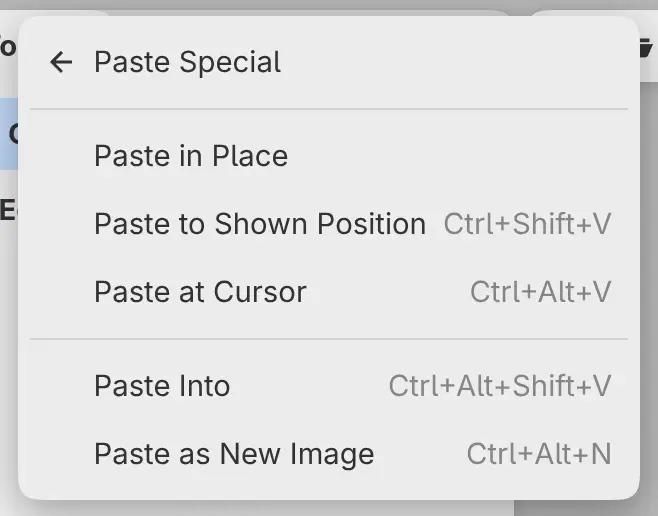
Open Edit > Paste Special to choose a destination.
- Paste in Place adds a layer at the copied position without opening transform handles.
- Paste to Shown Position adds a layer at the center of the visible canvas, at its original size.
- Paste at Cursor adds a layer centered on the pointer, at its original size.
- Paste Into adds a layer with the active selection as its mask, then clears the selection.
- Paste as New Image creates a new drawing from the clipboard.
Commands that require a selection, editable layer or compatible clipboard image are dimmed.
Between apps
Other apps receive a copy from Capy Canvas as an 8-bit sRGB PNG. While the internal copy remains on the clipboard, another Capy Canvas drawing receives its original precision.
In the web editor, a pasted image can be up to 512 MiB. If the browser cannot paste images, use File > Import Image as Layer….