Size, strength and opacity
Brush controls depend on the tool and preset. Changes are saved with the preset.
Tool panel
Open Window > Tool to see every setting for the active tool. You can also select the Tool tab in Paint or Photo, or select the active tool again to open its drawer.
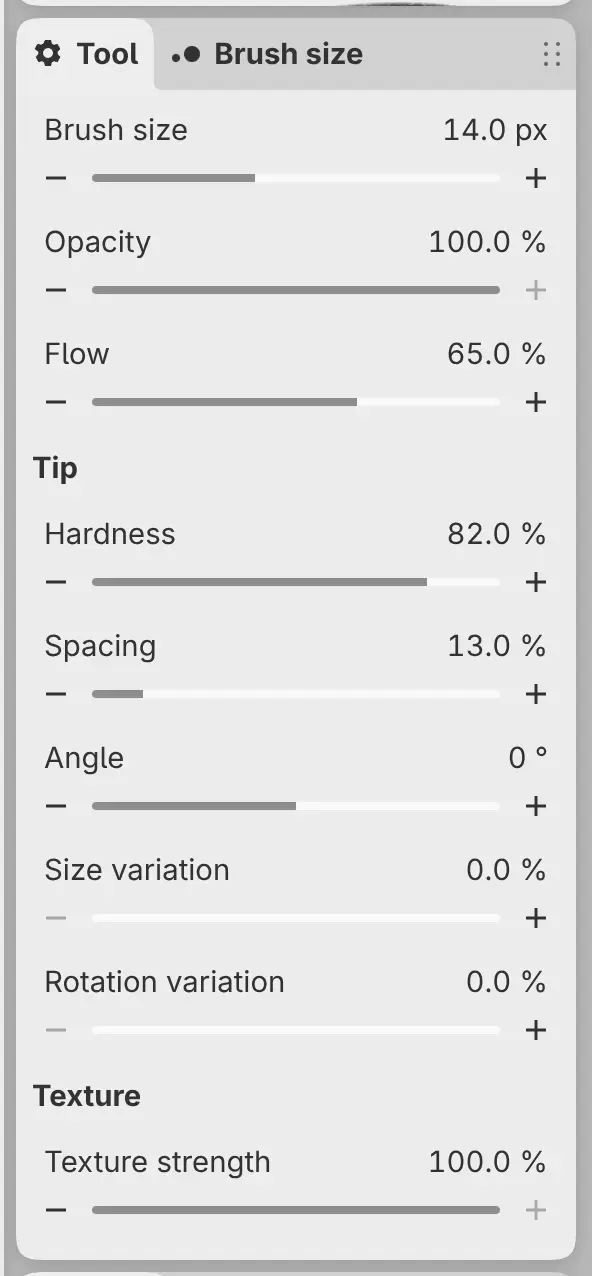
Size
Sets the diameter or width of the mark. The range depends on the tool.
Strength
Sets how strongly the tool acts at full pressure. On dry media it changes material coverage; on the Eraser it changes how much is removed; on Blend and Liquify it changes how strongly pixels move or mix.
Strength acts within each stroke. It is separate from Smoothing Strength.
Opacity
Sets the maximum opacity of the completed stroke. Lowering Opacity makes the whole stroke more transparent without changing the material response within it.
Family controls
Wet brushes can show controls such as Water load, Bleed and Mixing. Dry-media brushes show Texture strength and Material hardness. Only controls used by the selected preset appear.
Numeric controls
Select a displayed value to type one. Scroll over a value, or use − and +, to step it. Hold a modifier shown by the app while dragging for finer changes. Double-click a label or icon in Tool Options to reset that setting.
Brush size panel
Open Window > Brush size to choose a bookmarked pixel size. The active size is pressed. Each preset keeps its own size bookmarks.
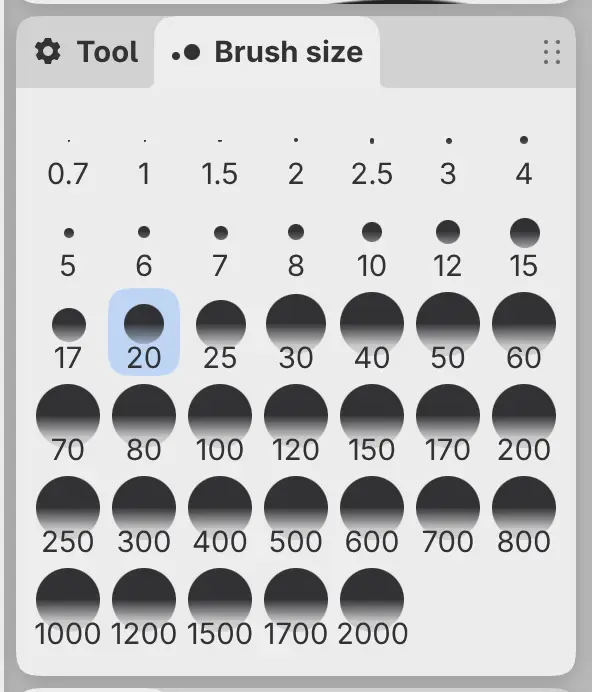
Tool Options
The Tool Options bar places the active tool’s main controls in one row. Photo includes it in the top toolbar; add it elsewhere with Insert Tools…. Settings that do not fit are under More tool options.

Sliders in Sketch
Sketch has Brush size slider and Strength slider at the left edge. Tap or click a track to set a value, drag along it to change the value, or select the end cap to open the contact preview.
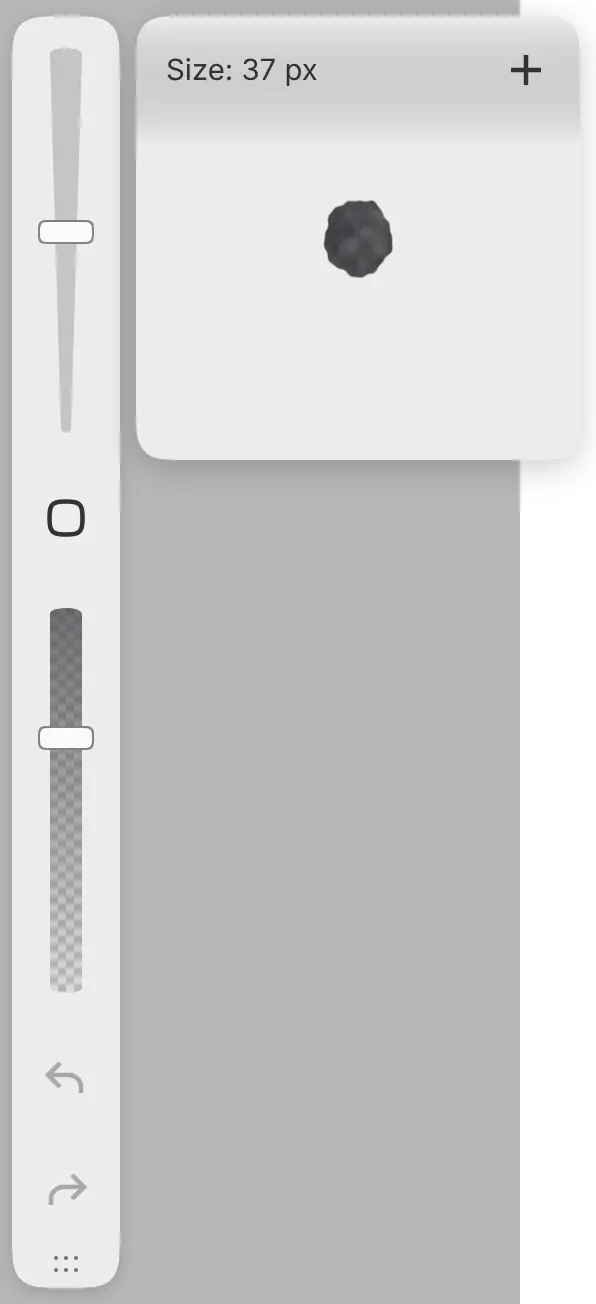
The Strength preview shows how the current brush responds at that value.
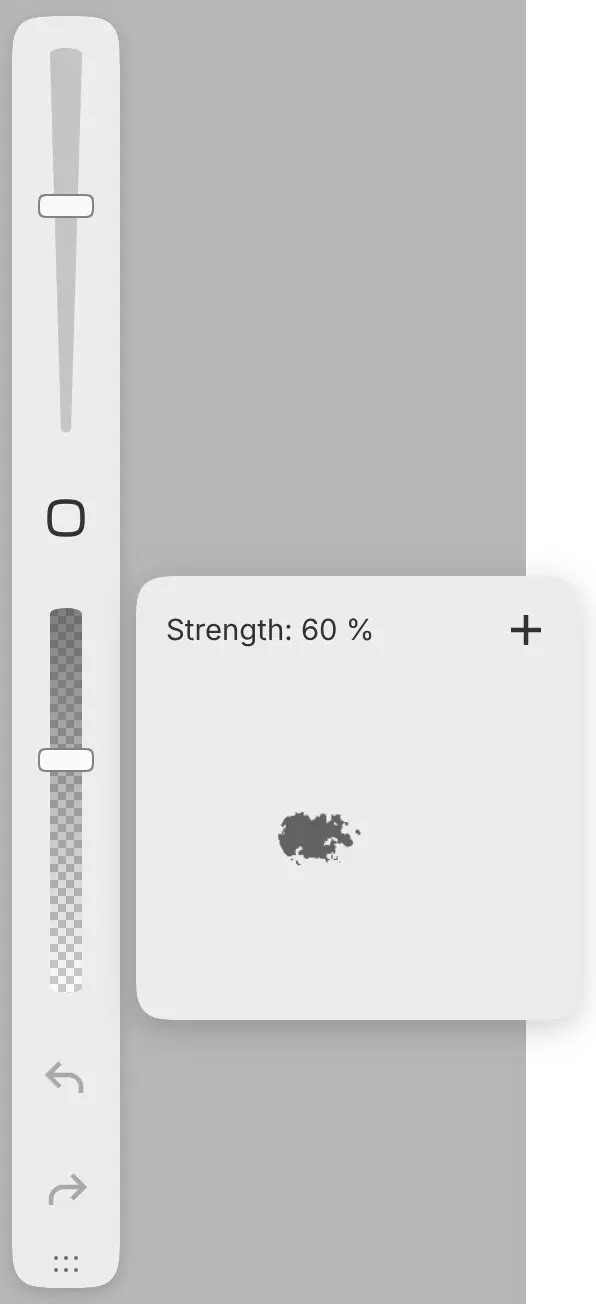
Select Bookmark this value in a preview to add a mark to the track, or Remove bookmark to remove it. Each preset keeps its own bookmarks.
Drag Color Picker from that bar onto the canvas to take a bubble with Size and Strength arcs.
Size keys
Press [ or ] to move to the previous or next brush size step. Hold the key to repeat. The steps follow the preset’s size sequence rather than changing by one pixel.
You can assign keys to brush Size, Strength and Opacity commands on the Keyboard Shortcuts page.