Size, opacity and flow
Every change to a brush setting is saved with the brush preset (Saving and resetting brushes).
Tool panel
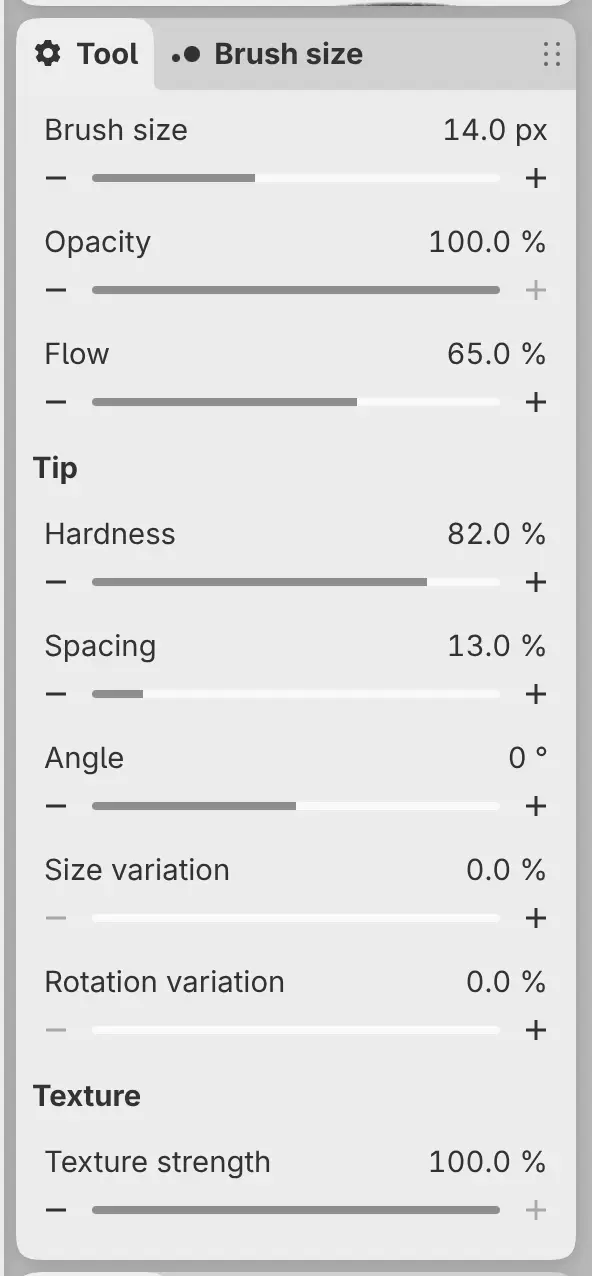
You can change every setting of the current brush in the Tool panel.
Do one of the following:
- Choose Window > Tool.
- In Paint, select the Tool tab in the left column.
- In Photo, select Tool in the icon strip at the right.
- Select the active tool’s button again. Tool is the last column of the drawer.
Each setting has a value, − and + buttons and a slider. Select the value to type a number. Only the settings the brush uses appear, grouped under headings such as Tip and Texture (Tip and texture).
Brush size
Sets the diameter of the brush, from 0.5 to 2048 px.
Opacity
Sets the strength of every dab in the stroke. No built-in brush changes Opacity with pen pressure.
Flow
Sets how much paint each dab lays down, measured at full pressure on brushes where pressure changes flow. Wet and blending brushes also use Flow for how strongly each dab mixes with the paint on the layer.
Liquify brushes have no Flow.
Build-up within a stroke
Where a stroke crosses itself, these brushes stay at the strength of their strongest dab: the presets in the Pen group, Marker, Shading Pencil, Paintbrush, Bristle Paintbrush, Textured Flat, Dry Scumble, Pastel Block, Transparent Glaze, Watercolor Wash and Wet Watercolor. Other brushes build up where their dabs overlap.
The drawing’s Blending setting controls how dabs build up (Color space, bit depth and blending).
Brush size panel
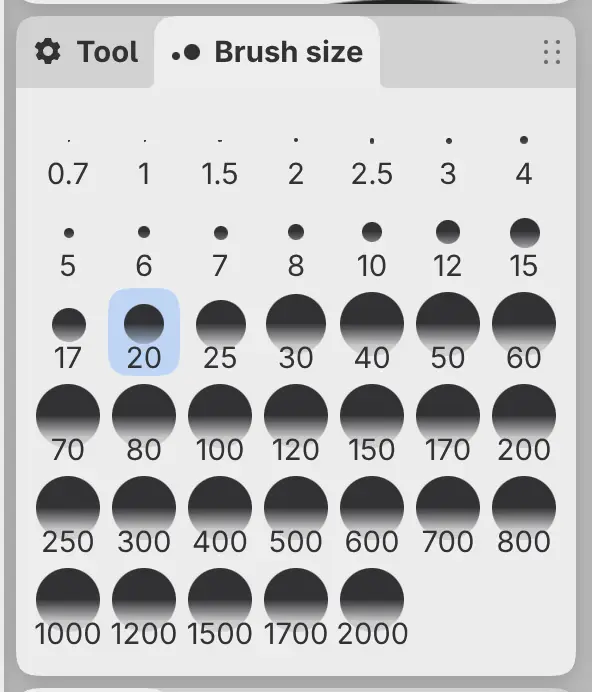
You can pick a size from a grid in the Brush size panel.
Do one of the following:
- Choose Window > Brush size.
- In Paint, select the Brush size tab next to Tool in the left column.
- In Photo, select Brush size in the icon strip at the right.
Each button shows a dot and a size in pixels. The button for the current size is pressed.
With Paint selection active, the panel sets the selection brush size. You can give each size a key under Brush sizes on the Keyboard Shortcuts page.
Tool Options bar
You can change the current tool’s settings in one row with the Tool Options bar. Photo has it at the end of the top toolbar. In other workspaces, add it to a toolbar with Insert Tools… (Toolbars and title bar).
Tool and Variant menus come first when the tool has choices, then Color mixing for brushes that mix paint, then the numeric settings. Settings that don’t fit are under More tool options.
- Double-click (or double-tap) a setting’s label or icon to reset the setting to the brush’s built-in value.
- Scroll over a value to step it. With a finger, drag up or down on the value.
- Right-click or hold the bar to choose Horizontal: Text, Horizontal: Icons or Show Sliders.

Sliders in Sketch
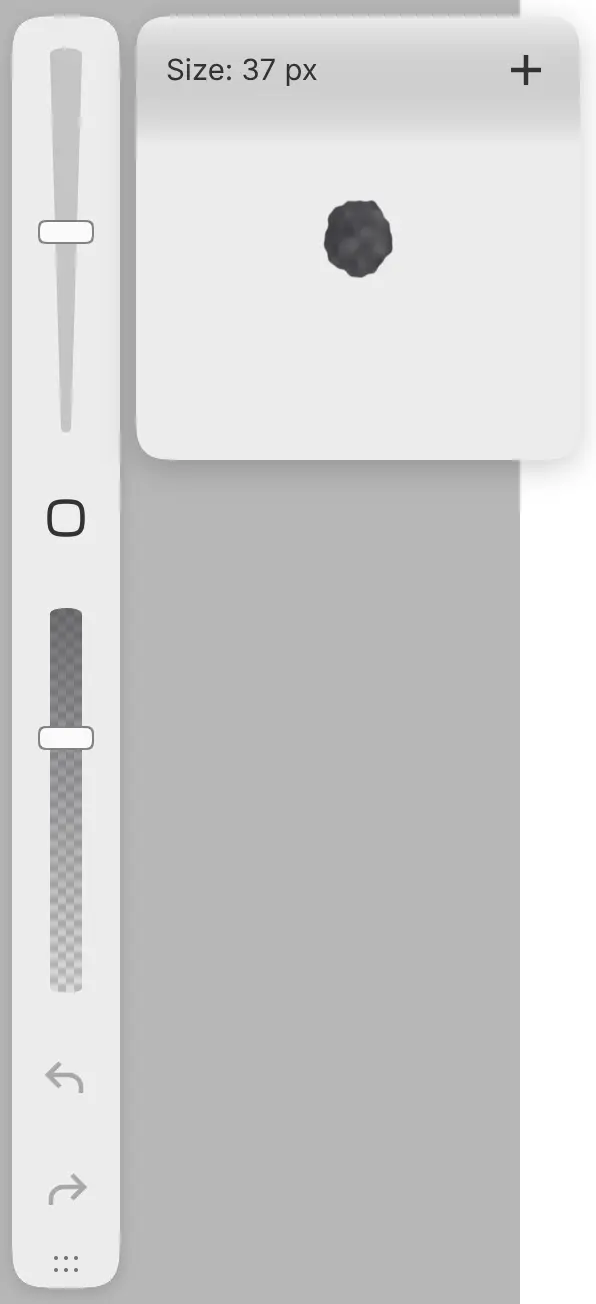
You can set the size and opacity of the brush with the two sliders on the bar at the left edge in Sketch.
- Tap or click the track to set a value. A preview shows the tip at its real pixel size, or at the chosen opacity.
- Drag along the track to change the value. The preview closes when you lift.
- Tap the cap at the end of the slider to see the preview without changing the value.
Select + (Bookmark this value) in the preview to mark the value on the track, or − (Remove bookmark) to remove the mark. A tap near a mark sets that exact value. Each brush preset keeps its own bookmarks.
A slider is dimmed when the current tool has no size or opacity. You can add the Brush size slider and Brush opacity slider to any toolbar with Insert Tools….
Keys
| Key | Action |
|---|---|
| [ | Decrease brush size by 1 px. Hold to repeat. |
| ] | Increase brush size by 1 px. Hold to repeat. |
| None | Decrease brush opacity and Increase brush opacity by 1%. |
You can assign keys to these actions under Painting on the Keyboard Shortcuts page.
Typing a value
Search commands for a setting’s name, such as Flow…, and type the new value (Command search).