Edit Color
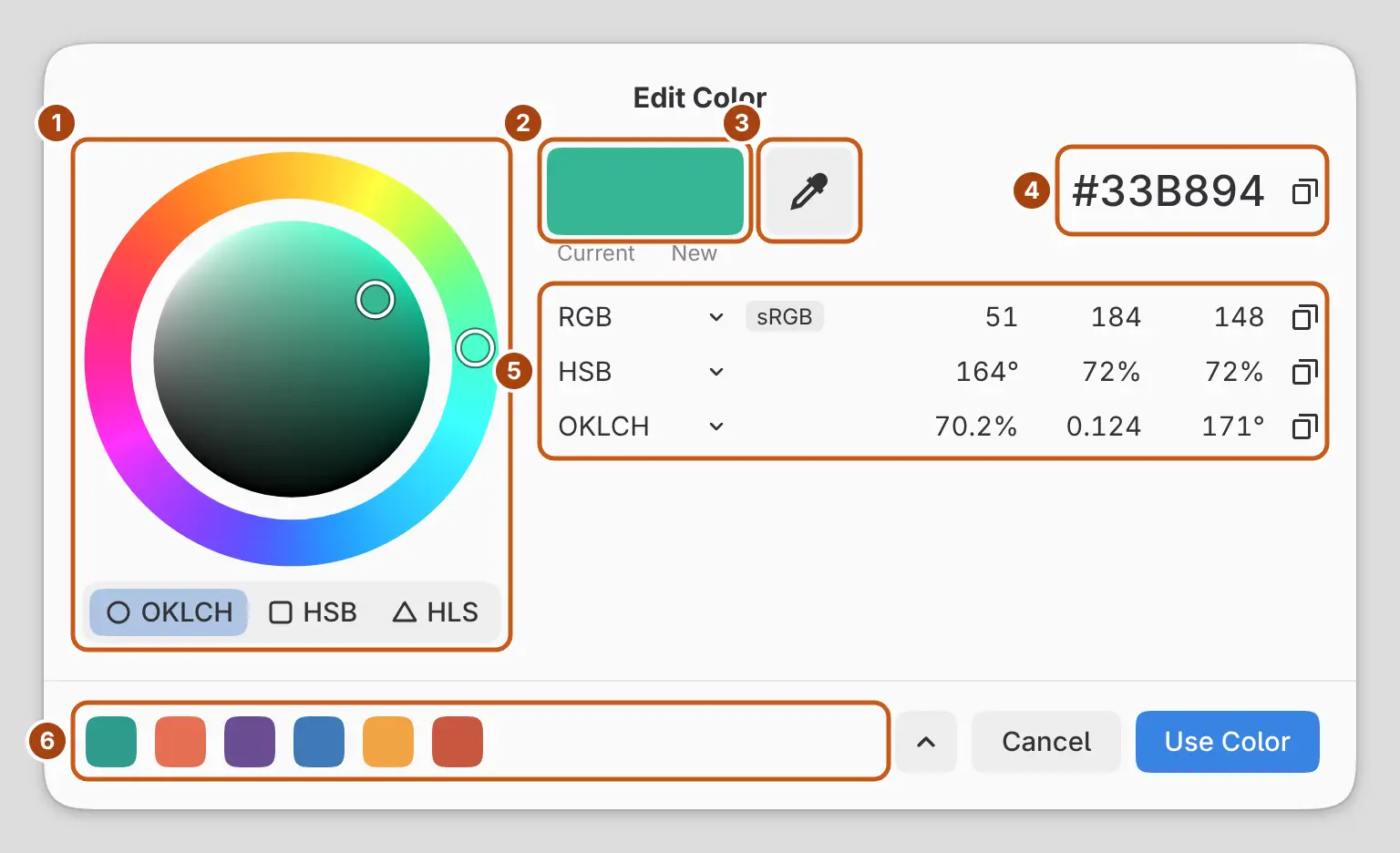
You can set a color by its numbers in the Edit Color dialog. Nothing changes until you select Use Color.
Opening Edit Color
Do one of the following:
- Select Edit Color… (the pencil) at the top right of the Color panel.
- Double-click the foreground or background swatch in the Color panel.
- Select a color button in Properties, such as Color of a Solid Color fill layer or Tint color of Black & White.
- Select the thumbnail of a Solid Color fill layer in the Layers panel.
- Select a stop’s Color in the gradient editor.
- Select Brush color in a panel that shows it. You can add it to the Brushes and Brush size panels (Panels and columns).
- On Windows, Linux and Android, right-click or hold the foreground or background swatch and choose Edit Color….
Wheel and shapes
The wheel works as in the Color panel. Select OKLCH, HSB or HLS below the wheel to switch the field to a circle, a square or a triangle.
Current and New
New shows the color you’re making. Select Current to set New back to the color you started with.
Hex
The hex field shows New as #RRGGBB in sRGB. Select it to type a hex code or
other color text.
A badge to the left of the hex code marks these cases:
- “≈”: the color is outside sRGB, and the hex shows the nearest sRGB color.
- “Base”: in an HDR drawing, the hex shows the color before intensity.
- “sRGB”: the drawing’s color space isn’t sRGB.
Value rows
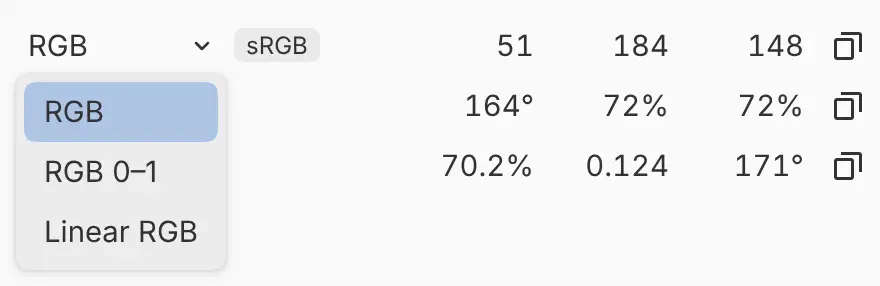
Each row shows New in one format. Select the format name at the start of a row to choose another format. The dialog remembers the formats you choose.
| Row | Formats |
|---|---|
| 1 | RGB (0–255, default), RGB 0–1, Linear RGB (0–1). The values are in the drawing’s color space, shown in a badge on the row. |
| 2 | HSB (default), HSL |
| 3 | OKLCH (default), OKLab |
Editing values
- Select a value to type a number. Press Enter to confirm or Escape to cancel.
- Drag a value up or down to change it. Hold Shift for larger steps, or Alt or Ctrl for smaller steps.
- Press Up Arrow or Down Arrow on a value to change it by one step.
A value beyond a field’s range is set to the nearest limit. Hue wraps around at 360°. If you type text that is neither a number nor a color, the field stays open with an error. Use Color stays unavailable until you fix the value or press Escape.
Copying colors
Select the copy button at the end of the hex field or of a row to copy that value as text. A check mark on the button confirms the copy. Press Ctrl+C in the dialog, outside a text field, to copy the hex code.
| Format | Copied text in sRGB drawings | In other color spaces |
|---|---|---|
| Hex | #RRGGBB |
#RRGGBB |
| RGB | rgb(R G B) |
color(display-p3 r g b), color(a98-rgb r g b) or color(prophoto-rgb r g b), from 0 to 1 |
| RGB 0–1 | color(srgb r g b) |
as for RGB |
| Linear RGB | color(srgb-linear r g b) |
r g b |
| HSB, HSL | hsb(h s% b%), hsl(h s% l%) |
h° s% b%, h° s% l% |
| OKLCH, OKLab | oklch(L% C h), oklab(L% a b) |
the same |
Pasting colors
Press Ctrl+V in the dialog, outside a text field, to set New from color text. The hex field and the value fields accept the same text:
- hex codes with 3, 4, 6 or 8 digits, with
#,0xor neither (alpha digits are ignored); - CSS color names, such as
teal; rgb(),rgba(),hsl(),hsla(),hsb(),hsv(),oklch()andoklab();color()withsrgb,display-p3,a98-rgb,prophoto-rgborsrgb-linear;- three numbers. A value row reads them in its own format. Elsewhere they are RGB from 0 to 255, or RGB from 0 to 1 when all three are 1 or less and one has a decimal point.
Color text never changes the alpha of the color.
Pick from the canvas
Select Pick from the canvas (the eyedropper next to Current and New) to sample New from the drawing. The dialog hides, and a strip in a corner of the canvas shows Current, the sampled color and its values.
Click, or lift the pen or finger, to pick. The dialog returns with the picked color as New. Press Escape or select the strip to go back without a change.
With a finger, the sample point is above the fingertip. Pick from the canvas is hidden when Edit Color opens from another dialog.
Recent colors and palettes
The footer shows your recent colors. Select one to make it New.
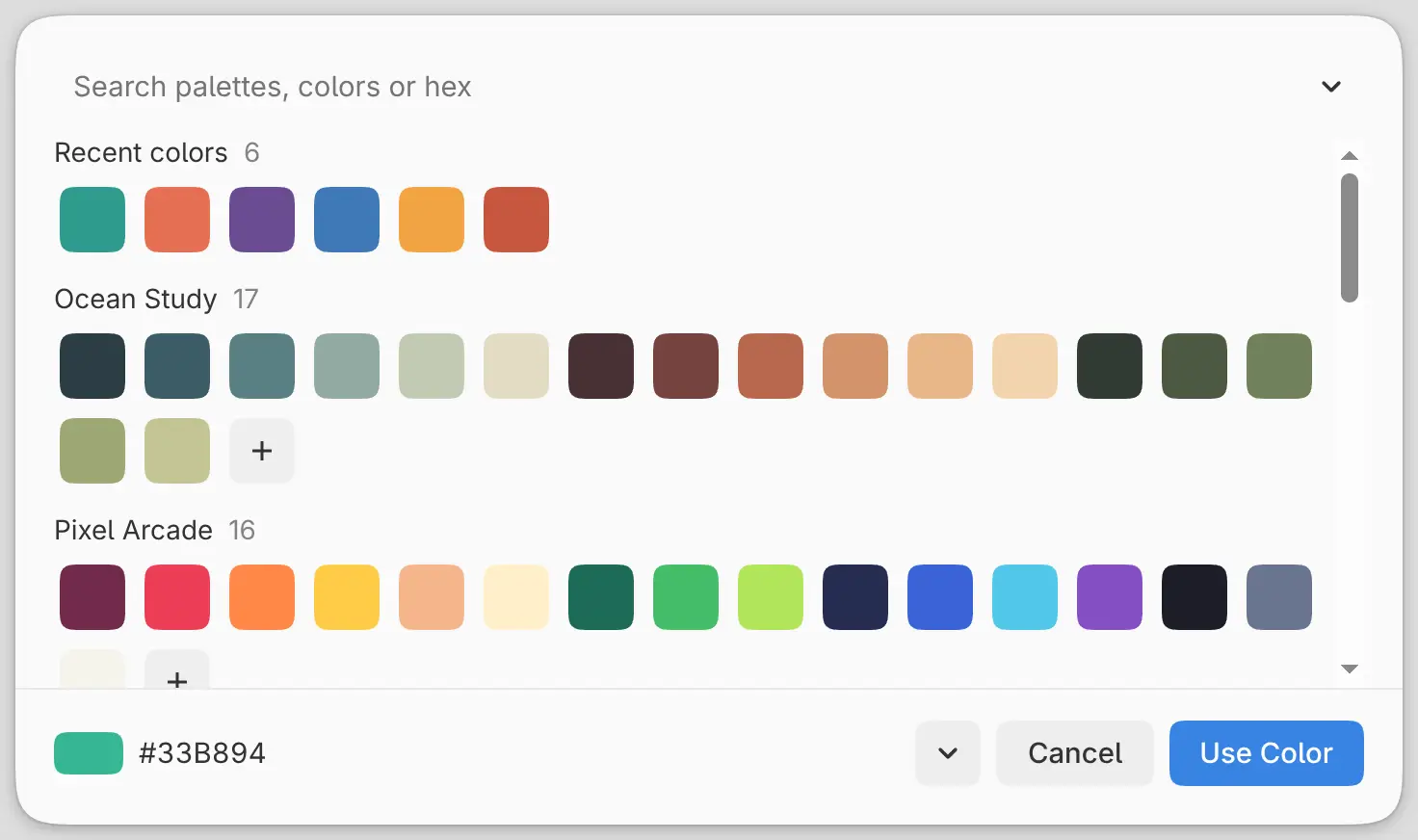
Select All recent colors and palettes (the arrow after the recent colors) to open a sheet with your recent colors and every palette. Type in the search field to find palette names, color names or hex codes. The + at the end of a palette saves New in that palette. To close the sheet, select Close swatches or press Escape.
HDR intensity
In an HDR drawing, the Intensity (EV) row and the arc under the wheel set brightness in stops relative to SDR white. On the arc, and when you drag the value, the range is −2 to +6 EV. A typed value can go further, within the range of the drawing’s bit depth.
Use Color and Cancel
Select Use Color to apply New. Select Cancel or press Escape to close without a change. If a format menu or the swatch sheet is open, Escape closes it first.