Dodge and burn, frequency separation
New Dodge & Burn Layer
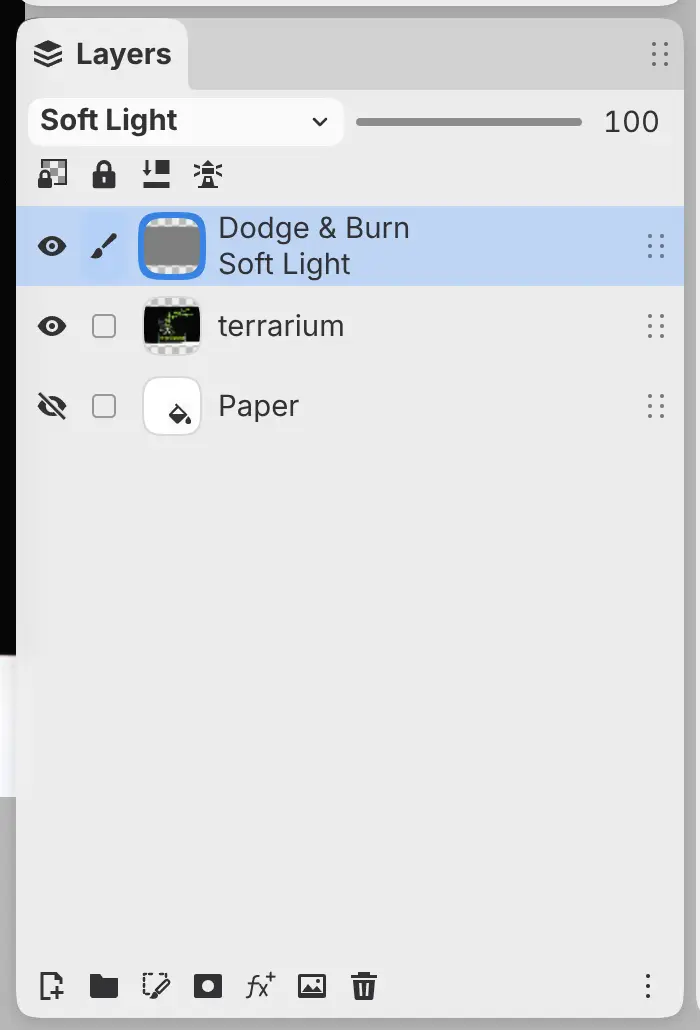
You can add a neutral gray layer in Soft Light for dodging and burning.
Do one of the following:
- Choose Layer > New > New Dodge & Burn Layer.
- Open a layer’s menu in the Layers panel and choose New > New Dodge & Burn Layer.
A canvas-sized layer named Dodge & Burn appears above the active layer and any layers clipped to it, and becomes the active layer.
You can’t add the layer into a locked group, or while a crop or transform is open.
Frequency Separation…
You can split the active layer for frequency separation in one step.
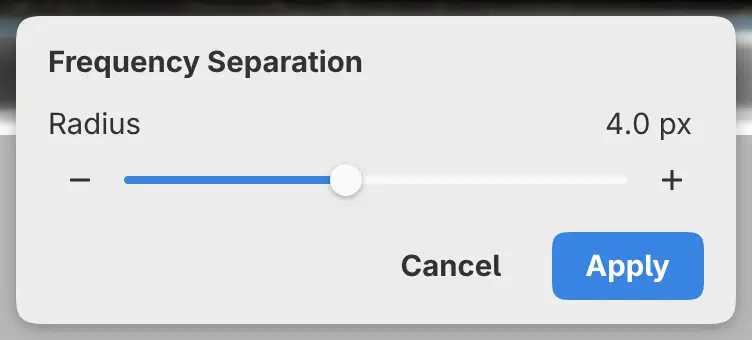
Choose Filter > Frequency Separation…. A panel opens at the bottom of the canvas with Radius, 4 px by default, and the canvas previews the blur of the Low layer while you change Radius.
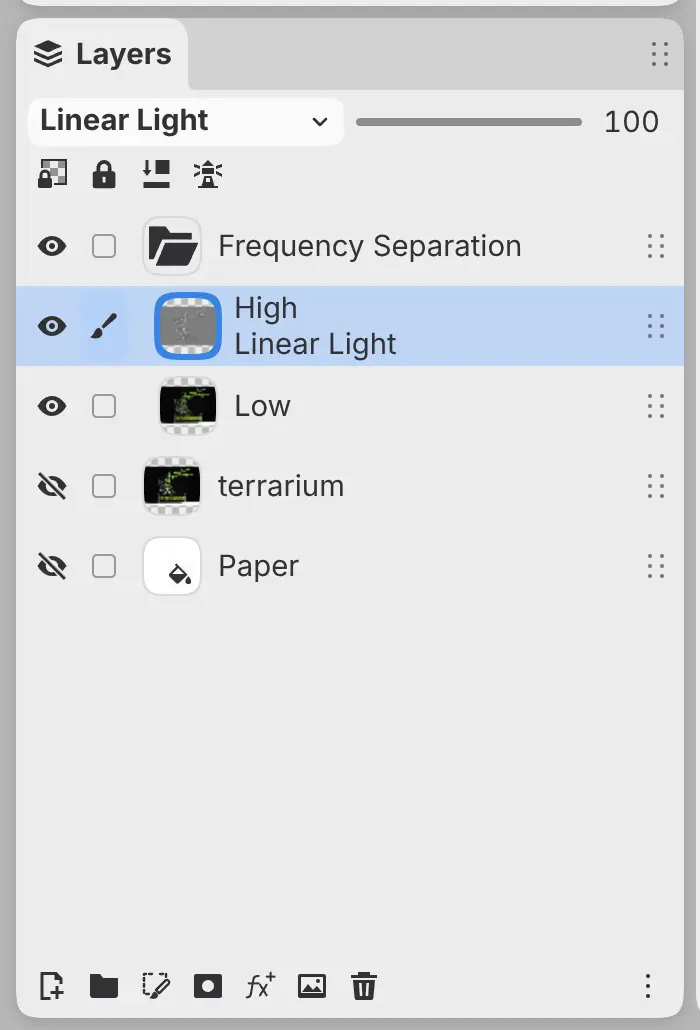
Apply puts a group named Frequency Separation where the layer was:
- High holds the fine texture, set to Linear Light. It is the top layer and becomes the active layer.
- Low holds the colors and tones, blurred with Gaussian Blur to the radius, set to Normal.
The group takes the original layer’s opacity and clipping. The original layer stays directly below the group, hidden.
The layer has to be visible and set to Normal, and the drawing has to use Edit > Blending > Perceptual Blending (see Color space, bit depth and blending). If the drawing changes while the panel is open, the panel closes.