Exporting images
You can export a flattened image copy of the drawing. Exporting doesn’t change
the .capy drawing, and it doesn’t count as saving.
Exporting an image
Do one of the following:
- Choose File > Export….
- Press Ctrl+Shift+E.
The Export image dialog opens on the Web / Share destination. Select Choose File… and choose a location. The suggested name is the drawing’s name with the format’s extension, such as “Untitled.png”. In Firefox and Safari, the Download file dialog opens instead (see Opening and saving).
The file name must end in the format’s extension. Export… isn’t available while a crop or a transform is open.
Settings
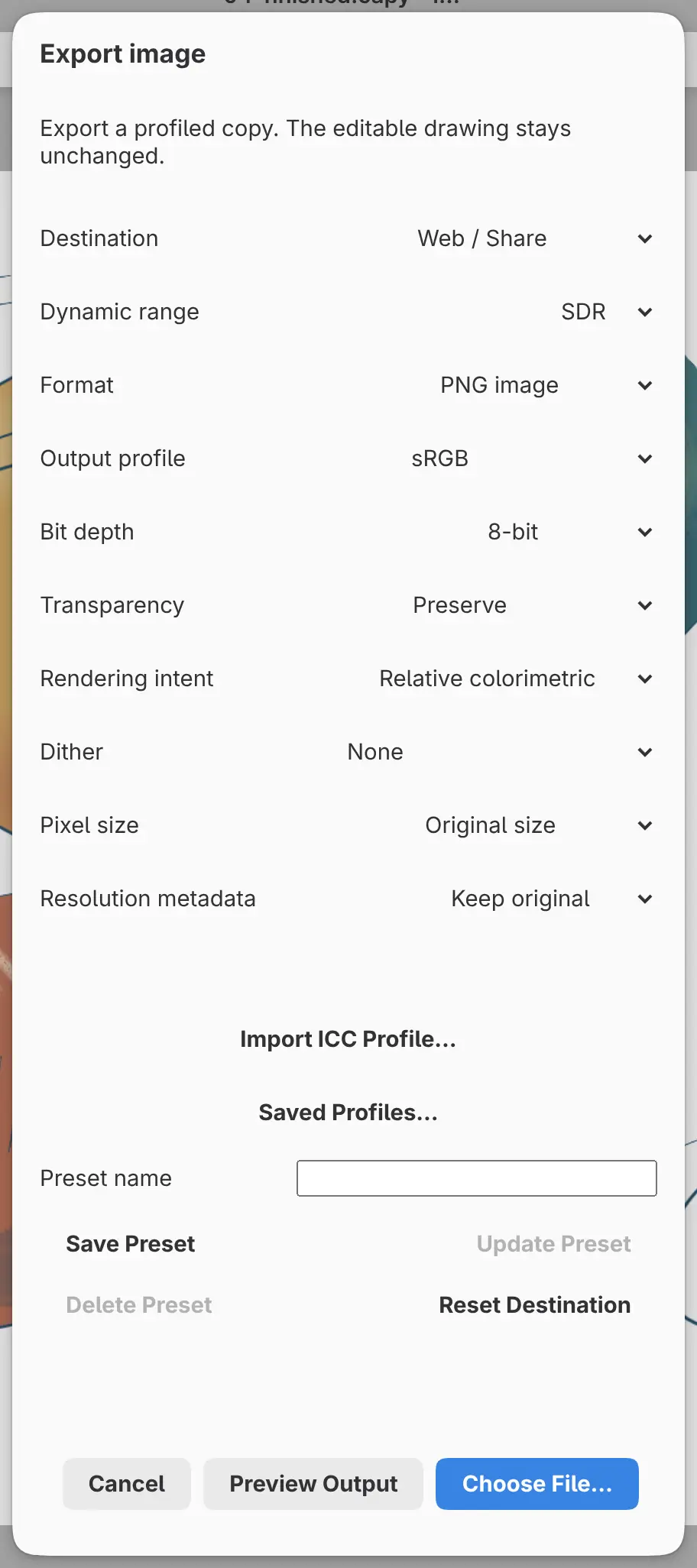
Some settings appear only for certain formats.
Destination
Sets every other setting at once. Saved export presets appear after these built-in destinations:
- Web / Share: an 8-bit sRGB PNG at the original size.
- Wide-color image: the same in Display P3.
- Further editing: a 16-bit TIFF in the drawing’s color space.
- Custom: starts like Web / Share.
Dynamic range
SDR on an SDR drawing, or a choice of HDR formats on an HDR drawing (see HDR export below).
Clip out-of-range HDR colors
Clips colors beyond the range of HDR PNG, HDR JPEG and HDR AVIF. It appears only for those formats.
Format
PNG image, TIFF image, JPEG image or WebP · lossless (see Format limits below).
Output profile
sRGB, Display P3, Adobe RGB (1998) or ProPhoto RGB, plus “Original: name” for each photo layer with its own embedded profile.
Bit depth
8-bit or 16-bit.
Transparency
Preserve, White background or Black background.
Rendering intent
Relative colorimetric (the default), Perceptual, Saturation or Absolute colorimetric.
Dither
None or Stochastic (8-bit output).
Quality
The compression quality from 1 to 100, default 90. It appears for JPEG, HDR JPEG and HDR AVIF.
Pixel size
Original size or Fit within bounds. Fit within bounds adds Maximum width (px) and Maximum height (px), and scales the image down to fit inside them without changing its proportions.
Resolution metadata
Keep original, Pixels per inch or Omit. Pixels per inch adds a field from 1 to 65535, default 300.
Metadata
All, Copyright & Contact or None. With All, Remove location is on by default. These rows appear only for drawings opened from a photo with camera or copyright details.
Import ICC Profile… and Saved Profiles…
Import ICC Profile… adds an .icc or .icm file of up to 16 MiB to
Output profile. Saved Profiles… opens the Color Profile Library.
Preset name and preset buttons
Save Preset saves the settings as a new destination under Preset name. Update Preset and Delete Preset change or remove the selected saved preset. Reset Destination restores a built-in destination’s settings.
Preview Output
Shows the exported image beside the artwork, captioned Artwork and Output, with a warning if colors fall outside the output gamut. Changing any setting clears the preview.
Choose File…
Asks where to save the image.
Format limits
- JPEG and WebP are 8-bit only.
- JPEG can’t preserve transparency.
- WebP allows up to 16,384 pixels per side.
- With a grayscale output profile, WebP isn’t available.
- With a CMYK output profile, only TIFF and JPEG are available, without transparency.
Choices that don’t fit the other settings are dimmed.
Export presets
After an export, a built-in destination keeps the settings you used. When you export with a saved preset, the settings are kept under Custom, and the preset itself changes only with Update Preset.
A preset name has up to 80 characters, and you can keep up to 64 presets. Presets apply to every drawing.
HDR export
On a 16-bit or 32-bit float drawing, Dynamic range offers these choices:
| Choice | Writes |
|---|---|
| SDR rendition | The drawing’s SDR version, with the SDR settings |
| HDR JPEG · gain map | A .jpg with a gain map |
| HDR AVIF · gain map with transparency | An .avif with a gain map and transparency |
| HDR PNG · BT.2020 PQ | A .png encoded in BT.2020 PQ, with transparency |
| OpenEXR · 32-bit float | An .exr in the drawing’s color space, with transparency |
SDR rendition uses the SDR version set with Proof SDR. OpenEXR keeps no camera or copyright details. On an HDR drawing, Further editing is named Further editing (SDR) and uses OpenEXR.
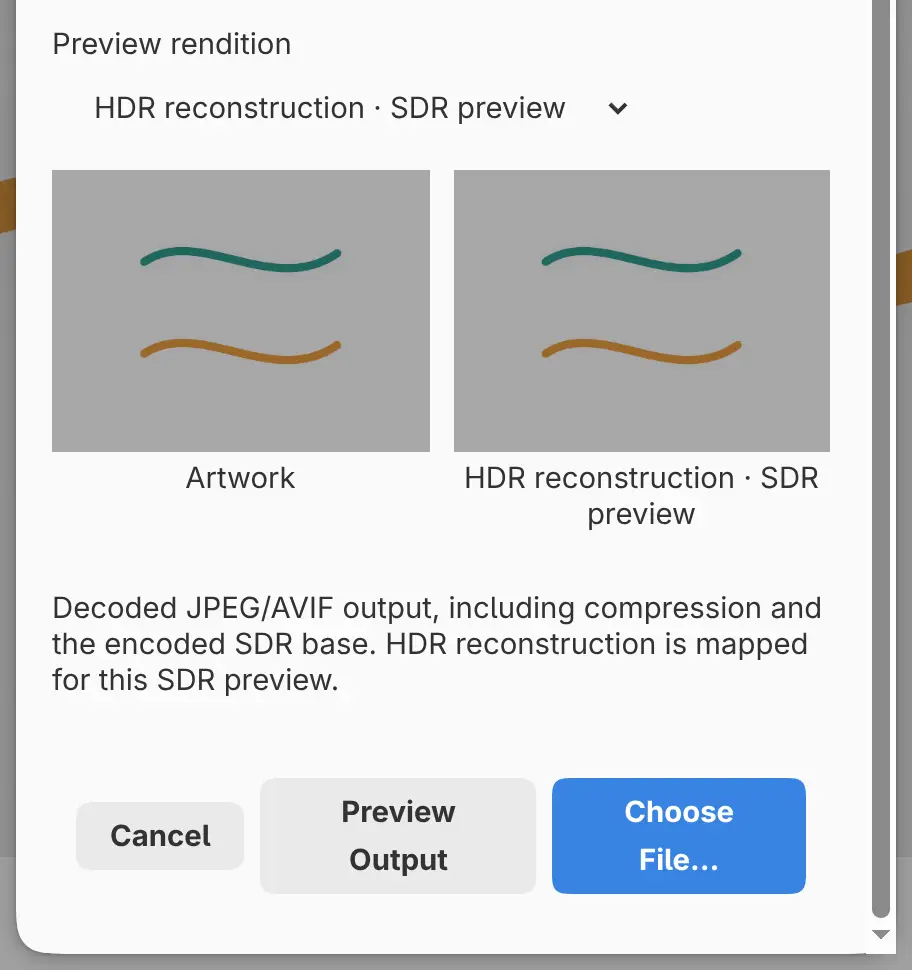
For HDR JPEG and HDR AVIF, Preview Output adds Preview rendition, with HDR reconstruction · SDR preview and Encoded SDR base.
If the preview finds colors beyond the range of HDR PNG, JPEG or AVIF, Choose File… is unavailable until you turn on Clip out-of-range HDR colors or choose OpenEXR.
Export Again
File > Export Again repeats the drawing’s last export with the same settings and file, without the dialog. It’s unavailable until you export the drawing once.
Each drawing keeps its own last export, also after a restart. In Firefox and Safari, Export Again shows the Download file dialog.
Other platforms
On Linux, the settings are split into Size, Color & transparency and Preset pages, and some labels differ. The iPad and macOS dialogs also use their own labels.