Layer types
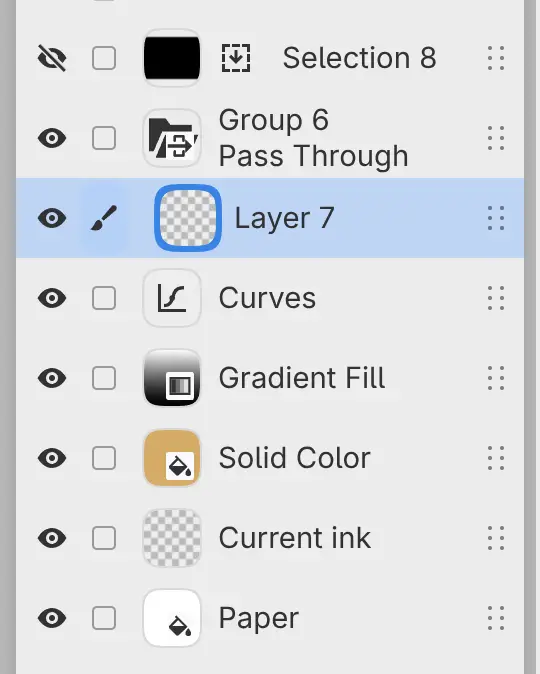
Paint layer
A paint layer holds pixels in the drawing’s color space. Brushes, Fill, Gradient and Figure paint on this layer type.
Choose Layer > New > New layer, or select New layer at the bottom of the Layers panel. A new drawing starts with Current ink above Paper.
Object layer
An Object layer keeps an imported image at its own size, bit depth and color profile. Importing an image as a layer, dropping an image on the canvas, and pasting an image from another app create Object layers.
You can move, scale and rotate an Object layer without repeatedly resampling its source. Choose Layer > Rasterize Layer when you need to paint on its pixels or use a command that requires a paint layer. Rasterizing converts it to the drawing’s color space, bit depth and pixel grid.
Vector layer
A vector layer holds paths instead of pixels. Choose Layer > New > New vector layer, or select New vector layer at the bottom of the Layers panel. A path badge marks its thumbnail. See Vector layers.
Paper
Paper supplies the background color and the texture that brushes with Texture strength react to. It stays at the bottom of the layer stack and has color and texture thumbnails.
A drawing can contain one Paper. Paper cannot have a mask, become a clipping layer, move above ordinary layers or be merged into an ordinary layer. See Paper for its texture, lighting and other settings.
Group
A group holds layers in a collapsible folder. Choose Layer > New > New group, select New group below the layer list, or choose Layer > Organize > Group selected layers.
A group combines its contents before blending with layers below unless Pass Through is on.
Fill layers
Solid Color and Gradient Fill cover the canvas with generated content. Add one from Layer > New, the Filter > Fill menu, or the Filters panel.
Select the thumbnail of Solid Color to open Edit Color. Add a mask to paint the visible area of a fill. You can clip a fill layer, but cannot clip other layers to it.
Filter layers
A filter layer changes layers below it instead of holding pixels. Its row shows the filter’s icon and name. See How filters apply.
Selection layers
A selection layer stores a selection. Select New Selection Layer below the layer list to add one. It has no opacity, blend mode, mask, clipping or reference setting and cannot be merged.