Command search
You can find and run commands, tools, brushes, layer properties, workspaces and colors by typing their names.
Opening command search
Do one of the following:
- Choose Edit > Search Commands….
- Press Ctrl+K or Ctrl+Shift+P. In the web editor, only Ctrl+K works.
- If you added command search to a toolbar, select its button (see Toolbars and title bar).
Other keyboard presets use other keys (see Keyboard shortcuts). The keys also work while you’re typing in a text field.
The search box opens near the top of the window with an empty field.
Command search isn’t available during a stroke, while Preferences is open, or while you customize the title bar.
Suggestions
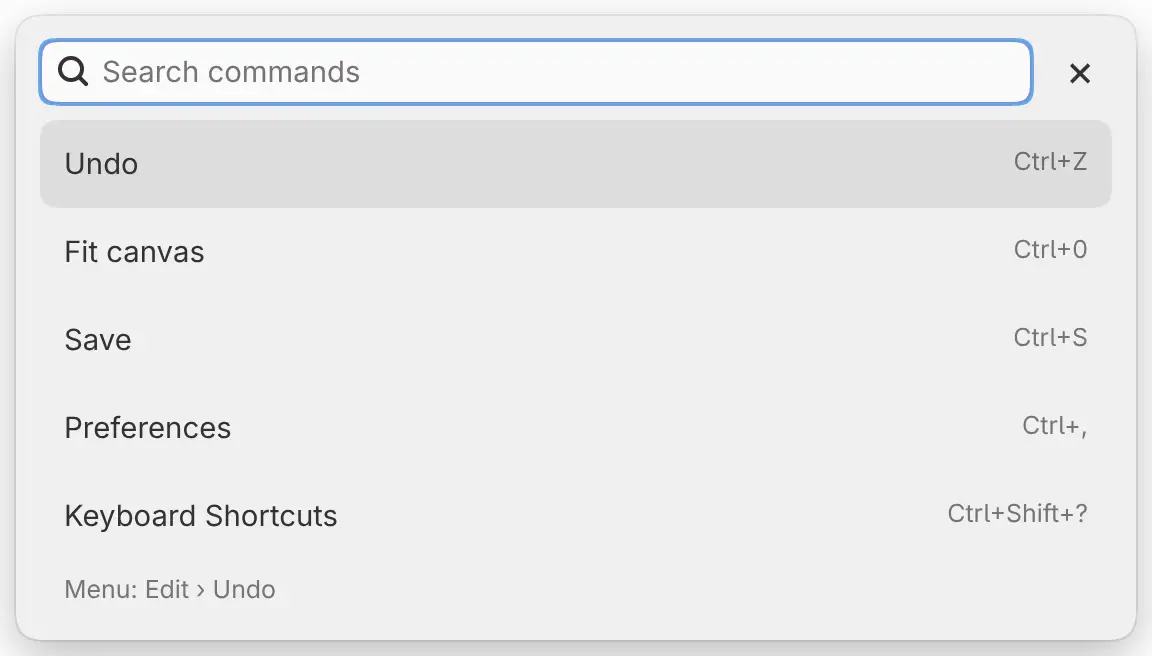
With an empty field, the list shows up to five entries: the ones you last ran from search, then Undo, Fit canvas, Save, Preferences and Keyboard Shortcuts. Entries that can’t run right now are left out.
Only entries you run from search count as recent. The recent list is cleared when you quit Capy Canvas.
Searching
Type part of a name. The list shows up to eight matches, with exact names first.
- Upper and lower case match each other. Accents must match.
- Letters in order also match: “fit cnvs” finds Fit canvas.
- English names match in every app language.
- Some entries match other words: “settings” finds Preferences, “color picker” finds Eyedropper and “resize” finds Transform.
- Typing “brush” or “brushes” leaves out the individual brushes.
If nothing matches, the list shows “No matching commands”.
What you can find
- Every item in the menus.
- Every tool, and each tool variant, such as Ruler › Radial.
- Every brush, and each brush set as “set brushes”.
- The settings of the current tool, such as Brush size….
- The properties of the selected layer, such as Layer opacity….
- Every workspace.
- Foreground color, Background color, Transparent paint, Temporary color, Swap foreground and background, Black and White.
- Every panel and toolbar in the Window menu.
Results
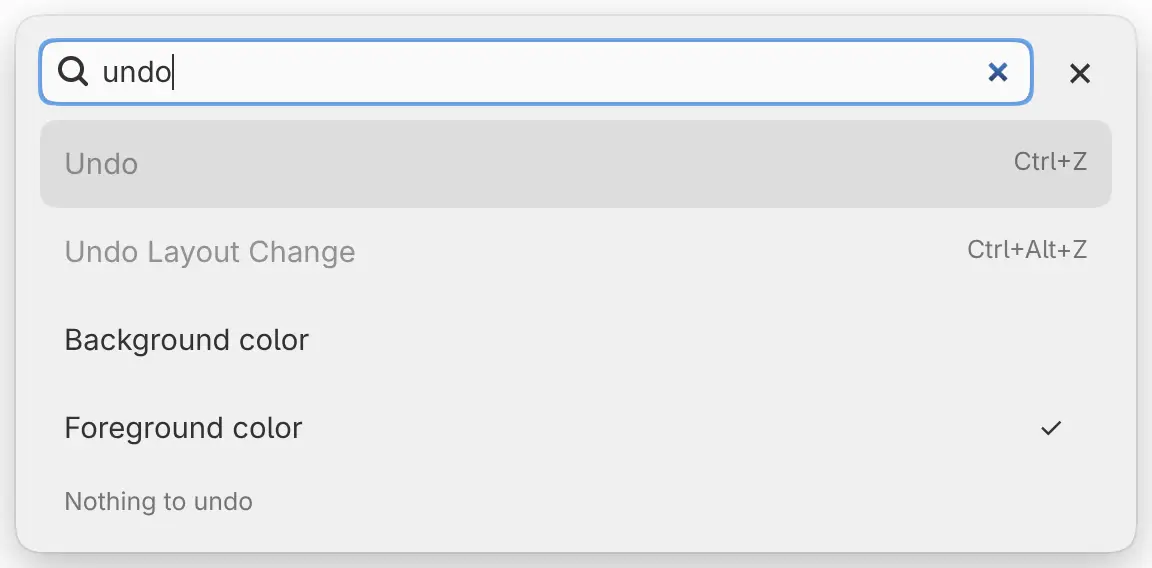
Each row shows the name and, at the right, its key. A check mark shows a setting that is on, and the current workspace.
The line at the bottom of the box describes the highlighted entry with its help text, its menu location or its range of values. An entry that can’t run right now is dimmed, and the bottom line gives the reason, such as “Nothing to undo”.
Running a result
Do one of the following:
- Press ↑ or ↓ to highlight a row, then press Enter.
- Select a row.
The search closes and the entry runs. If the entry can’t run, the search stays open and shows the reason.
Typing a value

Entries for settings with a number, such as Brush size… and Layer opacity…, ask for a value. The bottom line shows the current value and the range.
To set a value:
- Select the entry, or highlight it and press Enter.
- Type the value and press Enter.
You can type arithmetic, such as “12 * 2” or “sqrt(9)”, and percentages such as “50%”. A value outside the range is set to the nearest limit. Press Esc to go back to the results.
Undo from a text field or palette
If you open command search from a text field, Undo and Redo become Undo Text Edit and Redo Text Edit. These can’t run from search. To undo typing in the field, close the search first.
Opened from the Palettes panel, the search lists Undo Color Reorder and Redo Color Reorder instead. They undo changes to the palette’s color order, not to the drawing.
Closing command search
Do one of the following:
- Press Esc.
- Select × at the right of the field.
- Click or tap outside the box.
A click outside the box doesn’t paint on the canvas.