Working with layers
Creating layers
Do one of the following:
- Choose Layer > New and New layer, New clipping layer or New group.
- Select New layer or New group at the bottom of the Layers panel.
The new layer goes directly above the active layer and the layers clipped or attached to it. If a group is active, the new layer goes to the top of the group. You can’t add a layer to a locked group.
New clipping layer needs an active paint layer, or an active group that isn’t set to Pass Through.
Selecting layers
You can select several rows to group, duplicate, delete or move together.
- Select a row to select only that layer and make it the active layer.
- Shift+click a row to select the rows between it and the row you selected before.
- Ctrl+click a row to add it to the selection or remove it.
- Select the row button, left of the thumbnail, to add or remove the row without changing the active layer.
- Choose Layer > Layer Row Selection > Select All Layer Rows or Clear Layer Row Selection.
Selecting a row that is already selected keeps the other rows selected. Changes to the row selection aren’t undo steps.
Hiding layers
Do one of the following:
- Choose Layer > Visibility > Show layer.
- Select the eye on the row.
Layer > Visibility also has Show layer and parent groups, Isolate selected layers and Show all layers.
Renaming layers
Do one of the following:
- Choose Layer > Organize > Rename layer… (Rename group… for a group).
- Double-click the name.
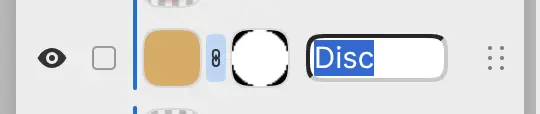
Press Enter to keep the name, or Escape to cancel. You can’t rename a locked layer.
Reordering layers
Drag a row up or down the list. With a pen or a finger, hold the row first, or drag the grip at the right end of the row.
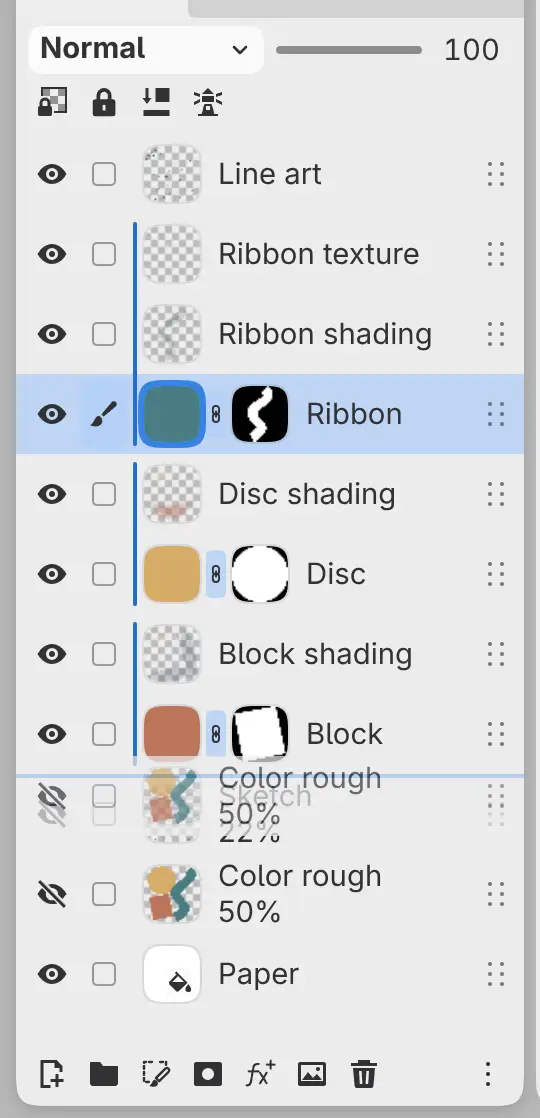
A line above or below a row marks where the layer will land. To move the layer into a group, drop it on the middle of the group row (a frame appears around the row). Press Escape to cancel the drag.
All selected rows move together, and clipped layers and attached filters move with their layer. Raise layer and Lower layer in command search move the selected rows one step.
Grouping and ungrouping
To group layers, select their rows and choose Layer > Organize > Group selected layers, or select New group at the bottom of the Layers panel. The rows must be in the same group, and a clipping base must be grouped with its clipped layers.
To ungroup, choose Layer > Organize > Ungroup. A hidden group leaves its layers hidden. Ungroup is unavailable while the group has a mask, an opacity below 100%, a blend mode other than Normal or Pass Through, clipping or attached filters, or when its layers would look different without the group.
Duplicating layers
Choose Layer > Organize > Duplicate, or Duplicate selected layers with several rows selected.
The copies go directly above the originals, with their clipped layers and attached filters, and are named “name copy”. You can’t duplicate a layer in a locked group.
Deleting layers
Do one of the following:
- Choose Layer > Delete layer, or Delete selected layers with several rows selected.
- Select Delete selected layers at the bottom of the Layers panel.
- With a pen or a finger, swipe the row to the left and select Delete.
On a collapsed group, the menu item reads Delete group and contents. Deleting an expanded group keeps its layers, as Ungroup does.
Clipped layers and attached filters stay when you delete their layer. You can’t delete a locked layer. The Delete key clears selected pixels, not layers.
Copy Selection to New Layer
You can copy or move the selected pixels of a paint layer to a new layer, in place.
Do one of the following:
- Choose Layer > New > Copy Selection to New Layer (Ctrl+J) or Cut Selection to New Layer (Ctrl+Shift+J).
- Choose the same commands from the Select menu.
- Choose them from Copy to Layer in the selection bar on the canvas.
The new layer goes above the source layer, named “name copy”, with the same opacity and blend mode. The selection is cleared, and Select > Reselect brings it back.
Without a selection, Copy Selection to New Layer duplicates the selected layers. Cut Selection to New Layer needs a selection and is unavailable while Alpha lock is on.
Importing images
Do one of the following:
- Choose File > Import Image as Layer… or press Ctrl+Shift+O.
- Select Import Image as Layer… at the bottom of the Layers panel.
- Drag image files onto the canvas or onto a row in the Layers panel.
Each file becomes a photo layer above the active layer, or above, below or inside the row you drop it on. The image is centered and scaled down to fit the canvas, with placement handles.