Paper
Paper supplies the drawing’s background color and the texture used by dry-media brushes.
Paper row

Paper stays below ordinary layers. Its first thumbnail opens Edit Color and its texture thumbnail opens Choose Texture. Select the row to edit its settings in Properties.
You can hide or delete Paper. If the drawing has no Paper, select Add paper at the bottom of the Layers panel to restore one.
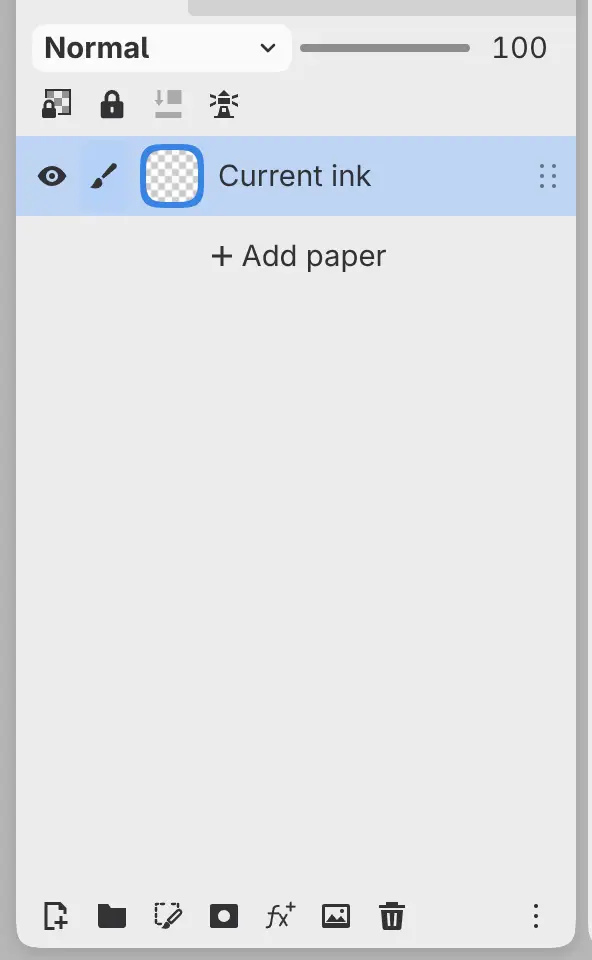
Only one Paper can exist in a drawing. Paper cannot have a mask, become a clipping layer, move above another layer, or be used as a selection layer.
Choosing a texture
Select the texture thumbnail on the Paper row, or select Choose Texture in Properties. Choose a paper and select Use Texture.
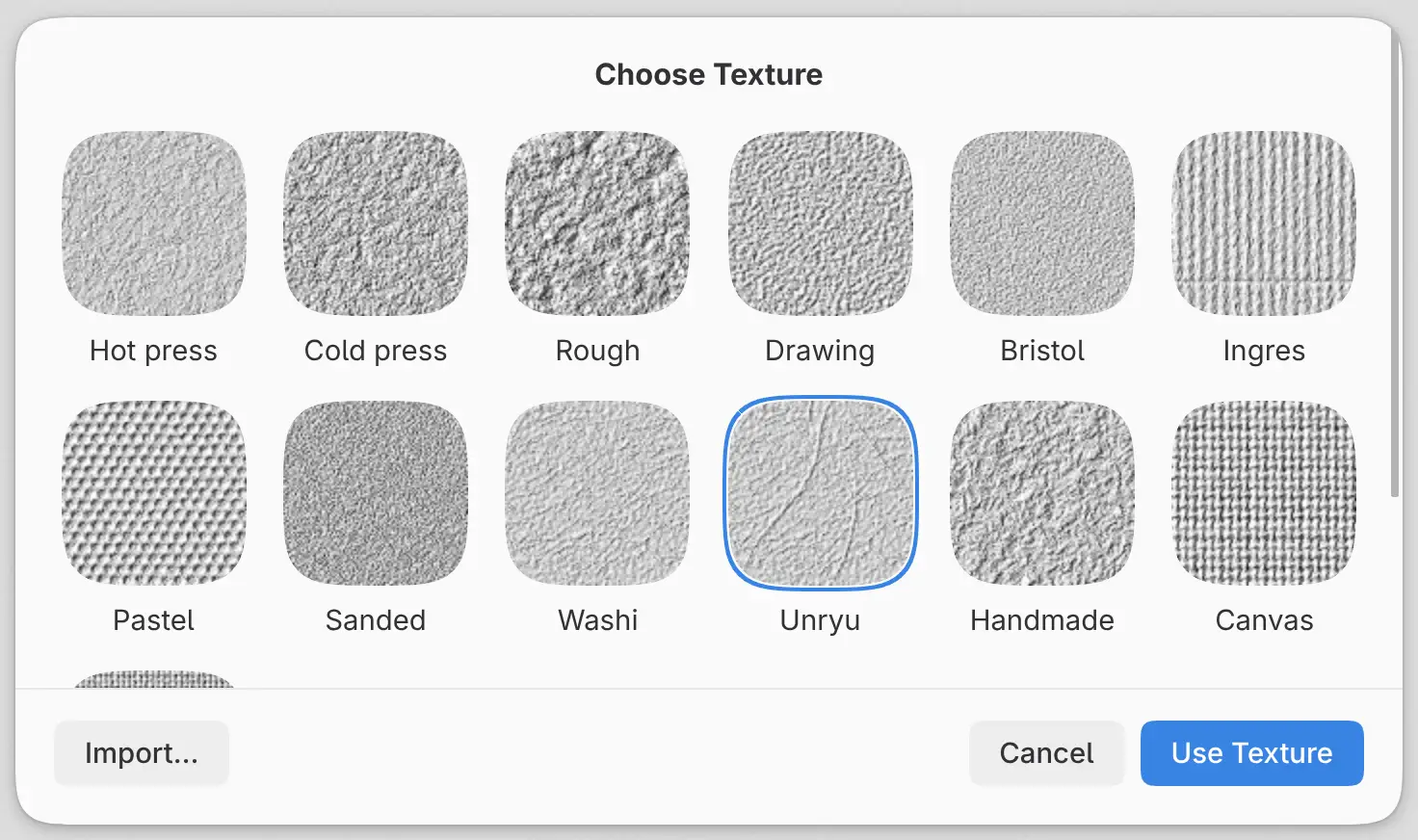
The library includes Bristol, drawing, hot press, cold press, rough, sanded, laid, washi, canvas and linen surfaces. Import… adds an image as a reusable paper texture. Imported papers are embedded in the drawing.
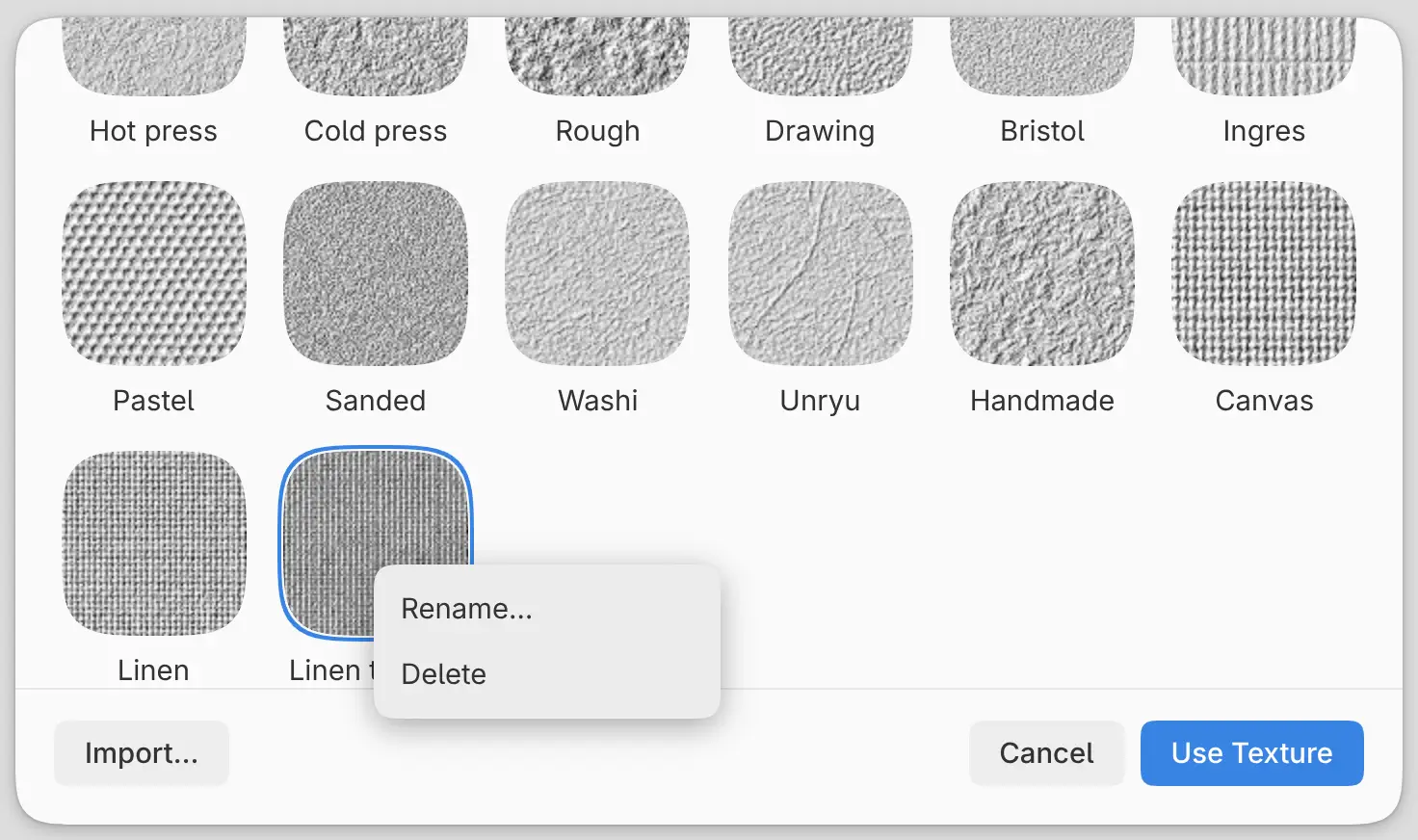
Open an imported paper’s menu to Rename… or Delete it. A paper embedded in a drawing but missing from your library has Add to Library instead.
Properties
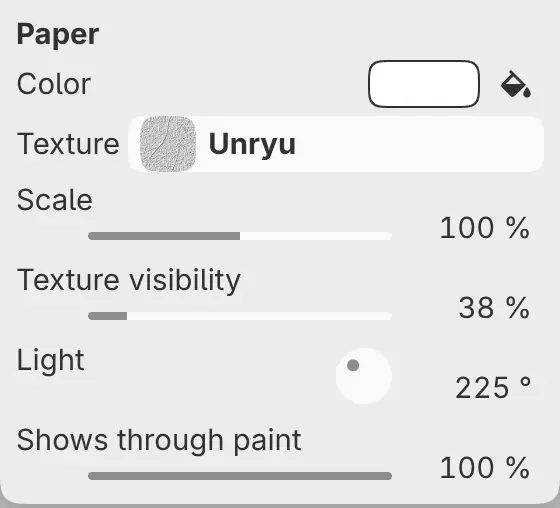
Color
Sets the Paper color.
Texture
Opens Choose Texture.
Scale
Sets the physical scale of the texture, from 25% to 400%. The canvas briefly shows the texture relief while you change the scale.
Texture visibility
Sets how strongly the texture’s lighting appears in the finished picture. At 0%, texture lighting is off.
Light
Sets the direction of the light across the paper texture.
Shows through paint
Sets how much paper lighting remains visible over paint above it. At 0%, opaque Normal paint covers the lighting; at 100%, the lighting affects the whole picture.
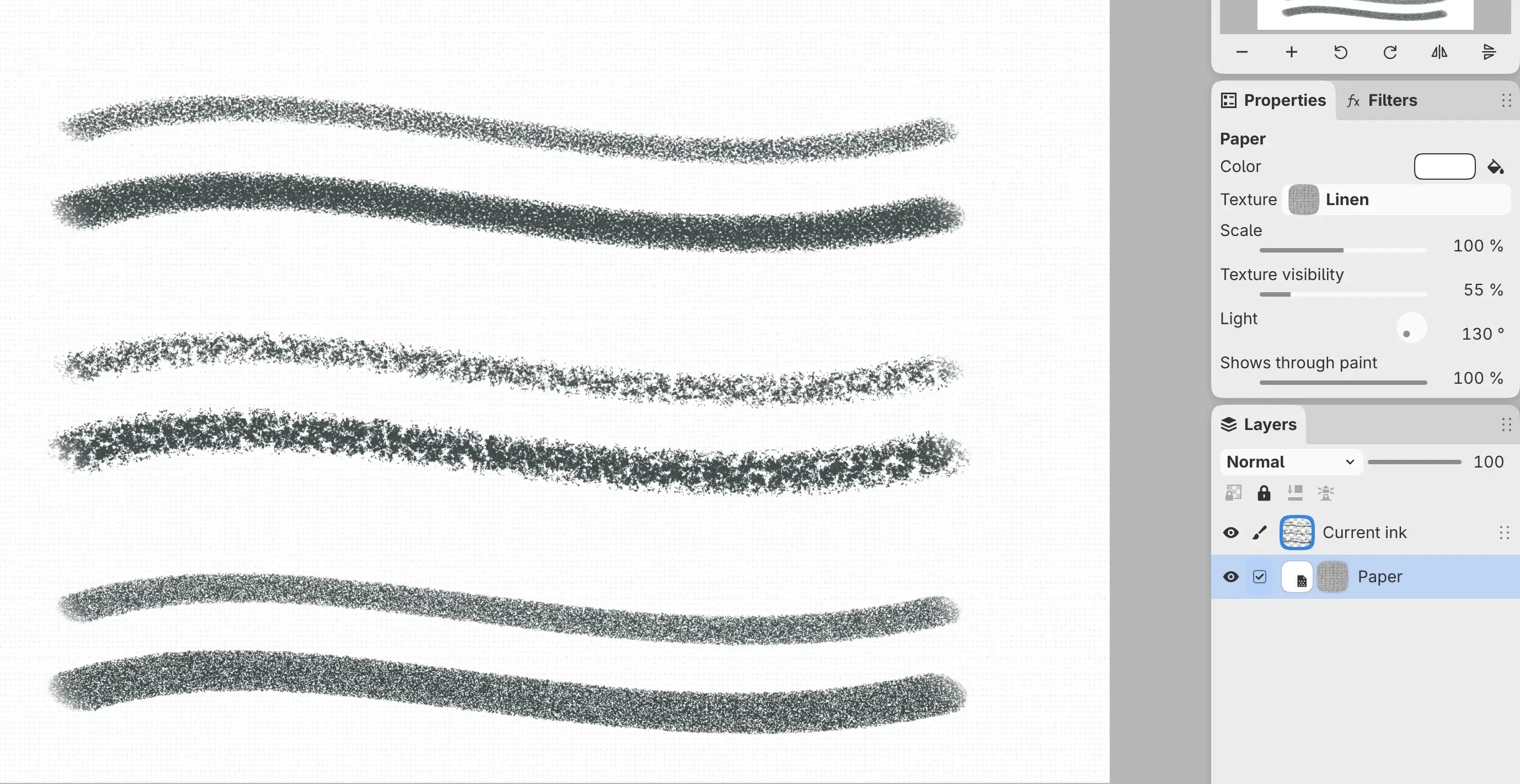
Native app exports include visible Paper lighting. The web editor currently exports without Paper lighting. The brief texture preview shown after changing Texture or Scale is not exported.
Strokes and geometry
New dry-media strokes use the nearest Paper at or below their layer. Hiding Paper does not stop its texture from affecting new strokes. Changing the texture or its scale does not change marks already drawn.
Paper uses the drawing’s print resolution to keep its physical scale. Image > Image Size… can change that resolution. Resizing or rotating the image resamples Paper with the drawing; cropping does not change its scale.