Proof
You can see how a drawing will print in the Proof panel without changing the artwork.
Proof panel
Do one of the following:
- Choose Window > Proof.
- Choose Proof panel in command search.
- In Paint and Photo, select the Proof tab next to Navigator.
Select a mode at the top of the panel:
- Off shows the drawing normally.
- SDR shows the SDR version of an HDR drawing. Only HDR drawings have this mode.
- Print simulates a print with an ICC profile.
Proofing appears on the canvas and in the Navigator, never in exports or the Histogram. Choosing a mode doesn’t mark the drawing as changed. A reopened drawing starts with proofing off but keeps its print profile.
Turning proofing on and off
Do one of the following:
- Choose View > Proof.
- Press Ctrl+Alt+P. The Photoshop Style and Krita Style keymaps also use Ctrl+Y.
Proofing turns on in the mode you used last (at first, SDR for HDR drawings and Print for SDR drawings). The Proof panel opens, and View > Proof shows a check mark.
On the Keyboard Shortcuts page, the command is Proof Colors. You can give it a key that proofs only while you hold it.
Print proofing
You can simulate a print with an RGB, CMYK or gray ICC profile. Select Print and choose a Profile. The canvas isn’t proofed until you choose a profile.
While print proofing is on, the footer reads “Proof: profile”. If the proof fails, it reads “Proof unavailable”, with the reason in its tooltip.
The profile and the options are saved in the drawing. Choosing a profile marks
the drawing as changed and is one undo step. Undo removes the profile and turns
proofing off. Only the active print profile is saved in the .capy file. When
you replace the profile saved in the drawing, the old one is first added to
Saved Profiles. HDR drawings are proofed from their SDR version.
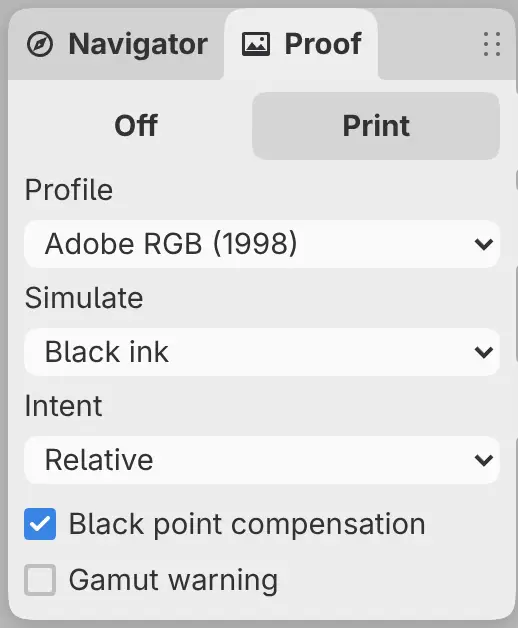
Profile
The list has the Document Profile saved in the drawing, Saved Profiles
from the library and Standard Color Spaces. Add Profile… adds an .icc
or .icm file to the library and selects it, and Manage Profiles… opens
the Color Profile Library.
Simulate
Colors, Black ink (default) or Paper & ink. Paper & ink also simulates black ink.
Intent
Relative (default), Perceptual, Saturation or Absolute.
Black point compensation
On by default. Unavailable with Absolute.
Gamut warning
The same switch as the Gamut Warning command, described below.
Color Profile Library
Select Manage Profiles… in the Profile list, or on the Color page of Preferences, to open the Color Profile Library.
- Import ICC Profile… adds an
.iccor.icmfile of up to 16 MiB. - Show in Profile Menus and Hide from Profile Menus choose which profiles the Profile list offers.
- Remove takes a profile out of the library.
The library holds up to 128 profiles and 64 MiB in all.
Gamut warning
You can show the colors that the print profile can’t reproduce as middle gray on the canvas. Do one of the following:
- Turn on Gamut warning on the Print page of the Proof panel.
- Press Ctrl+Shift+Y.
- Choose Gamut Warning in command search.
The footer reads “Proof: profile · Gamut warning”. With print simulation off, it reads “Gamut: profile”.
The gamut warning is available only after you choose a print profile. Choosing Off or SDR, or turning off View > Proof, turns it off. While it’s on, HDR drawings show their SDR version.
Screen chip
A chip at the left of the footer warns when the screen can’t show the drawing or the proof accurately. Select the chip to open its details, and select it again or press Escape to close the details.
| Chip | Shown when |
|---|---|
| “Colors clipped” | The screen can’t show some visible colors of the drawing or the proof. |
| “May not match print” | Print proofing or the gamut warning is on, and Capy Canvas can’t tell how the screen shows colors. |
For an HDR drawing, the chip also reports whether the screen shows HDR (see HDR).
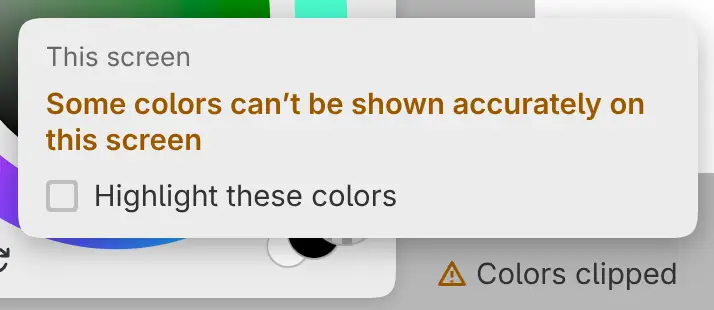
Turn on Highlight these colors in the details to paint the clipped colors blue on the canvas. The highlight is never saved.
Sketch hides the footer by default. To show it, choose Window > Customize Title Bar… and turn on Show footer.