Managing workspaces
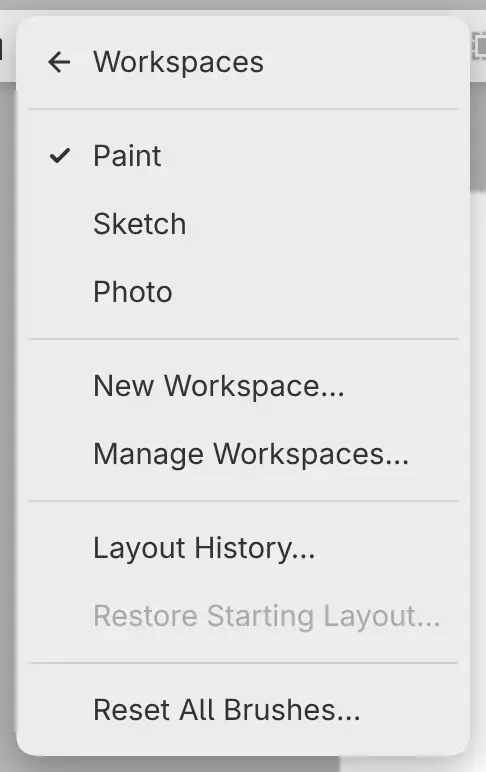
You can save your own workspaces and manage them in the Window > Workspaces menu. Tools, brushes and colors are shared by every workspace.
Switching workspaces
Do one of the following:
- Choose Window > Workspaces and the workspace’s name. The menu lists the current workspace and up to five others, the most recently used first.
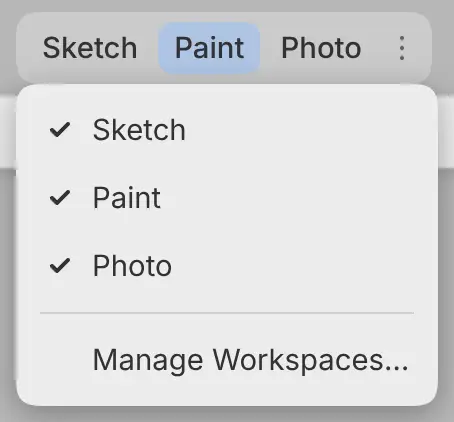
- Select the workspace’s button in the title bar.
- Type the workspace’s name in command search.
You can’t switch during a stroke or while you drag a panel.
Workspaces in the title bar
You can choose which workspaces have a button in the title bar. Select Workspace options (⋯) after the workspace buttons, or right-click the buttons, and turn workspaces on or off in the Show in top bar list.
The current workspace always has a button. Workspaces you make are added to the title bar.
New Workspace…
You can save the current layout as a new workspace.
Do one of the following:
- Choose Window > Workspaces > New Workspace….
- Select New Workspace (+) in the Workspaces dialog.
Type a Name and select Create and Switch. Each workspace needs a name of its own.
Manage Workspaces…
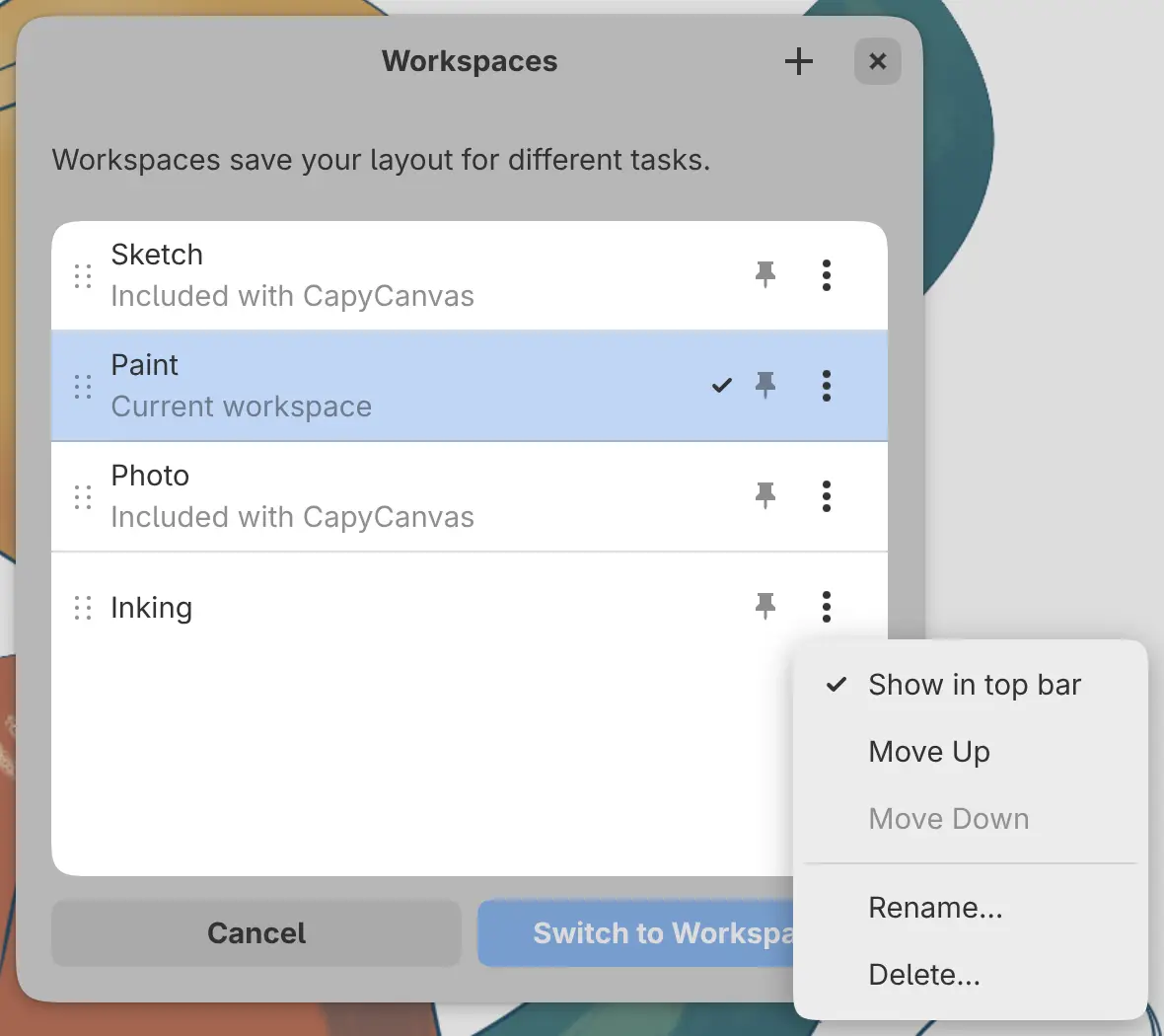
Choose Window > Workspaces > Manage Workspaces… to open the Workspaces dialog. Selecting a workspace previews its layout behind the dialog. To switch, select Switch to Workspace.
- Drag a workspace by its handle to reorder the list. The title bar uses the same order.
- Select ⋯ next to a workspace, or right-click it, for Show in top bar, Move Up, Move Down, Rename… and Delete….
To copy a workspace, switch to it and choose New Workspace…. Sketch, Paint and Photo can’t be renamed or deleted, and deleting a workspace is permanent.
Layout History…
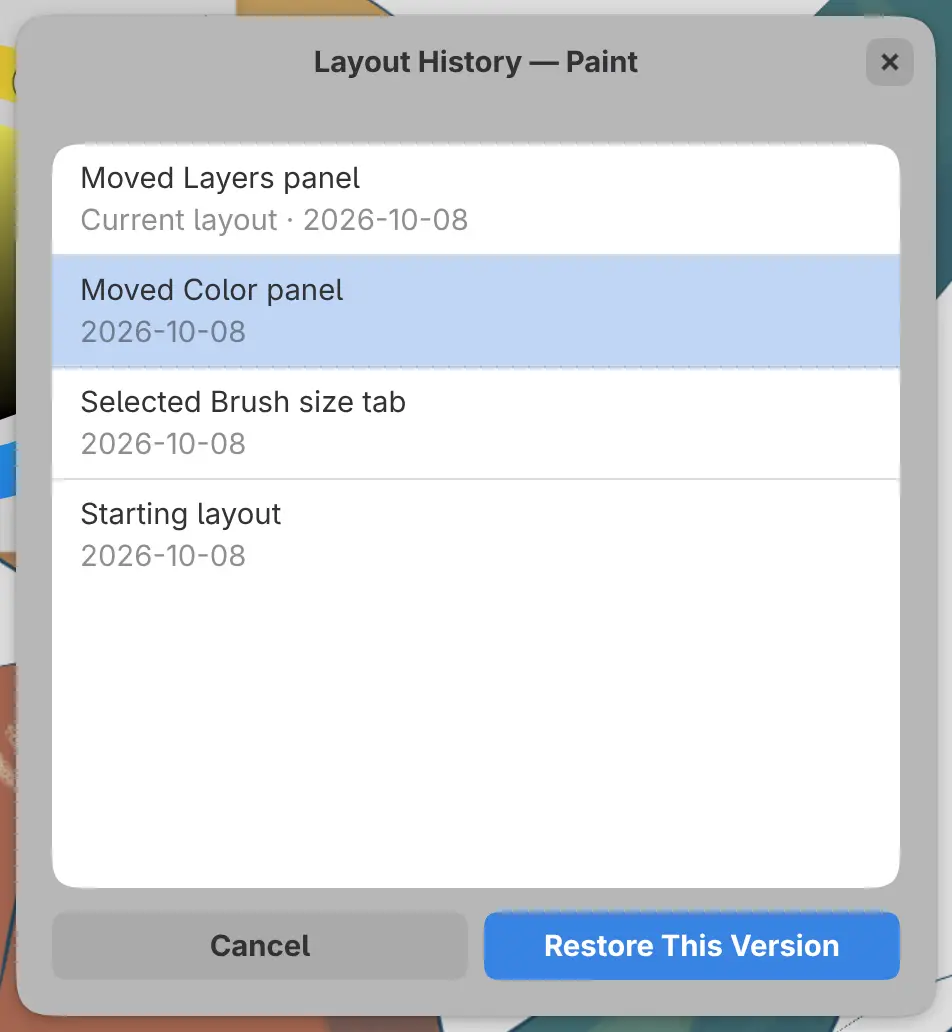
You can go back to an earlier layout of the current workspace. Choose Window > Workspaces > Layout History…, select an entry to preview it, and select Restore This Version.
Each entry names a layout change and its date, newest first. Restoring an entry leaves tools, brushes and colors as they are. Undo Layout Change reverses the restore.
Restore Starting Layout…
Choose Window > Workspaces > Restore Starting Layout… and select Restore. The starting layout is the default layout for Sketch, Paint and Photo, and for your own workspaces the layout at the time you made them.
The menu item is unavailable while the layout matches the starting layout.
Undo Layout Change
Layout changes have an undo history of their own, separate from the drawing’s. Choose Window > Undo Layout Change (Ctrl+Alt+Z) or Window > Redo Layout Change (Ctrl+Alt+Shift+Z). Each workspace keeps up to 100 steps, and a restore counts as one step.
Reset All Brushes…
Window > Workspaces > Reset All Brushes… restores the default settings of every brush, in every workspace. You can’t undo a brush reset. See Saving and resetting brushes.
Several windows
In the Linux, Windows, macOS and iPad apps, choose File > New Window (Ctrl+Shift+N) to open another window. On the web, open the editor in another browser tab.
A workspace can be open in only one window. Choosing a workspace that is open in another window brings that window to the front.