Image size and rotation
You can resize, rotate and flip the whole image from Image. The image stays in place on screen.
The commands are unavailable while a crop or transform is open, and while you edit a mask, Quick Mask or a selection layer. For Crop and Crop Canvas to Selection, see Crop.
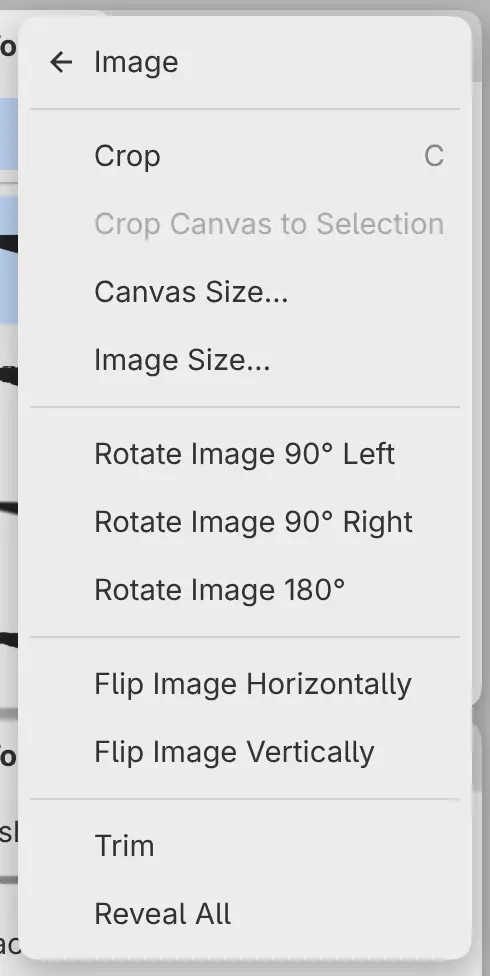
Image Size…
You can scale the whole image, or change only its resolution.
Choose Image > Image Size…. Paint layers and masks are resampled, and Object layers keep their source pixels. Selections, guides and filter settings measured in pixels scale with the image.
Paper is resampled with the image. Changing only the resolution updates its physical scale without resampling the pixels.
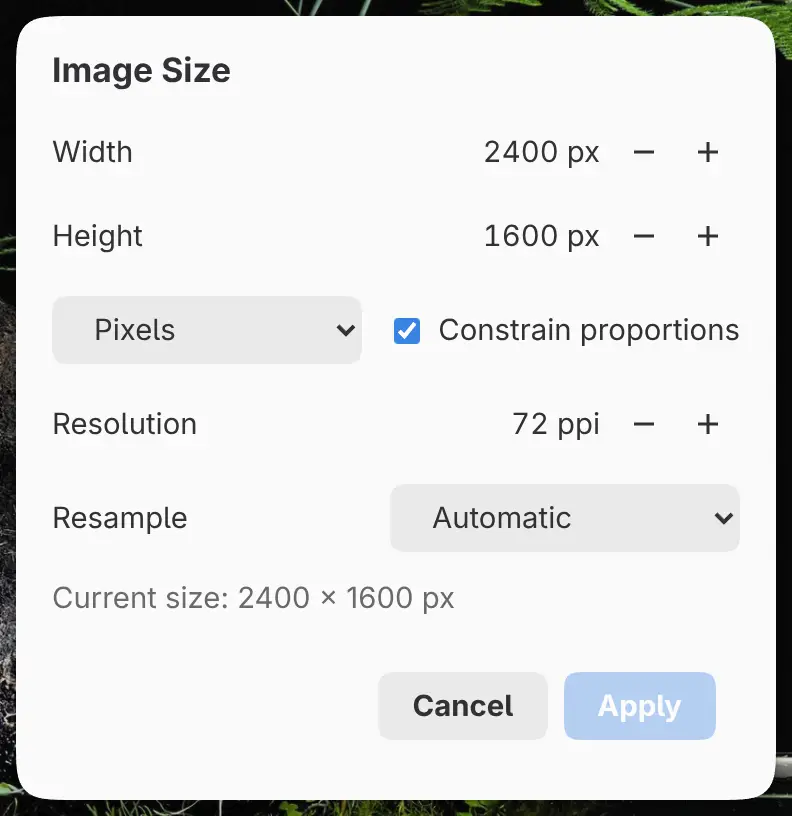
Width and Height
Set the new size in Pixels or Percent. Switching the unit converts the values.
Constrain proportions
Links Width and Height. On by default.
Resolution
Sets the resolution in pixels per inch. If you change only the resolution, the pixels stay as they are. The field starts at the drawing’s resolution, or at 72 ppi if the drawing has none.
Resample
Automatic (the default) uses Lanczos when the image gets smaller and Bicubic when it gets larger. You can also choose Bicubic, Lanczos, Bilinear or Nearest neighbor.
Canvas Size…
You can add or remove canvas around the image without resampling.
Choose Image > Canvas Size…. Pixels outside a smaller canvas stay on their layers, hidden, and a larger canvas shows them again.
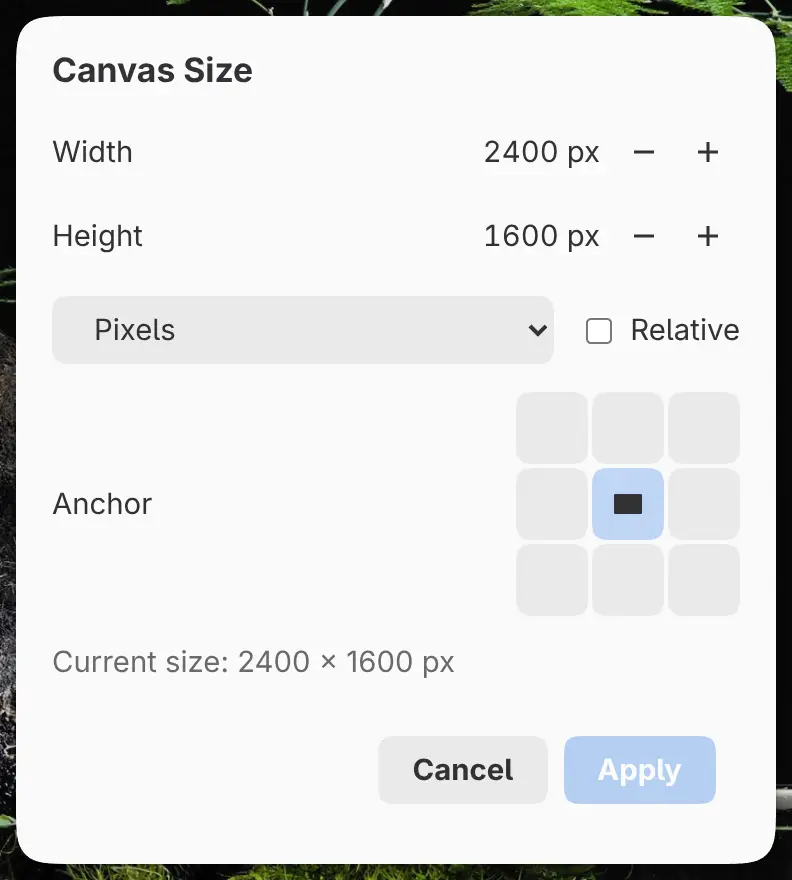
Width and Height
Set the new size in Pixels or Percent. Switching the unit converts the values.
Relative
Adds the values you enter to the current size. Off by default.
Anchor
Picks the side or corner of the image that stays in place, from a 3 × 3 grid. Center is the default.
Rotating and flipping the image
Choose one of these from Image > Rotate and Flip:
- Rotate Image 90° Left
- Rotate Image 90° Right
- Rotate Image 180°
- Flip Image Horizontally
- Flip Image Vertically
The whole image turns or mirrors with its selection and guides. Pixels aren’t resampled. To turn or mirror only the view, see Viewing the canvas.
Trim
Choose Image > Trim to shrink the canvas to the visible pixels. Pixels outside the new canvas stay on their layers, hidden.
Reveal All
Choose Image > Reveal All to grow the canvas until it shows every layer’s pixels, including hidden layers and pixels outside the canvas.