Figure
You can draw straight lines, rectangles and ellipses on the selected layer with the Figure tool.
Figure tool
Do one of the following:
- Press U.
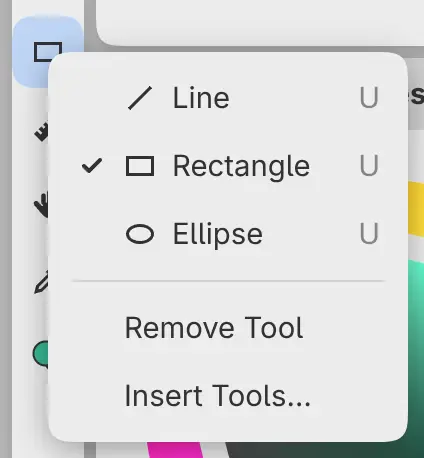
- In Paint, select Figure in the Tools toolbar. Right-click or hold the button to choose Line, Rectangle or Ellipse.
- Search commands for Figure, or for a shape such as Figure › Rectangle.
Sketch and Photo have no Figure button. You can add one with Insert Tools… (Toolbars and title bar).
Drag on the canvas to draw the figure. A dashed outline shows the shape while you drag, and the paint appears when you release. Hold Shift while dragging to draw a line in 45° steps, a square or a circle.
- Figures paint only a layer’s artwork, and only on layers a brush can paint (Brush tools).
- An active selection clips the figure, and Alpha lock is respected.
- With Transparent paint selected in the Color panel, the figure erases.
- Pen pressure doesn’t change the width of a figure.
- Figures don’t follow guides.
- Figure isn’t available in Quick Mask or on a selection layer.
- Each figure is one undo step.
Shape
- Line runs from where you press to where you release, with round ends.
- Rectangle has its corners at the press and release points, with its sides parallel to the canvas edges.
- Ellipse fits the box between the press and release points.
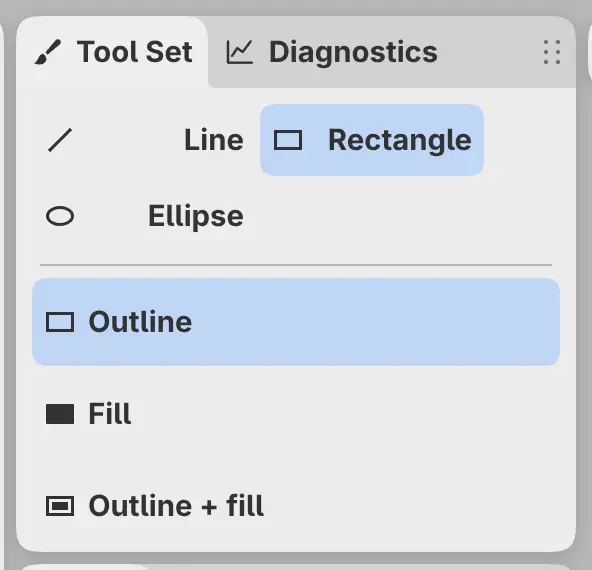
Choose the shape at the top of the Tool Set panel, from the menu of the Figure button, or from Tool in the Tool Options bar.
Outline and fill
- Outline draws the edge of the shape in the current color, centered on the edge.
- Fill covers the shape with the current color.
- Outline + fill draws the outline in the foreground color and fills the inside with the background color.
Choose the mode below the shapes in the Tool Set panel, or from Variant in the Tool Options bar. A line can only be drawn with Outline.
Line width and Opacity
Line width and Opacity are in the Tool panel and the Tool Options bar. They share their values with the current brush’s Brush size and Opacity (Size, opacity and flow), and [ and ] change Line width.
Line width
Sets the width of the outline, from 0.5 to 2048 px. It doesn’t appear in Fill mode.
Opacity
Sets the strength of the outline and the fill alike.