Quickstart
Opening Capy Canvas
Do one of the following:
- Open the web editor at editor.capycanvas.art.
- Get the desktop app, the iPad or Android beta, or the steps to install the web editor as an app from the Download page.
See Device support for the separate native app and web browser requirements.
After your first visit, the web editor also opens without an internet connection.
The first drawing
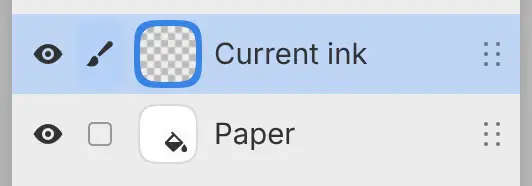
The first time you open Capy Canvas, it shows the Sketch workspace with a blank landscape drawing, 4:3 and as tall as your screen. Current ink, an empty paint layer, is selected above Paper, which has the Cold press texture. The Pencil tool is active with a dark gray color.
Later, Capy Canvas opens with the workspace you used last and the drawings that were open.
Drawing
Drag on the canvas with a pen or a mouse. To use another tool, select Brush in the title bar in Sketch, or the tool in the Tools toolbar at the left edge in Paint. Drag a tool onto the canvas to keep it there as a bubble.
Memo: Fingers never draw. Two fingers on the canvas pan, zoom and rotate the view.
To undo a stroke, choose Edit > Undo, press Ctrl+Z or tap the canvas with two fingers (see Undo and redo).
Keys on macOS and iPad
This manual writes keys as on Windows and Linux. On macOS and iPad, press Command (⌘) where the manual says Ctrl. Ctrl also works in the web editor and the macOS app.
The web editor labels every shortcut with Ctrl. The browser keeps F5, F11, F12, and Ctrl or Ctrl+Shift with W, T, N, R, L, Q or P. A command that uses one of these keys has no key in the web editor. Choose it from the menu or from command search.
Starting another drawing
Choose File > New… to open the New drawing dialog. The new drawing opens in its own tab next to the first one.
Saving the drawing
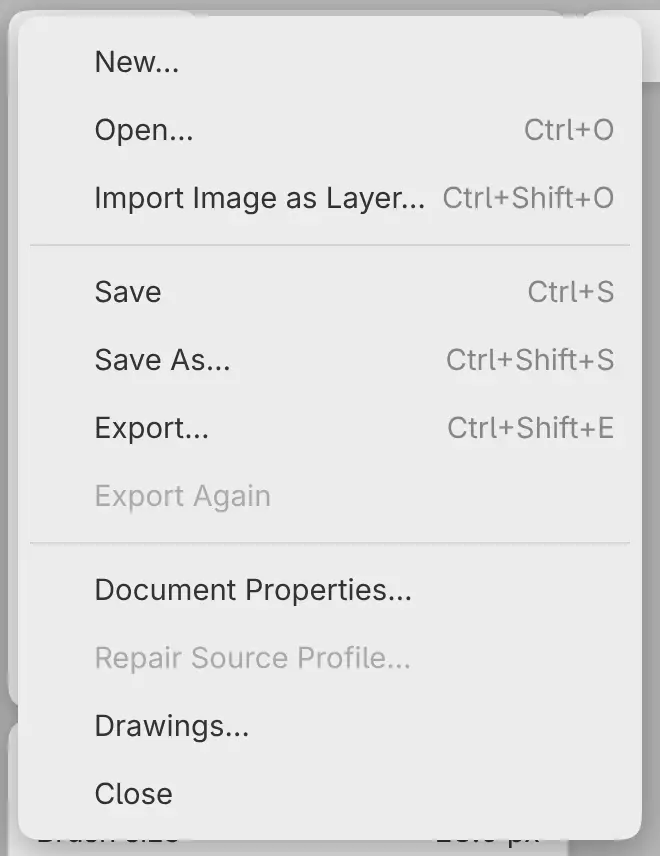
To save the drawing with all its layers:
- Choose File > Save, or press Ctrl+S.
- Choose a folder and a name. The suggested name is “Untitled.capy”.
The title bar then shows the file name. In Firefox and Safari, the drawing counts as saved only after you select Download and then File saved in the Download file dialog.
Exporting a PNG
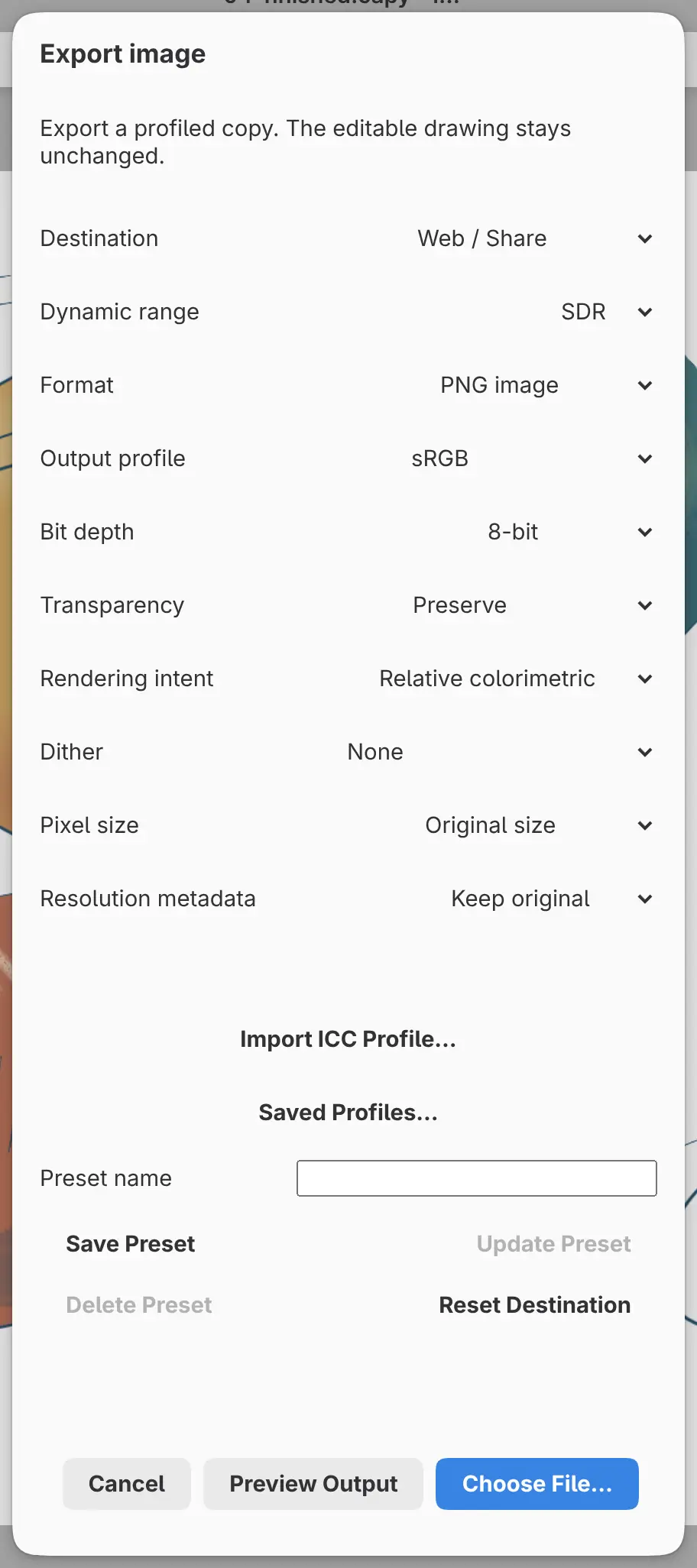
To export a flattened PNG copy of the drawing:
- Choose File > Export…, or press Ctrl+Shift+E.
- Leave Destination set to Web / Share, and select Choose File….
- Choose a folder and a name. The suggested name is “Untitled.png”.
Web / Share writes an 8-bit sRGB PNG at the drawing’s full size. Exporting doesn’t change or save the drawing.