Opening and saving
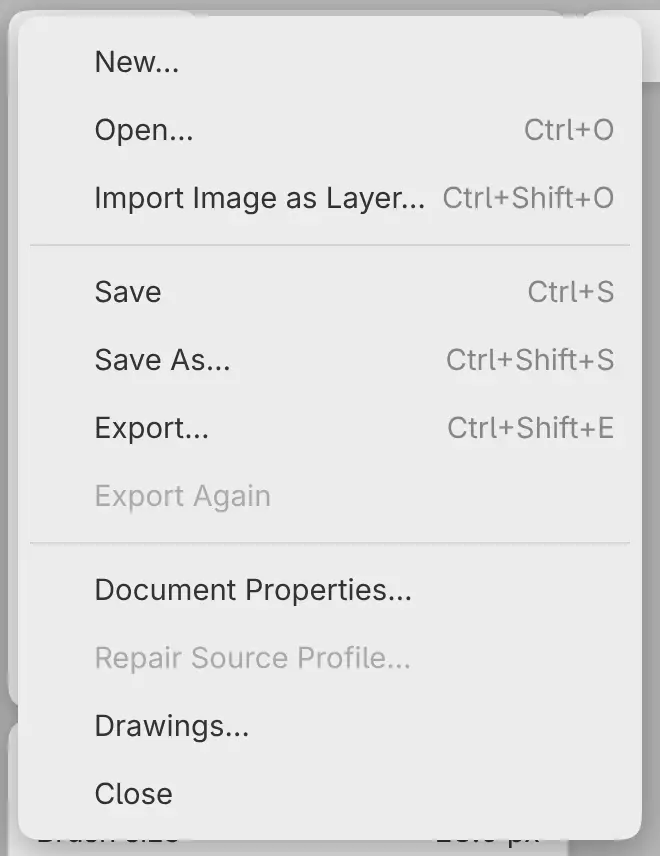
The commands on this page are in the File menu. In Sketch, open it from Main Menu in the title bar.
Opening a drawing or photo
You can open .capy drawings and photos in OpenEXR, TIFF, PNG, WebP, BMP, JPEG,
GIF, HEIF and AVIF format. Each file opens in its own tab.
Do one of the following:
- Choose File > Open…. You can choose several files, except on Linux.
- Press Ctrl+O.
- In Paint and Photo, select Open… in the Commands toolbar.
- In the web editor or on Linux, drag files onto the drawing name or the tabs in the title bar.
- If you installed the web editor as an app, open a
.capy,.png,.jpg,.tif,.avifor.exrfile with Capy Canvas from your system.
Photos
A photo opens as a new drawing with a photo layer, named after the file, above
a Paper layer. The photo keeps its color profile and, by default, its bit
depth. Saving the drawing creates a .capy file and never overwrites the photo.
- An animated GIF or WebP opens its first frame.
- A photo can be up to 32768 pixels on each side.
- A CMYK photo opens only with an embedded color profile.
- HDR HEIF and AVIF photos can’t be opened.
With Untagged RGB and grayscale set to Ask in Preferences, a photo without a color profile opens the Choose image interpretation dialog.
Importing images as layers
You can add images to the current drawing as new layers.
Do one of the following:
- Choose File > Import Image as Layer….
- Press Ctrl+Shift+O.
- Drag images onto the canvas, or onto a row of the Layers panel.
Each image becomes a layer named after the file, above the selected layer, with transform handles for placing it. An image larger than the canvas is scaled down to fit.
You can’t import a .capy file. In the web editor, an image can be up to 512 MiB.
Saving
You can save the drawing with all its layers as a .capy file.
Do one of the following:
- Choose File > Save.
- Press Ctrl+S.
- In Paint and Photo, select Save in the Commands toolbar.
The first save asks for a location, and later saves write to the same file. After saving, the tab shows the file name without the ● mark.
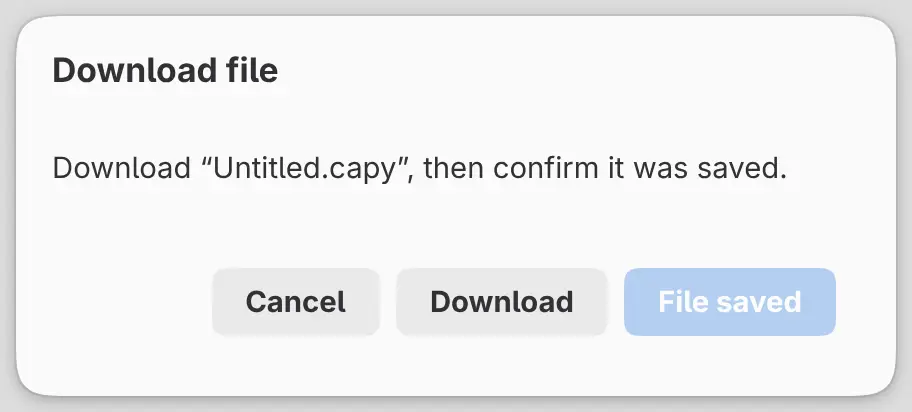
In Firefox and Safari, the drawing counts as saved only after you select Download and then File saved in the Download file dialog.
File > Save As… (Ctrl+Shift+S) always asks for a location, and later saves go to the new file. Save also asks for one if the file changed on disk since you opened or saved it.
Save isn’t available while a crop or a transform is open.
What a .capy file keeps
A .capy file keeps every layer with its mask and settings, the filters, saved
selections and guides, the color space, bit depth and blending, and a photo’s
EXIF, XMP and IPTC data. It doesn’t keep the undo history, the view or the
active selection.
View-only drawings
A .capy file that Capy Canvas can’t edit, such as a damaged file, opens in a
dialog instead of a tab. Copy Original File… saves a copy of the file, and
Export Preview Image… saves the drawing’s preview as a PNG.
Drawing tabs

The title bar shows a tab for each open drawing. With only one drawing open, it shows the drawing’s name and size instead.
Select a tab to switch to its drawing, or use these keys:
| To | Web editor | Linux |
|---|---|---|
| Show the previous drawing | Alt+Page Up | Ctrl+Page Up or Ctrl+Shift+Tab |
| Show the next drawing | Alt+Page Down | Ctrl+Page Down or Ctrl+Tab |
| Open the Drawings list | Ctrl+Alt+D | Ctrl+Shift+A |
In the web editor, drag a tab sideways to reorder the tabs.
A ● before a name marks unsaved changes. In a narrow title bar, the tabs become one button that opens the Drawings list.
Each tab keeps its own undo history, view and selection. Tabs aren’t part of a workspace.
Drawings…
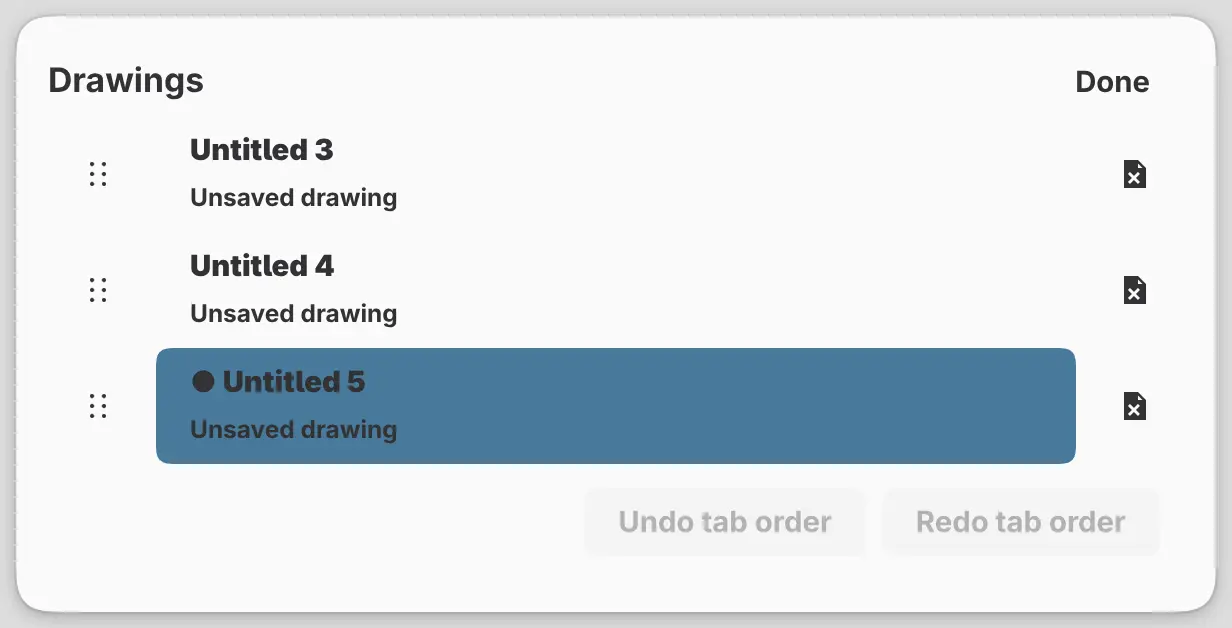
You can see every open drawing in one list.
Do one of the following:
- Choose File > Drawings… or Window > Drawings….
- In the web editor, right-click a tab.
Select a row to switch to its drawing, drag the grip at its left to reorder, or select × to close the drawing. The tab order has its own Undo tab order and Redo tab order at the bottom of the list.
Closing a drawing
Do one of the following:
- Choose File > Close.
- Press Ctrl+W. In the web editor, press Ctrl+Alt+W.
- Select × on the drawing’s tab.
If the drawing has unsaved changes, a dialog asks “Save changes to “name”?” with Cancel, Discard Changes and Save.
When you close the last drawing, the web editor opens a new blank drawing. On Linux, the window closes.
Reopening after a restart
All open drawings, saved or not, reopen the next time you start Capy Canvas, each with its undo history, view, selection and last export. Quitting Capy Canvas doesn’t ask you to save.
In the web editor, clearing the site’s data deletes unsaved drawings.
After Capy Canvas closes unexpectedly, the reopened drawings show “(recovered)” after their name until you save them.
New Window
On Windows, macOS, Linux and iPad, File > New Window (Ctrl+Shift+N) opens another window with its own drawings.