Rulers and guides
You can place guides on the canvas that hold brush strokes to straight lines.
Guides are saved in the .capy file and don’t appear in exported images.
Ruler tool
Do one of the following:
- Press Shift+U.
- In Paint, select Ruler in the Tools toolbar. Right-click or hold the button to choose Straight, Parallel or Radial.
- Search commands for Ruler.
Sketch and Photo have no Ruler button. You can add one with Insert Tools… (Toolbars and title bar).
Drag across an empty part of the canvas to add a guide, or click to add a Radial guide. Hold Shift while dragging to turn a Straight or Parallel guide in 45° steps.
Drag a guide’s handle to change its angle and length, or drag its line to move the whole guide.
- Press Escape to cancel a drag.
- Adding, moving and deleting a guide are undo steps.
- While guides are hidden, a drag adds a new guide and shows all guides again.
- Crop, Image Size, Canvas Size, Rotate and Flip move the guides with the image.
Guide kinds
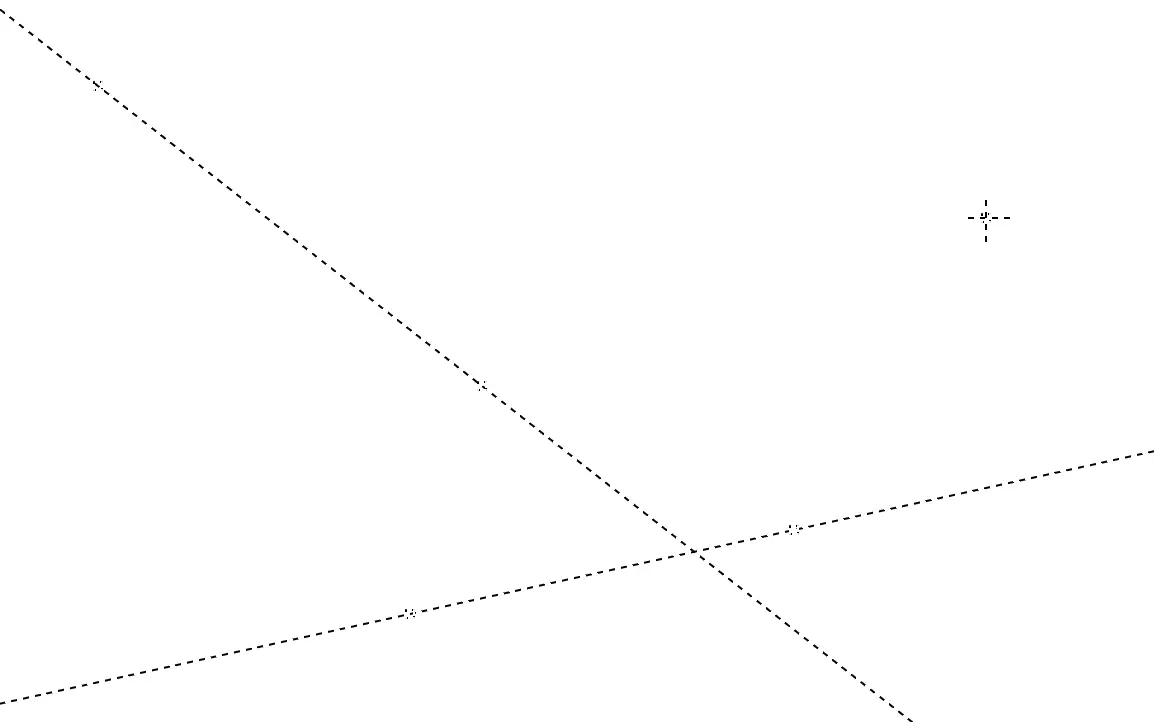
Straight and Parallel guides are dashed lines with a square at each handle. A Radial guide is a square with a dashed crosshair. A selected guide has larger handles.
Only strokes of the brush tools follow guides.
Straight
A stroke that starts within 12 screen pixels of the guide’s line follows that line. The line extends across the whole canvas.
Parallel
Every stroke runs parallel to the guide from the point where you press.
Radial
Strokes point toward the guide’s center. Each one follows the line from the center through the point where you press.
Which guide a stroke follows
A nearby Straight guide wins over Parallel and Radial guides. Among several Parallel and Radial guides, the one whose first handle or center is nearest the start of the stroke wins.
Showing guides and snapping
You can hide the guides, or turn off snapping.
Do one of the following:
- Choose View > Show rulers or View > Snap to rulers.
- With the Ruler tool active, or a guide selected with Operation, select Show rulers or Snap to rulers in the Tool panel.
- Select Guides or Snap in the guide bar.
Both are on by default. Snap to rulers is unavailable while guides are hidden.
Deleting a guide
Select the guide, then do one of the following:
- Press Delete or Backspace.
- Select Delete ruler in the Tool panel.
- Select Delete in the guide bar.
Delete and Backspace delete a guide only while Ruler, Figure, Operation, Transform or Crop is the active tool. With other tools, these keys run Clear Selected Pixels.
Guide bar
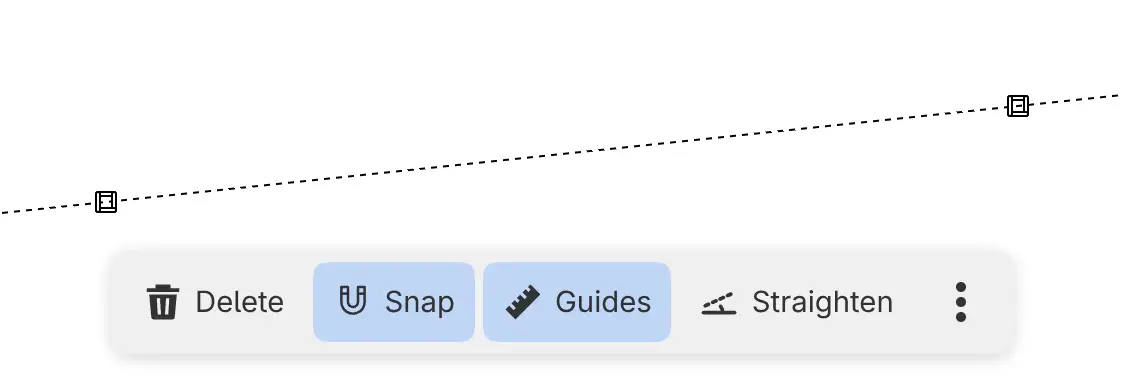
When you select a guide with the Ruler or Operation tool, a bar appears below its handles.
| Button | Action |
|---|---|
| Delete | Deletes the guide. |
| Snap | Turns Snap to rulers on or off. |
| Guides | Shows or hides all guides. Hiding them also hides the bar. |
| Straighten | Starts Straighten Image to Guide. Only for a Straight guide. |
Turning off View > Show canvas action bar removes the guide bar.
Moving guides with Operation
With the Operation tool, drag a guide’s handle or line to move the guide instead of the layer. Operation never adds guides.
Straighten Image to Guide
You can level the image along a Straight guide.
Select a Straight guide, then do one of the following:
- Select Straighten in the guide bar.
- Search commands for Straighten Image to Guide.
The Crop tool opens with its frame turned so that the guide becomes level or upright, whichever is closer. Apply the crop to rotate the image (Crop).