Crop
You can crop the canvas to a frame with the Crop tool. Cropped pixels stay on their layers, hidden, unless you turn on Delete Cropped.
Cropping
Do one of the following:
- Choose Edit > Image > Crop.
- Press C.
- In Photo, select Crop in the Tools toolbar.
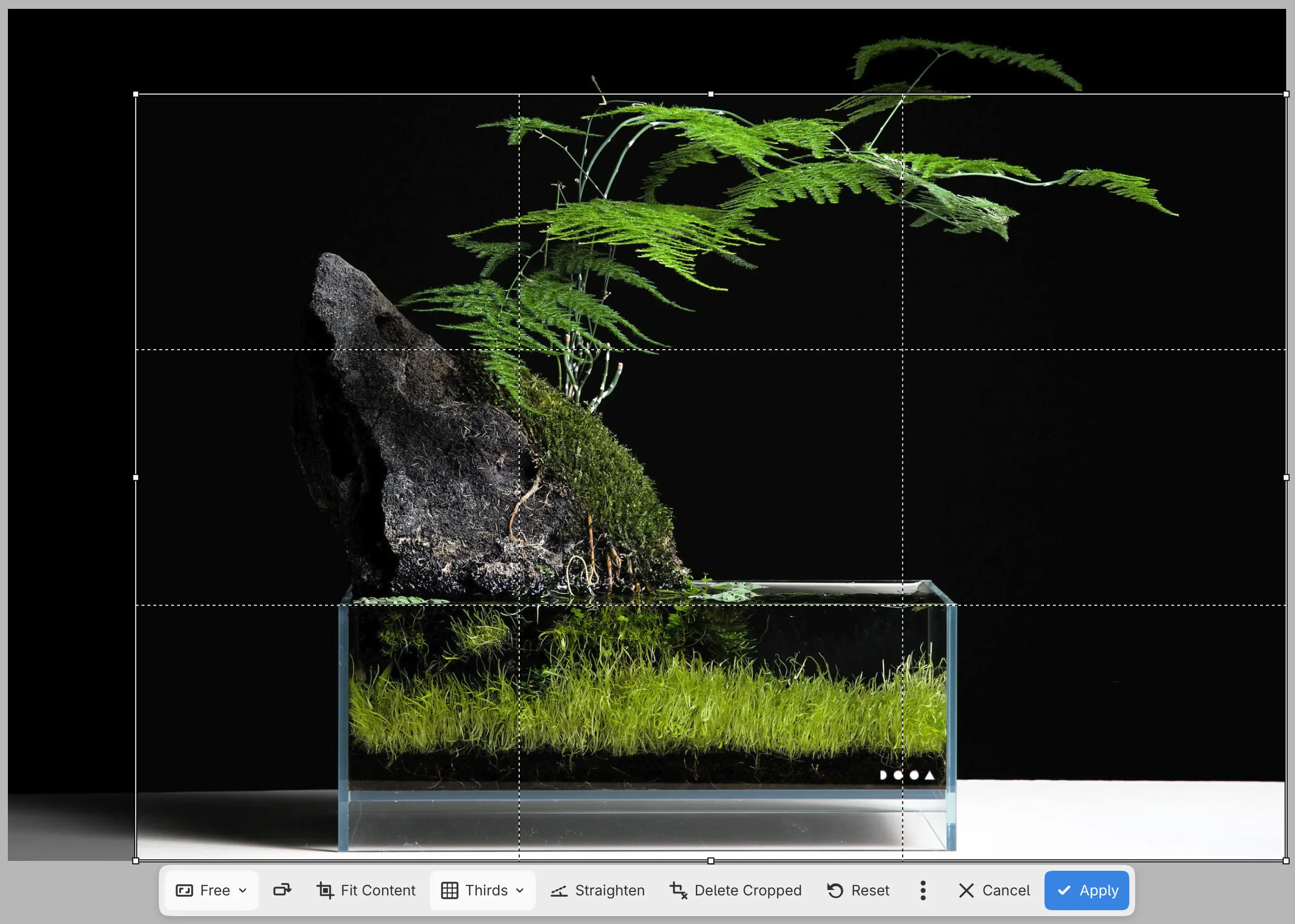
A frame with handles appears around the whole canvas, or as the largest frame of the chosen ratio. The canvas outside the frame is dimmed, and the canvas bar for the crop appears at the bottom edge of the canvas.
- Drag inside the frame to move it.
- Drag a corner or edge handle to resize the frame. Hold Shift to keep its proportions, or Alt to resize from the center.
- Drag the frame past the canvas edge to add transparent canvas.
On a touch screen, only the handles respond to a finger. A finger inside the frame moves the view.
To finish, select Apply or press Enter. Cancel, Escape and Undo discard the crop. Either way, the tool you used before returns.
Apply also crops locked layers. You can’t start a crop while a transform is open.
Ratio
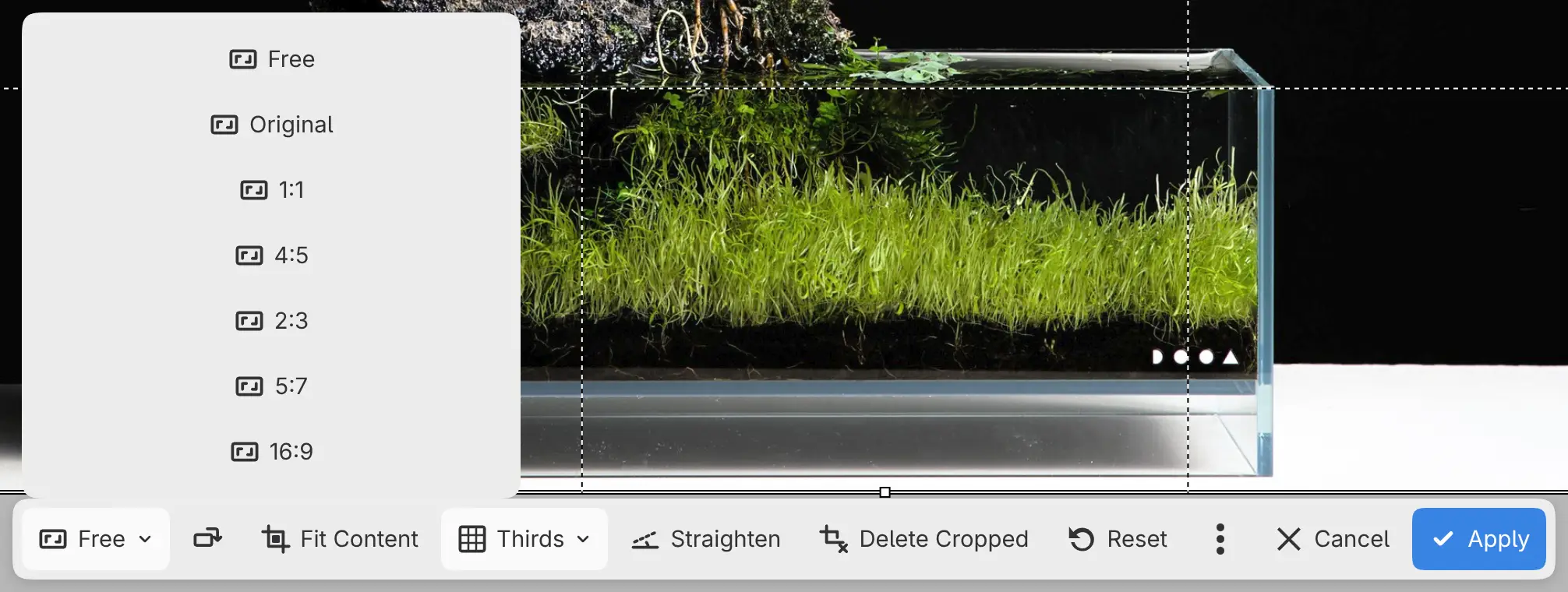
Choose Free, Original, 1:1, 4:5, 2:3, 5:7 or 16:9 from Ratio on the canvas bar. The frame becomes the largest frame of that ratio. Free is the default.
Swap crop orientation, the icon button beside Ratio, turns the frame between landscape and portrait.
The ratio, the overlay and Delete Cropped carry over to the next crop.
Fit Content
Fit Content sets the frame, upright, to the bounds of the visible pixels, including pixels beyond the canvas. Ratio changes to Free.
Overlay
Choose Thirds, Grid, Diagonal or Golden Ratio from Overlay. Thirds is the default. Press O while cropping to show the next overlay.
Straightening
Select Straighten on the canvas bar, then draw a line along something that should be level or upright. The frame turns to match the line. Hold Shift to snap the line to 15° steps. On a touch screen, a finger draws the line while Straighten is selected.
You can also set the angle in Straighten in the Tool panel. The frame turns by at most 45° either way.
When you apply a turned crop, paint layers and masks are resampled. Placed photos keep their original pixels.
To straighten to a guide, select the guide and select Straighten on its canvas bar (see Rulers and guides). A crop opens, turned level with the guide.
Delete Cropped
Turn on Delete Cropped to discard the pixels outside the frame when you apply the crop. Placed photos keep their original pixels. Off by default.
A crop that would be too large with the hidden pixels kept works only with Delete Cropped on.
Reset
Reset returns the frame to the whole canvas, upright, and turns off Straighten. With a ratio chosen, the frame becomes the largest frame of that ratio.
Crop settings in the Tool panel
While you crop, the Tool panel (and the Tool Options bar in Photo) shows:
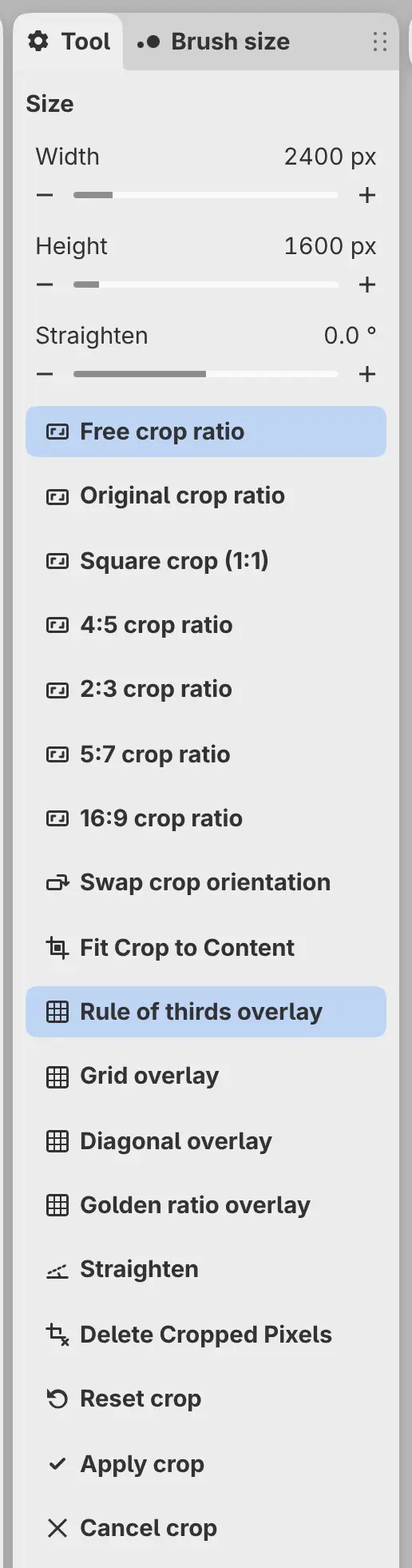
- Size: Width and Height of the frame, in pixels. With a ratio chosen, the other side follows.
- Straighten: the frame’s angle, from −45° to 45°.
- The buttons of the canvas bar.
Crop Canvas to Selection
You can crop the canvas to the bounds of a selection.
Do one of the following:
- Choose Edit > Image > Crop Canvas to Selection.
- Select Crop on the selection bar.
Pixels outside the selection’s bounds stay on their layers, hidden. You can’t crop to an inverted selection.
Getting cropped pixels back
Choose Edit > Image > Reveal All to grow the canvas until it shows every layer’s pixels, or make the canvas larger with Edit > Image > Canvas Size… (see Image size and rotation).