Clone and heal
You can paint over flaws with pixels copied from elsewhere in the image.
| Tool | What it does |
|---|---|
| Clone Stamp | Paints with pixels copied from the source disc. |
| Healing Brush | Paints like Clone Stamp. When you lift the pen, the copy takes on the color and brightness around the stroke and keeps its texture. |
| Spot Healing Brush | When you lift the pen, replaces the spot you painted over with texture from the most similar nearby area, blended into its surroundings. |
Choosing a retouching tool
Do one of the following:
- Press S. Press it again to switch to Healing Brush, then Spot Healing Brush.
- In Photo, select Clone Stamp or Spot Healing Brush / Healing Brush in the Tools toolbar.
- In Paint, select Blend / Clone Stamp in the Tools toolbar. Right-click or hold the button to choose Clone Stamp.
- In Sketch, select Sculpt in the title bar, select it again to open the drawer, and select Clone, Heal or Spot Heal.
- Type the tool’s name in command search.
Healing Brush and Spot Healing Brush have no button in Paint.
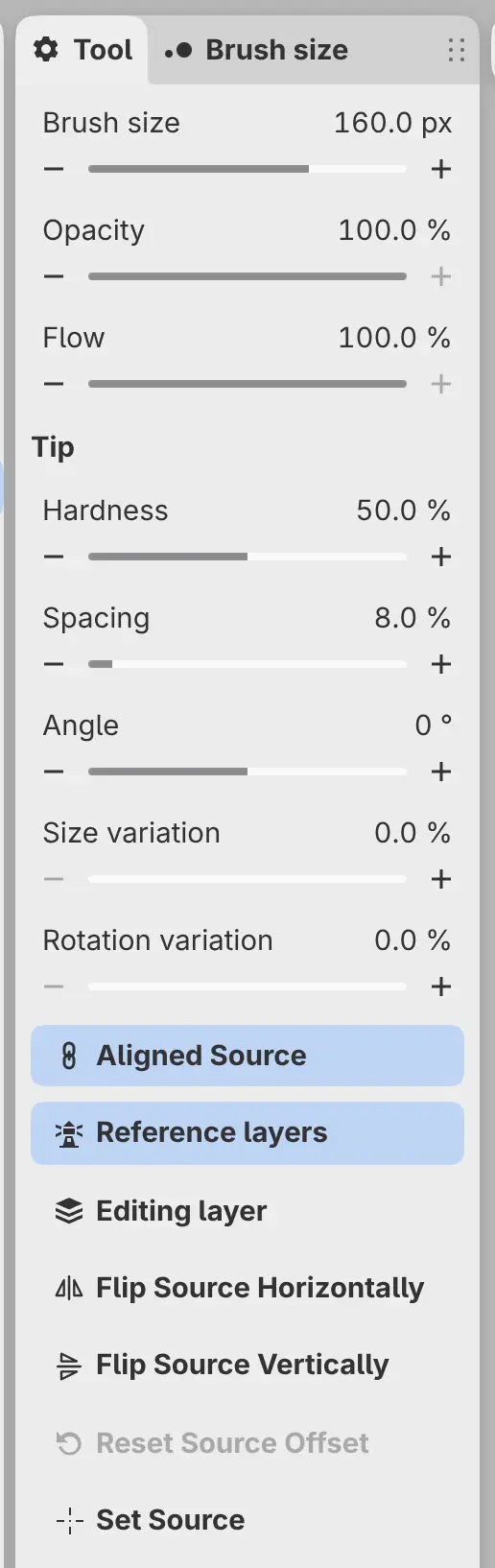
Each tool is a brush, with Brush size, Opacity, Flow and the Tip settings in the Tool panel (see Size, opacity and flow).
Source
Source in the Tool panel sets what the tools copy:
- Reference layers (the default) copies the layer you paint on together with the layers below it that are marked as references.
- Editing layer copies only the layer you paint on.
With Reference layers, you can retouch on an empty layer above the photo. Mark the photo with Use as reference, or choose Layer > Layer Settings > Use layer below as reference. If you paint on an empty layer and no reference below it is marked, the message offers Use name as Reference.
You can’t retouch a scaled or rotated layer directly. Retouch on a new layer above the scaled or rotated one.
Setting the source
Clone Stamp and Healing Brush copy from the source disc, a small ring with a cross.
Do one of the following:
- Hold Alt and click where you want to copy from.
- Select Set Source, then click.
Until you set it, the source is at the center of the view. Drag the disc to move the source. A finger can drag the disc, but never sets the source. While you paint, the disc follows the point being copied.
Spot Healing Brush finds its own source and has no disc.
Source settings
These settings are for Clone Stamp and Healing Brush.
Aligned Source
Keeps one offset between the source and the brush across strokes. When it is off, every stroke starts copying at the source disc. On by default.
Flip Source Horizontally and Flip Source Vertically
Mirror the copied pixels about the source disc.
Reset Source Offset
Starts the next stroke copying at the source disc again. Available after an aligned stroke.
Set Source
The next click sets the source.
Canvas bar for the source disc
Click the source disc without dragging to show the canvas bar beside it, with Aligned, Source, the two flip buttons, Reset Offset and Set Source. Click the disc again, or choose another tool, to hide the bar.
