Preferences
You can change settings for the whole app in the Preferences dialog. Each change applies and is saved at once.
Opening Preferences
Do one of the following:
- Choose Edit > Preferences. On macOS, choose Settings… in the app menu.
- Press Ctrl+,.
- In Paint and Photo, select the gear button at the right end of the title bar.
- Type “Preferences” in command search.
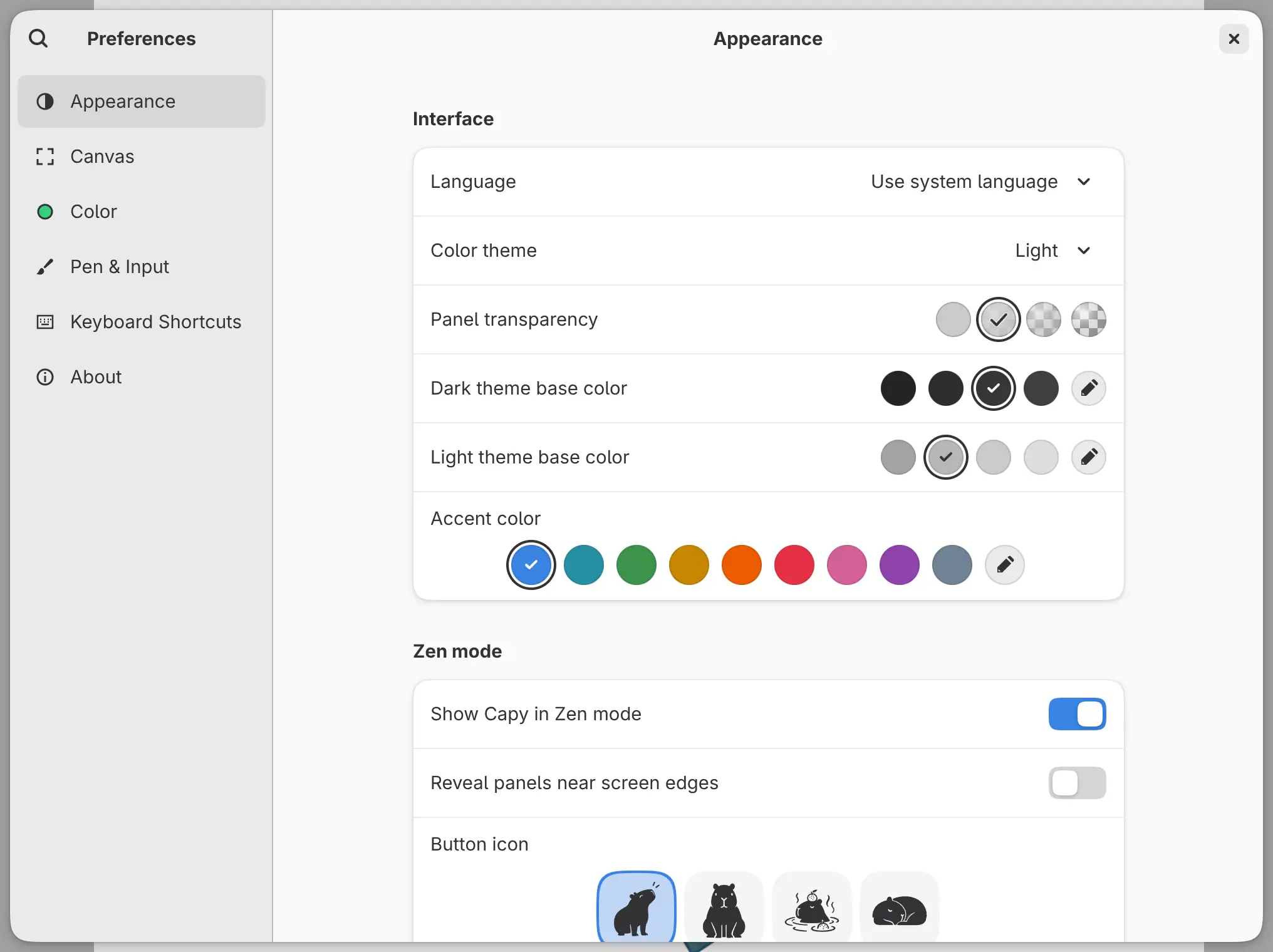
Preferences opens on the Appearance page. Help > Keyboard Shortcuts opens it on Keyboard Shortcuts, and Help > About Capy Canvas on About.
While Preferences is open, canvas shortcuts, pen buttons and finger taps do nothing.
Searching preferences
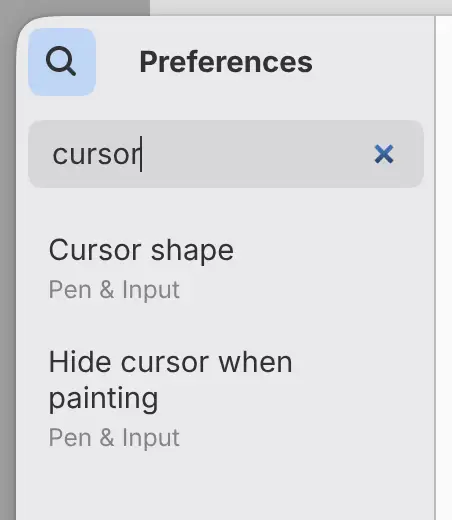
Select Search preferences at the top of the sidebar, or start typing anywhere outside a text field.
The search also finds keyboard shortcuts, pen buttons and finger taps. Selecting a shortcut opens its shortcut editor. In other languages, the search matches the English names too.
Resetting a setting
On the web and in the Linux app, right-click a setting, or hold it with a finger or pen, and choose Reset to Default. The menu item shows the default value. It is unavailable while the setting has its default value.
Clearing a number field or a hex color field also restores the default.

Appearance
Base colors and the accent color change only the interface, never the drawing.
Language
Sets the language of the interface. Use system language is the default, and each language is listed in its own name.
Color theme
Choose System (the default), Light or Dark. The Dark Mode command in command search switches between Light and Dark.
Panel transparency
Sets how much of the blurred artwork shows through panels and bars: Off, Low (the default), Medium or High. See Panels and columns.
Dark theme base color
Sets the gray of the interface in the dark theme. Choose a swatch, or Custom to type a six-digit hex color.
Light theme base color
Sets the gray of the interface in the light theme, with the same choices.
Accent color
System uses the operating system’s accent color. It is the default on Linux, Windows, macOS and Android, and isn’t offered on the web or iPad. The other choices are Blue (the default on the web and iPad), Teal, Green, Yellow, Orange, Red, Pink, Purple, Slate and Custom.
Show Capy in Zen mode
Keeps the Capy button on screen in Zen mode. On by default.
Reveal panels near screen edges
Shows the hidden controls in Zen mode while the pointer is near a screen edge with hidden controls. Off by default.
Button icon
Sets the Capy button’s picture: Looking up (the default), Facing forward, Bathing or Sleeping.
Canvas
Scroll pan speed
Scales how far the mouse wheel, the trackpad and a game controller’s left stick scroll the canvas, from 0.25 × to 4.00 × (default 1.00 ×).
Scroll zoom speed
Scales zooming with Ctrl and the mouse wheel, or with a game controller’s right stick, from 0.25 × to 4.00 × (default 1.00 ×).
Use Pass Through for new groups
Sets new groups to Pass Through. Off by default. Existing groups don’t change.
Color
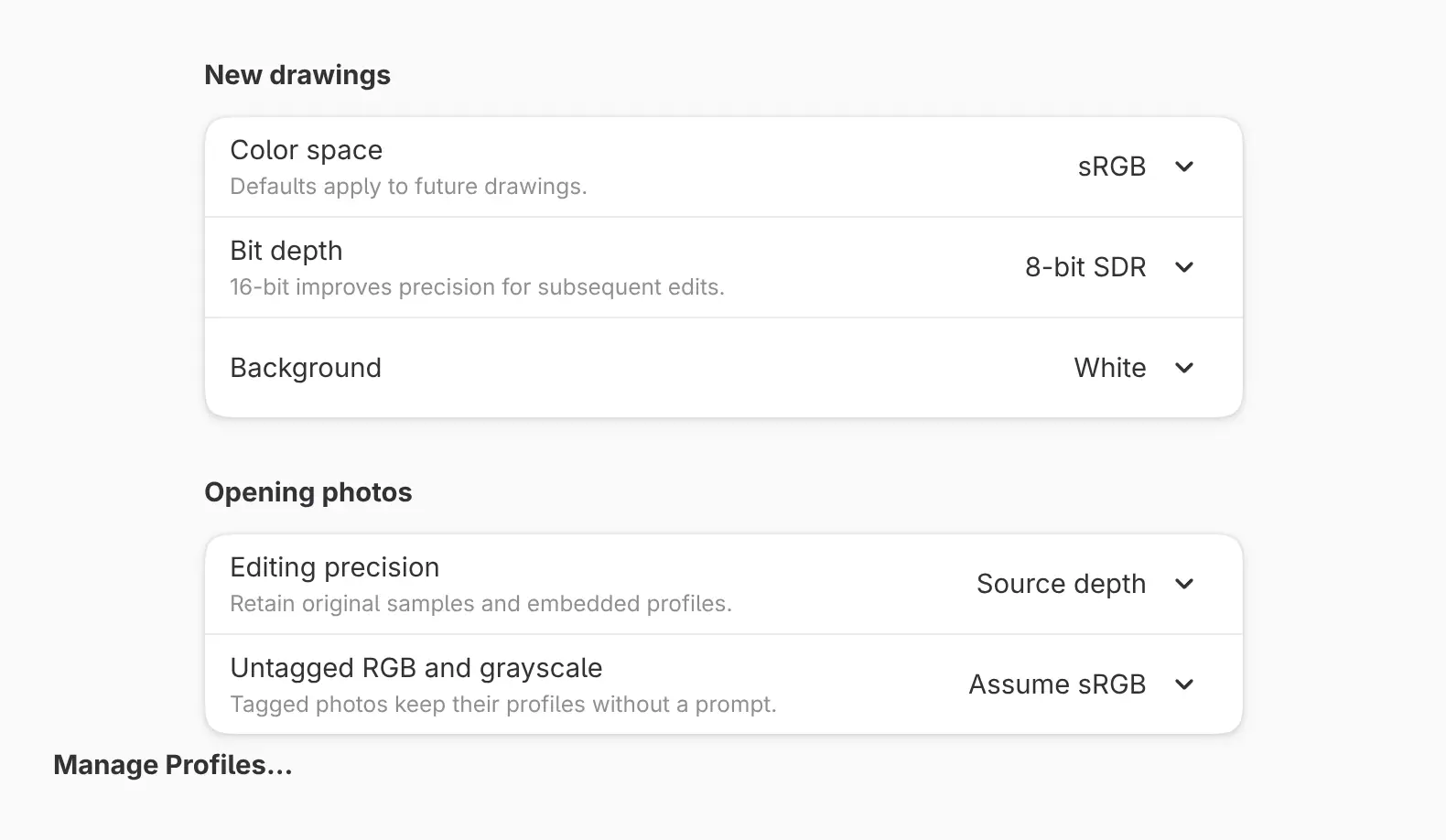
The New drawings settings apply to drawings you create afterward. The Opening photos settings apply to photos you open.
Color space
Choose sRGB (the default), Display P3, Adobe RGB (1998) or ProPhoto RGB.
Bit depth
Choose 8-bit SDR (the default), 16-bit SDR, 16-bit float HDR or 32-bit float HDR.
Background
Choose White (the default) or Transparent.
Editing precision
Source depth (the default) keeps a photo’s own bit depth. 16-bit opens 8-bit photos as 16-bit, and float photos stay float.
Untagged RGB and grayscale
Sets how photos without a color profile open: Assume sRGB (the default) or Ask. Photos with a profile keep it.
Manage Profiles…
Opens the color profile library. See Color space, bit depth and blending.
Pen & Input
The settings on this page are described in Pen and Touch gestures.
Keyboard Shortcuts
The keymap, modifier keys and shortcuts on this page are described in Keyboard shortcuts.
About
The About page lists the Version, Application license, Canvas rendering, Website, Source code and Dedicated to rows.
Where preferences are kept
Each device keeps its own preferences. In the web app, preferences belong to the browser and are shared by all its tabs. To move keys, modifier keys, pen buttons and finger taps to another device, export a keymap from the Keyboard Shortcuts page.