Touch gestures
You can move the canvas, pick colors and run commands with your fingers on a touchscreen.
Memo: Fingers never draw. Use a pen or a mouse to draw on the canvas.
Moving the canvas
Drag the canvas with two fingers to scroll. Pinch with two fingers to zoom, and rotate two fingers to rotate the canvas. With the Hand tool, one finger also scrolls.
Lock rotation and Lock zoom in the zoom menu at the bottom of the canvas stop pinching from rotating or zooming the view. See Viewing the canvas.
While the pen is on the canvas, fingers don’t move the canvas. A finger on a transform or crop handle, or on the source of the Clone Stamp, drags the handle or the source instead.
Picking a color
Hold one finger still on the canvas to pick the color under it. A magnifying ring appears above the finger. Drag to aim, and lift the finger to take the color. Press Escape to cancel.
A second finger on the canvas cancels the pick.
Finger taps
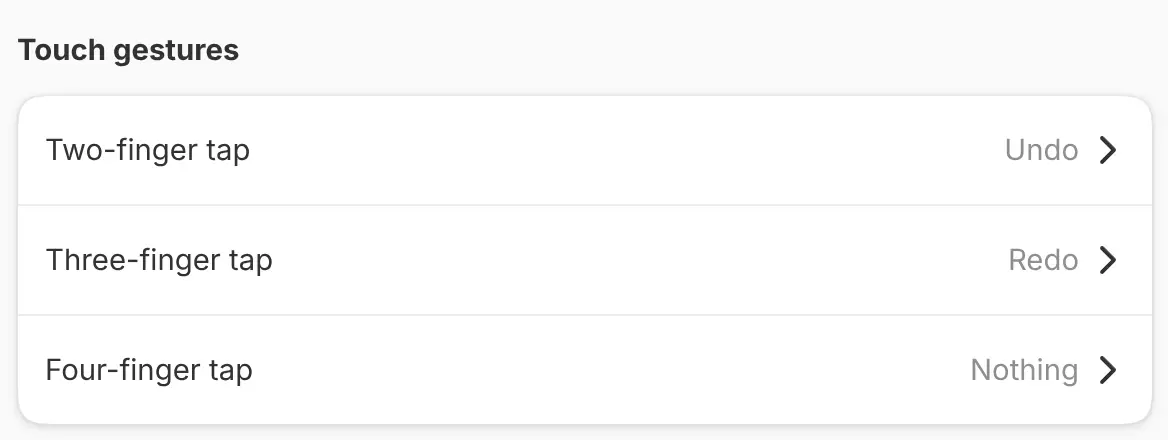
You can run an action by tapping the canvas with two, three or four fingers.
| Tap | Default action |
|---|---|
| Two-finger tap | Undo |
| Three-finger tap | Redo |
| Four-finger tap | Nothing, or Zen mode with the Procreate Style keymap |
All the fingers of a tap must touch down before any of them lifts. Fingers that move, or stay down as long as a long press, don’t count as a tap. If a tap moved the view, the view moves back.
Assigning finger taps
To change a tap:
- Choose Edit > Preferences and select Pen & Input.
- Select the tap under Touch gestures.
- Choose an action, or Nothing to turn the tap off.
Reset in the list of actions restores the default. Actions that last only while held, such as Pan, aren’t listed.
A keymap you export from the Keyboard shortcuts page includes the taps. Reset All Shortcuts on that page resets the taps too.
Platforms
Touch gestures work on Linux, Windows, Android, iPad and the web. The Touch gestures group isn’t shown on macOS.