Panels and columns
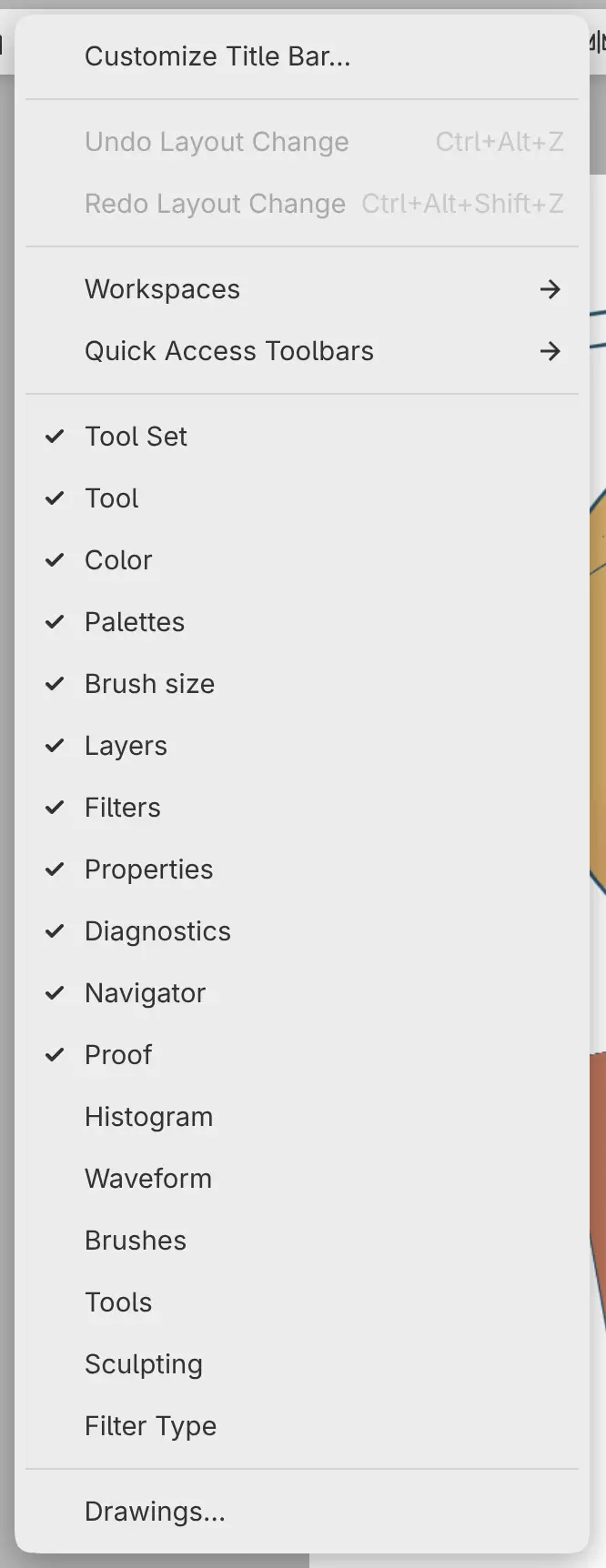
Each workspace keeps its own arrangement of panels. Window > Undo Layout Change (Ctrl+Alt+Z) reverses the last change to the layout.
Showing and hiding panels
Do one of the following:
- Choose the panel’s name in the Window menu. Panels in the workspace have a check mark.
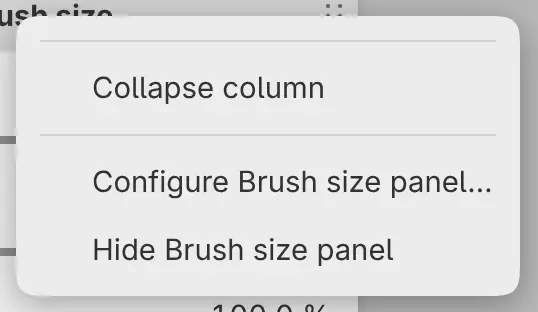
- Choose Hide name panel from the panel’s menu.
- Type the panel’s name in command search.
A panel you show again opens in a new column at the side of the window, or floats if the side has no room. A hidden panel keeps its settings.
Tools in the Window menu is a panel; the Tools toolbar is under Window > Quick Access Toolbars.
Panel menus
Right-click a panel’s tab, or hold it with a finger or pen, for the panel’s menu. Do the same on the empty part of a tab bar for the Panel Group menu.
Moving and docking panels
Drag a panel’s tab to move the panel, or the empty part of the tab bar to move the whole group. A line or a shaded box shows where the panel will land. Drop it on a tab bar, next to another panel, or near a window edge.
The top and bottom edges take only toolbars. Press Escape to cancel a drag.
Floating panels
To float a panel, drag it away from its column and release it over the canvas. A floating panel resizes from its edges and corners. To dock it again, drag it onto a tab bar or near a window edge.
Tab groups
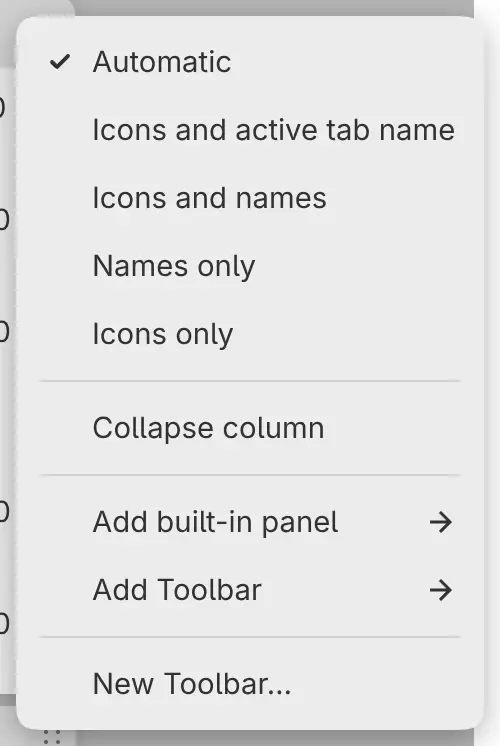
You can choose how tabs are labeled in the Panel Group menu: Automatic (the default), Icons and active tab name, Icons and names, Names only or Icons only. Automatic adds names while the tab bar has room.
Add built-in panel and Add Toolbar in the same menu move another panel into the group.
A built-in panel alone in its group can hide its tab bar. Turn off Show tab bar in the panel’s menu, and a grip at the bottom of the panel replaces the tab bar.
Configuring a panel
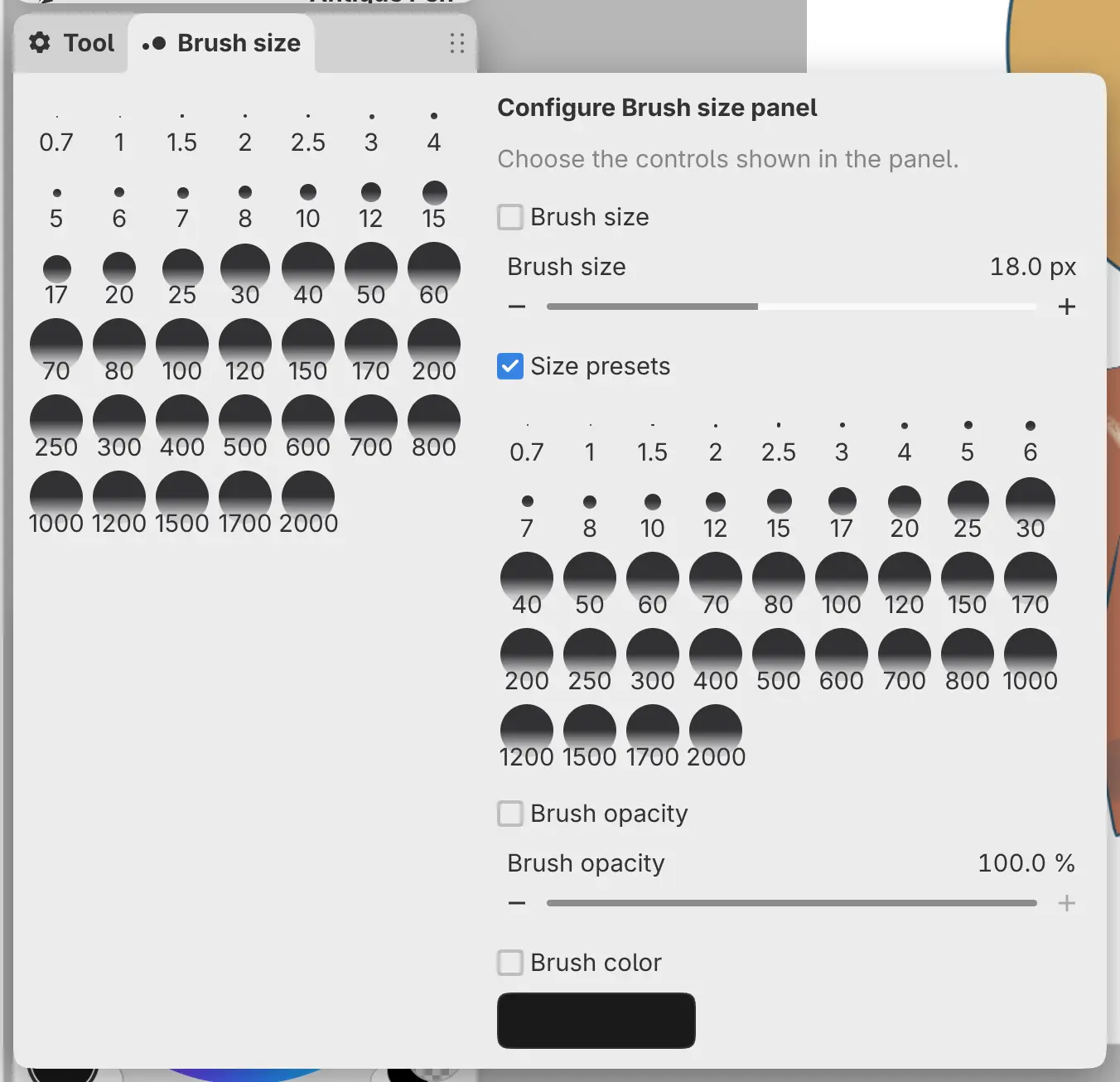
You can choose which controls a panel shows.
Do one of the following:
- Choose Configure name panel… from the panel’s menu.
- Select the active tab again.
A column with a checkbox for each control opens beside the panel. Press Escape, select the tab again, or select outside the column to close it.
| Panel | Controls | Shown by default |
|---|---|---|
| Tool Set | Tool Set, Brush size, Brush opacity, Brush color | Tool Set |
| Brush size | Brush size, Size presets, Brush opacity, Brush color | Size presets |
| Layers | Layer actions, Layers, Layer opacity | All |
Resizing columns
Drag a divider to resize the columns or panels on either side. Double-clicking the divider between a column and the canvas resets the column’s width.
Collapsed columns
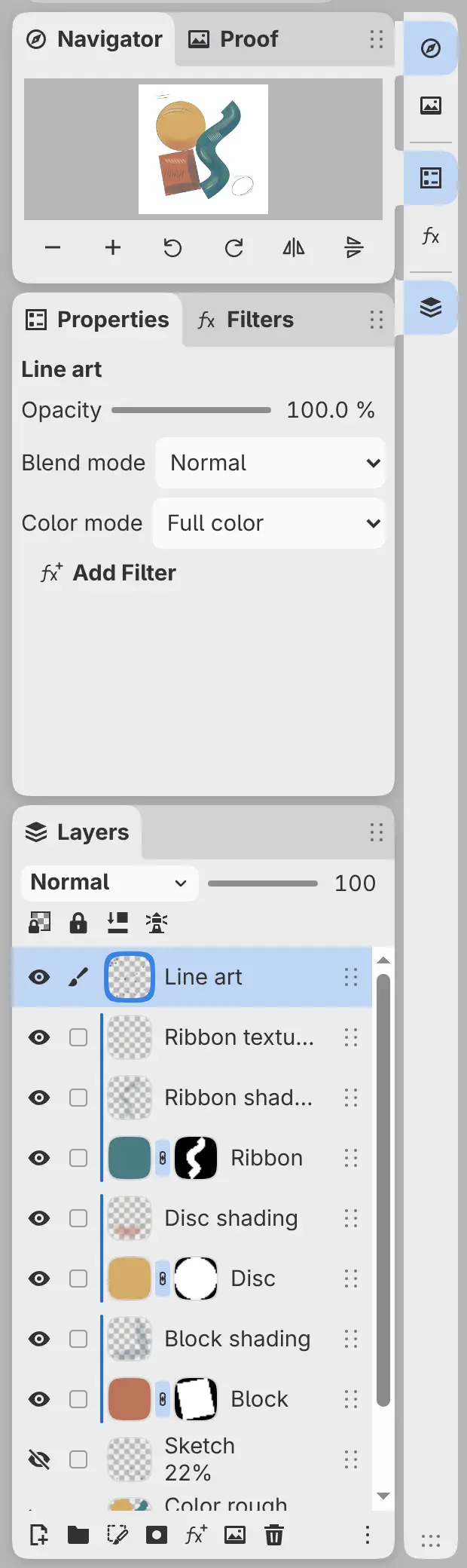
You can shrink a side column to a strip of panel icons.
Do one of the following:
- Choose Collapse column from a panel’s menu.
- Double-click the empty part of a tab bar in the column.
- Drag the column’s divider toward the window edge until the column collapses.
Select an icon to open the column beside the strip. The column closes when you select the icon again or press Escape.
To restore the full column, choose Expand column from a panel’s menu or double-click the strip’s background. Holding an icon, then dragging it, moves that panel out of the strip.
Column stacks
Drag the grip at the bottom of a collapsed column onto another collapsed column to stack both in one strip. Only one column of a stack opens at a time.
Column menu
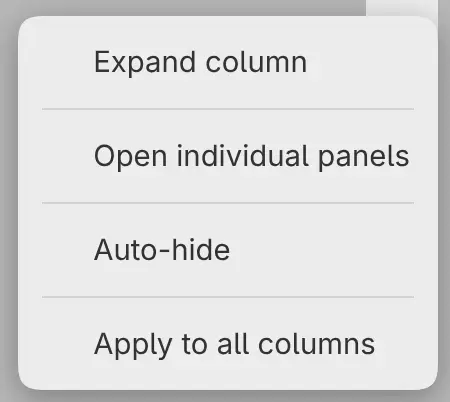
Right-click or hold the background of a collapsed column to open the Column menu.
- Open individual panels opens only the tab group of the selected icon, not the whole column.
- Auto-hide closes the open column when you select anywhere outside it. The tap that closes it doesn’t paint.
- Apply to all columns copies both settings to every side column.
Panel transparency
You can let a blurred view of the artwork show through panels and bars. Choose Edit > Preferences, select Appearance, and choose Off, Low (the default), Medium or High under Panel transparency.
Menus, tooltips and the controls inside panels stay opaque.