Gradient
You can paint a gradient on a layer with the Gradient tool, or add a Gradient Fill layer that stays editable.
Gradient tool
Do one of the following:
- Press G.
- In Paint, select Gradient in the Tools toolbar.
- In Photo, select the gradient and fill button after Liquify in the Tools toolbar.
- Search commands for Gradient.
Drag from the start point to the end point. A line follows the pointer, and the gradient paints when you release.
- The gradient covers the whole layer, with the first color before the start point and the last color past the end point.
- Press Escape during the drag to cancel.
- A drag with a finger moves the canvas instead.
- An active selection limits the gradient, and Alpha lock is respected.
- In Quick Mask or on a selection layer, the gradient goes into the selection mask.
- Each gradient is one undo step.
The tool paints only a layer’s artwork, and only on layers a brush can paint (Brush tools).
Shape
- Linear: the color changes along the drag.
- Radial: the start point is the center, and the drag sets the radius.
- Reflected: like Linear, mirrored on both sides of the start point.
Do one of the following:
- Select the shape in Shape at the top of the Tool panel, or in the Tool Set panel.
- Right-click or hold the Gradient button in the Tools toolbar and choose a shape.
- In the Tool Options bar, choose the shape from Variant, or from Tool in Photo.
Stop editor
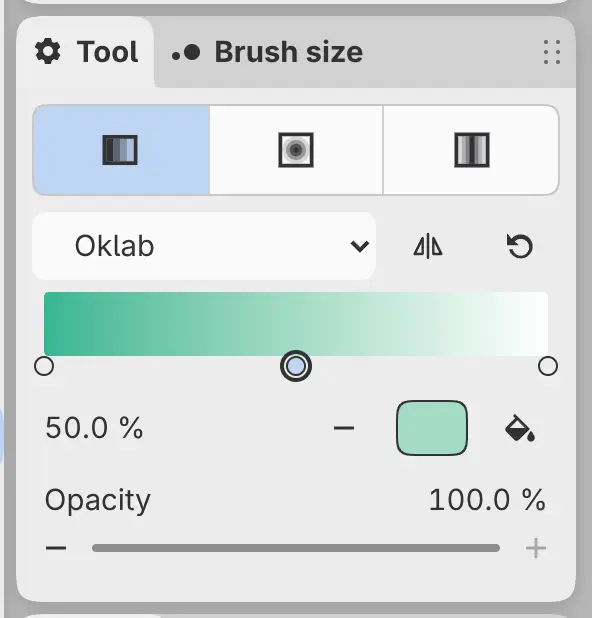
You can edit the gradient’s colors in the stop editor below Shape in the Tool panel. The gradient button in the Tool Options bar opens the editor in a popup. Gradient Fill layers and the Gradient Map filter use the same editor (Color filters).
Until you edit it, the tool’s gradient runs from the foreground to the background color and follows changes to both colors. After an edit, it keeps its stops until you select Reset gradient. Edits to the tool’s gradient aren’t undo steps.
Interpolation
Sets how colors mix between stops. Oklab (the default) mixes evenly as the eye sees color, Linear light mixes as light does, and Classic mixes the stored color values.
Reverse
Flips the order of the stops.
Reset gradient
Returns the tool’s gradient to the foreground and background colors, and the gradient of a Gradient Fill layer or a Gradient Map to black and white.
Add stop
Select the strip away from the markers to add a stop with the color at that point. A gradient holds up to 32 stops.
Stop markers
Select a marker to select its stop, or drag it to move the stop.
Position
Sets the selected stop’s position in percent. The end stops stay at 0% and 100%, and a stop can’t pass its neighbors.
Remove stop
Removes the selected stop. The end stops can’t be removed.
Color
Opens Edit Color for the selected stop.
Use selected color
Sets the selected stop to the current color.
Opacity
Opacity sets the strength of the gradient, and is the same value as the current brush’s Opacity. In Sketch, use the opacity slider at the left edge.
Gradient Fill layers
You can add a fill layer whose gradient stays editable.
Do one of the following:
- Choose Layer > New > Gradient Fill.
- Choose Filter > Fill > Gradient Fill.
- In the Filters panel, select Gradient Fill under Fill.
The layer’s settings are in the Properties panel, and each change is one undo step.
An active selection becomes the new layer’s mask. To paint on the layer, add a mask first (Layer types).
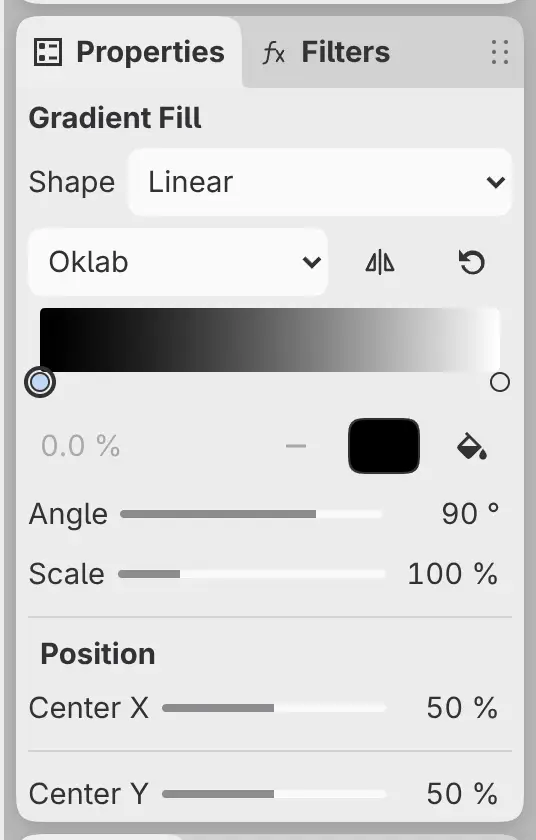
Shape
Linear, Radial or Reflected, as for the Gradient tool.
Gradient
The stop editor. A new layer starts from black to white.
Angle
Sets the direction of the gradient, from −180° to 180°.
Scale
Sets the length of the gradient, from 10% to 400%.
Center X and Center Y
Under Position, set the center of the gradient in percent of the canvas width and height.