Color panel
You can choose the paint color in the Color panel. Every workspace uses the same paint color.
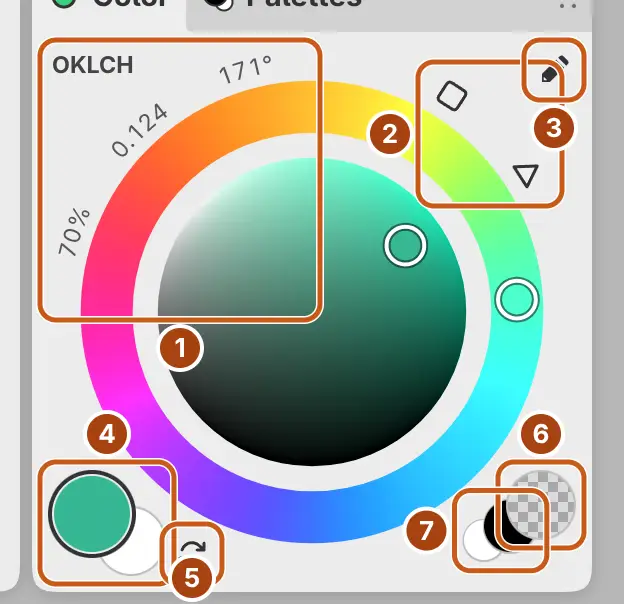
Opening the Color panel
Do one of the following:
- Choose Window > Color.
- Choose Color panel in command search.
- In Paint, select the Color tab in the left column.
- Select Brush color at the end of the Tools toolbar, or at the right end of the title bar in Sketch. A drawer opens with the Color and Palettes panels.
Color wheel
Drag the outer ring to set the hue, and the field inside it to set saturation and brightness.
In the circle, drag past the edge of the field near the upper left, the upper right or the bottom to snap to white, the full color or black. A gray keeps the hue you last set on the ring.
Field shapes
Select one of the two small buttons outside the ring at the upper right to switch the field shape. Their tooltips read Use Okhsv circle, Use HSV square and Use HLS triangle.
| Shape | Field | Readout |
|---|---|---|
| Circle (default) | Okhsv. White at the upper left, the full color at the upper right, black at the bottom. | OKLCH |
| Square | HSV. Saturation increases to the right and brightness upward. | HSB |
| Triangle | HLS. The corners are white, black and the pure hue. | HLS |
Readout
The numbers at the top left of the panel show the color in the model of the field shape. Select the readout to switch between that model and RGB from 0 to 255.
Foreground and background colors
Select Foreground color (the large swatch at the bottom left) or Background color (the swatch behind it) to paint with that color. Command search has the same names. The selected swatch has a heavier rim.
Bristle brushes streak each stroke with the color you aren’t painting with.
Memo: In Quick Mask and on a selection layer, the swatches hold a separate pair, black and white at first, and paint uses the gray value of the color. The artwork colors return when you leave. On a layer mask the color doesn’t matter: brushes reveal and the Eraser hides.
Transparent paint
You can erase with any brush or Figure shape by painting with transparent paint. Do one of the following:
- Select Transparent paint (the checkered swatch at the bottom right).
- Choose Transparent paint in command search.
- Assign a key to Paint with transparency on the Keyboard Shortcuts page, then press it to turn transparent paint on or off. Paint with transparency while held uses transparent paint only while you hold the key.
Dragging on the wheel switches back to painting with the color.
Swapping colors
You can exchange the foreground and background colors. Do one of the following:
- Select Swap foreground and background (the two arrows to the right of the background swatch).
- Choose Swap foreground and background in command search.
- Press X in the Photoshop Style, Krita Style, Clip Studio Paint Style and GIMP Style keymaps, or Shift+X in Affinity Style.
The same swatch stays selected. The Capy Canvas keymap has no key for Swap colors.
Black and white
Select Paint with black or Paint with white (the two small circles next to the transparent swatch), or choose Black or White in command search.
Black or white replaces the color of the selected foreground or background swatch. If Transparent paint is selected, black or white becomes a temporary paint color instead. The wheel then edits the temporary color, and the foreground and background colors don’t change.
Edit Color
Select Edit Color… (the pencil at the top right of the panel), or double-click the foreground or background swatch, to set the color by its numbers in Edit Color. Edit Color… is unavailable while Transparent paint is selected.
Swatch menu
On Windows, Linux and Android, right-click or hold the foreground or background swatch for Edit Color…, Palettes… and Swap foreground and background.
HDR intensity
In an HDR drawing, an arc under the wheel sets the paint’s intensity in stops (EV) relative to SDR white, from −2 to +6 EV. The value appears below the swatches, for example “+2.00 EV”.
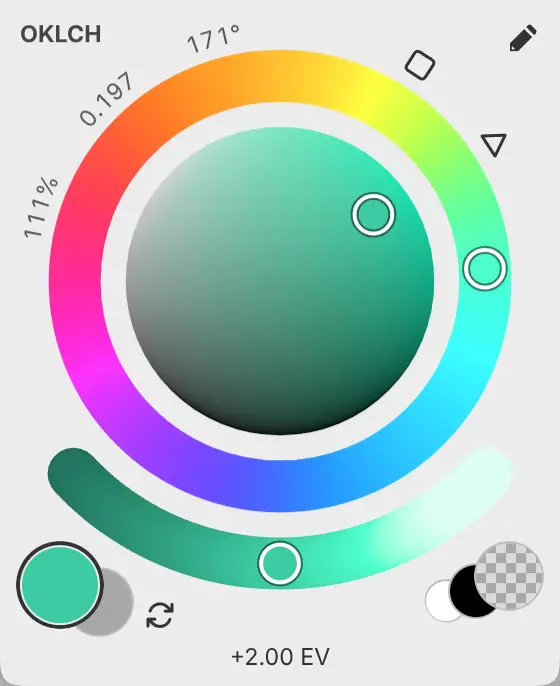
- Drag along the arc to set the intensity.
- Double-click the arc to return to 0 EV.
- With the arc focused, press the arrow keys to step by 0.1 EV, or Home for 0 EV.
The wheel sets the base color, and the intensity multiplies it in linear light. The swatches and the arc preview colors through the drawing’s SDR version. The arc is unavailable while Transparent paint is selected.