Merging layers
You can merge layers into one paint layer. The merge commands are near the end of the Layer menu and of each layer’s menu.
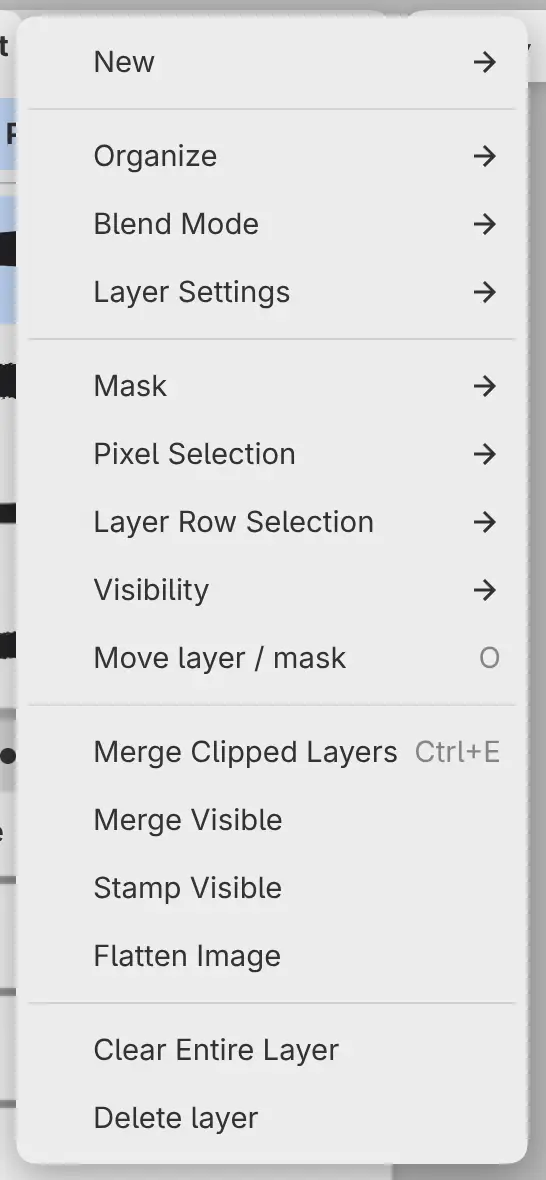
Each merge is one undo step. A photo layer loses its original photo when you merge it. You can’t merge while you edit a selection layer or Quick Mask, or during a transform.
Merge Down
You can merge the active layer into the layer below it.
Do one of the following:
- Choose Layer > Merge Down.
- Press Ctrl+E (not in the GIMP Style keymap).
The merged layer takes the name, place, clipping and Alpha lock of the lower layer, with 100% opacity, Normal blend mode and no mask. It is a reference if either layer was.
Both layers must be visible, unlocked and set to Normal. The layer below can’t be a filter, and it can’t be clipped unless the active layer is clipped too.
Merge Clipped Layers
With a clipping base active, Merge Down reads Merge Clipped Layers. It merges the base and its visible clipped layers into one layer named after the base. Hidden clipped layers stay clipped to the merged layer.
The command also reads Merge Clipped Layers for a clipped filter, or a filter attached to a layer that is clipped or is a clipping base. The base must be visible and set to Normal, and at least one clipped layer must be visible.
Apply Effect to Layer Below
With a filter active, Merge Down reads Apply Effect to Layer Below, unless the filter is part of a clipping stack. It applies the filter to the layer below it, or to the layer it is attached to (see How filters apply).
Merge Group
With a group active, Layer > Merge Group takes the place of Merge Down.
The group becomes one layer with the group’s blend mode and opacity. Pass Through becomes Normal. The group’s mask is applied, and hidden layers inside the group are discarded.
The group must be visible and unlocked, and it can’t contain selection layers.
Merge Visible
Choose Layer > Merge Visible to merge every visible layer, including Paper, into one layer. Hidden layers stay as they are.
The merged layer takes the name and place of the lowest visible layer (Paper, if it is visible). Hidden layers that were clipped to a merged layer are released. The visible layers must be unlocked, and groups among them can’t contain selection layers.
Stamp Visible
Choose Layer > Stamp Visible to add a new layer at the top of the list with everything visible merged into it. Every other layer stays.
The new layer is named “Visible”, covers the canvas and becomes the active layer. Locked layers don’t prevent Stamp Visible.
Flatten Image
Choose Layer > Flatten Image to merge every visible layer into one layer. Hidden layers and pixels outside the canvas are discarded, but selection layers outside groups stay. The visible layers must be unlocked.

If the drawing has hidden layers, a notice over the canvas gives their number, for example “Flattening discards 2 hidden layers”. Nothing changes until you select Flatten Image in the notice.