Fill tools
You can fill parts of the selected layer with the current color using Fill, Lasso fill and Enclose and Fill. Each fill is one undo step, and Alpha lock is respected.
Fills paint only a layer’s artwork, never a layer mask or a filter’s mask. On a layer that a brush can’t paint, a fill paints nothing and a notice gives the reason (Brush tools).
Selecting a fill tool
Do one of the following:
- Press F to select Fill. The other two tools have no default key.
- In Paint, select Fill in the Tools toolbar. Right-click or hold the button to choose another fill tool.
- In Photo, right-click or hold the gradient and fill button after Liquify in the Tools toolbar, and choose a tool.
- With a fill tool active, select Fill or Lasso fill in the Tool Set panel. Enclose and Fill is listed under Lasso fill.
- Search commands for the tool’s name.
Sketch has no fill button.
Fill
You can fill a connected area of similar color by clicking it. Source sets which pixels Fill looks at to find the area.
- An active selection limits the fill to the selection.
- In Quick Mask or on a selection layer, Fill fills the selection mask (Quick Mask).
Lasso fill
You can draw a shape freehand and fill it with the current color. Drag the outline on the canvas, and the shape fills when you release.
Lasso fill has only the Opacity setting. It isn’t available in Quick Mask or on a selection layer.
Enclose and Fill
You can fill every closed transparent region inside a loop you draw. Enclose and Fill finds the regions in the Source pixels.
- Press Escape while drawing to cancel the loop.
- One undo removes everything one loop filled.
- An active selection limits the fill to the selection.
- Enclose and Fill isn’t available while you edit a selection mask or a layer mask.
Source
You can choose which pixels Fill and Enclose and Fill look at to find the area. The paint always goes to the selected layer.
- Visible artwork: everything visible in the drawing.
- Editing layer: the selected layer only.
- Reference layers: the layers marked with Use as reference (Layer settings).
Choose the source in the list below the tools in Tool Set for Fill, or in the Tool panel for Enclose and Fill. The Tool Options bar has a Source menu for both.
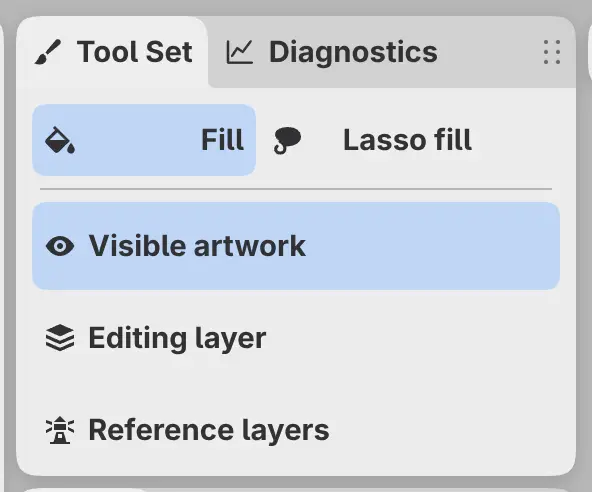
Each tool keeps its own source. Fill starts on Visible artwork, and Enclose and Fill returns to Reference layers each time you open Capy Canvas.
If Fill uses Reference layers and no layer is marked, Fill paints nothing and a notice offers to mark the layer below.
Fill settings
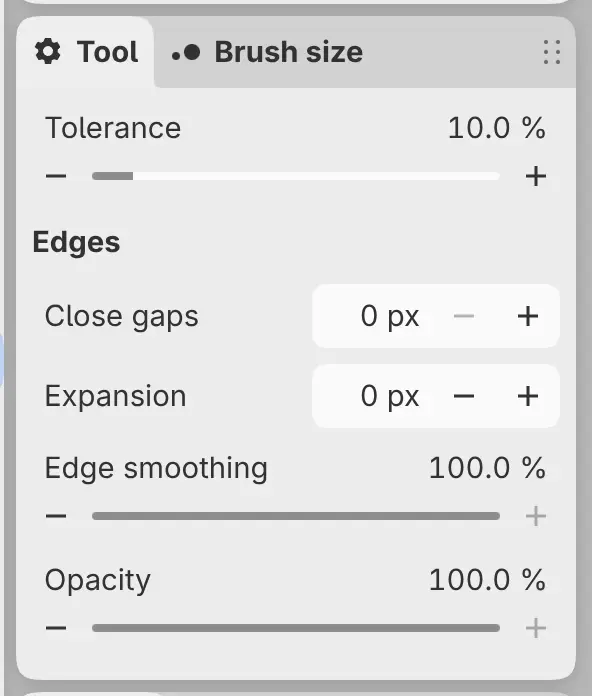
Fill and Enclose and Fill share the settings below. Auto select and Select by color use the same values for all but Opacity. To reset a setting, double-click its label in the Tool Options bar (Size, opacity and flow).
Tolerance
Sets how much a color can differ and still count as part of the same area. The default is 10%.
Close gaps
Closes openings in the lines up to this width, from 0 to 32 px, before the area is found. The width is in pixels of the drawing, not of the screen.
Expansion
Grows the filled area by this many pixels, or shrinks it with a negative value, from −32 to 32 px.
Edge smoothing
Smooths the stepped edges of the filled area. At 0%, the fill keeps hard pixel edges.
Opacity
Sets the strength of the fill. Changing it changes the current brush’s Opacity, and the other way around. In Sketch, use the opacity slider on the bar at the left edge.
Filling a selection
To fill a selection with the current color, choose Edit > Fill selection or press Shift+Backspace (Working with selections).