Tool bubbles
You can take a tool, a brush, the color wheel or the layers out of a toolbar as a bubble on the canvas.
Taking a bubble
Drag a title bar button, a toolbar tool, or a medium or brush in a tool panel or drawer onto the canvas. A drop on a toolbar, a panel or the title bar, or within 80 px of the bar or panel it came from, takes nothing. Each workspace keeps its own bubbles.
| Drag out | You get | Menu items |
|---|---|---|
| A tool such as Brush, Eraser, Sculpt or Select | A tool bubble | The tool’s settings, Put back |
| A medium or a brush | A medium or brush bubble | The brush’s settings, Put back |
| Color Picker | A bubble with a Brush size arc and a Strength arc, and a readout of the value while you drag. Tap its center to start or stop the color picker | Swap sliders, Put back |
| Undo or Redo | One bubble. Tap the left half to undo and the right half to redo. A half is dimmed while there is nothing to undo or redo | Put back |
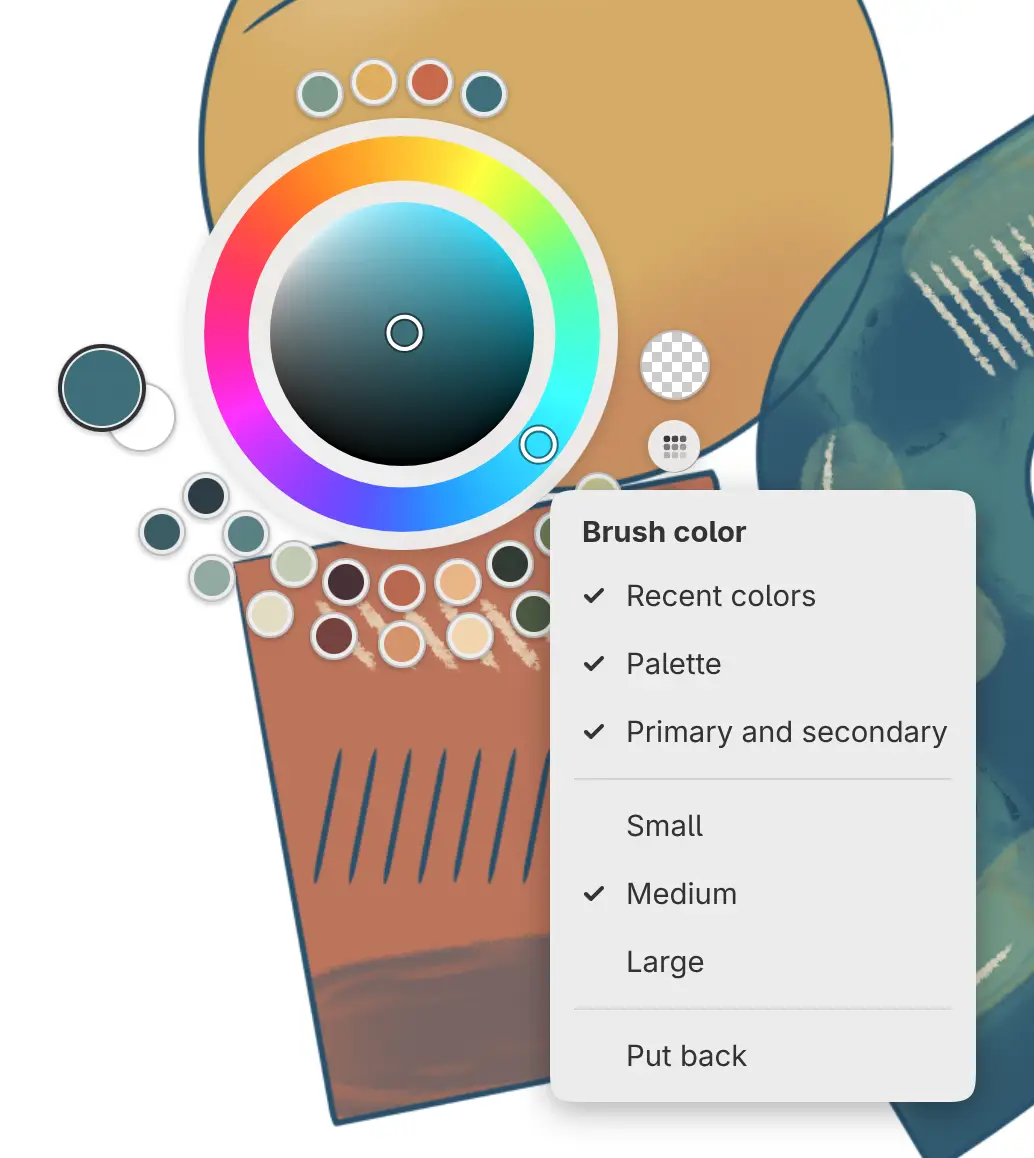
| Brush color | A color ring | Recent colors, Palette, Primary and secondary, Small, Medium, Large, Put back |
| Layers panel | A Layers card | Simple, Full, Fold when not in use, Close, Put back |
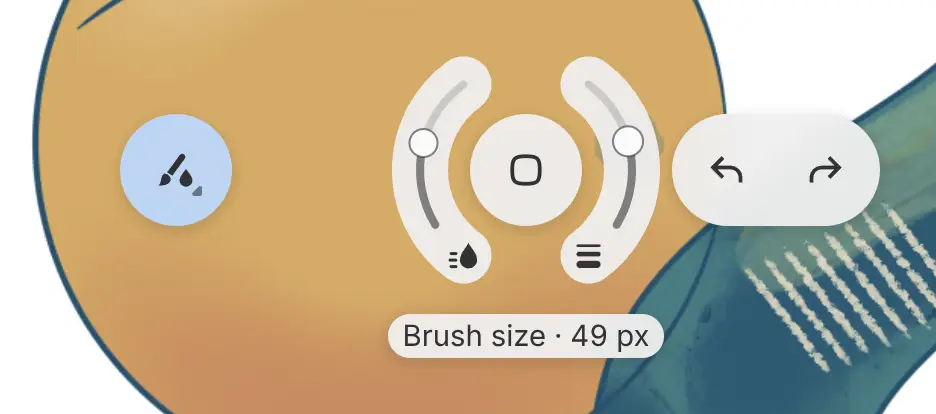
A tool has one bubble, and dragging the tool out again moves it. Commands such as Save, sliders, Tool Options and dividers can’t become bubbles.
Halo and chooser
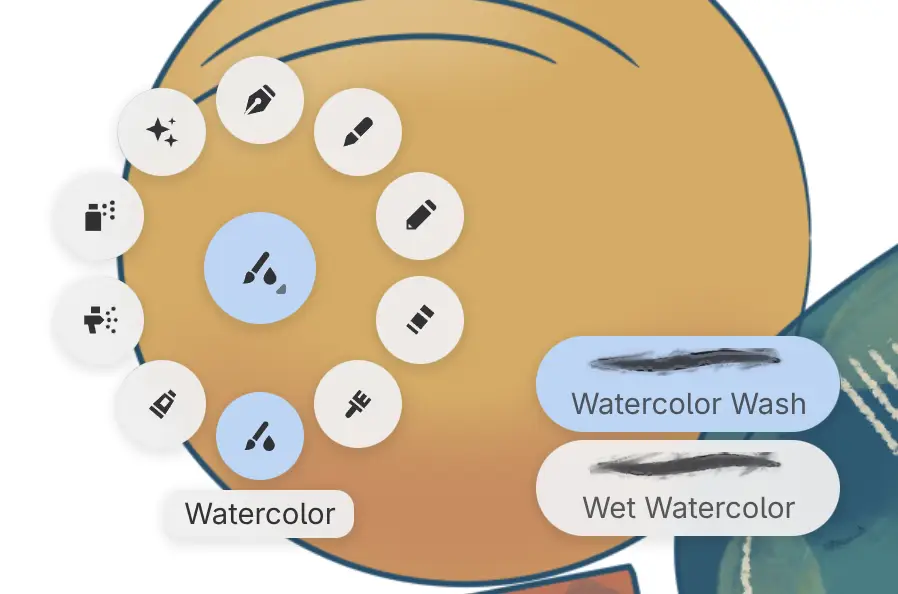
Selecting a tool bubble opens its settings halo. Selecting it again opens the chooser; a brush bubble opens or closes its halo instead. Choosing a tool or brush from the chooser opens its halo.
Drag along a halo arc to change a setting, and double-tap or double-click the arc to reset it. The chooser rings the tool’s media around the bubble: select a medium to fan out its brushes, then select a brush.
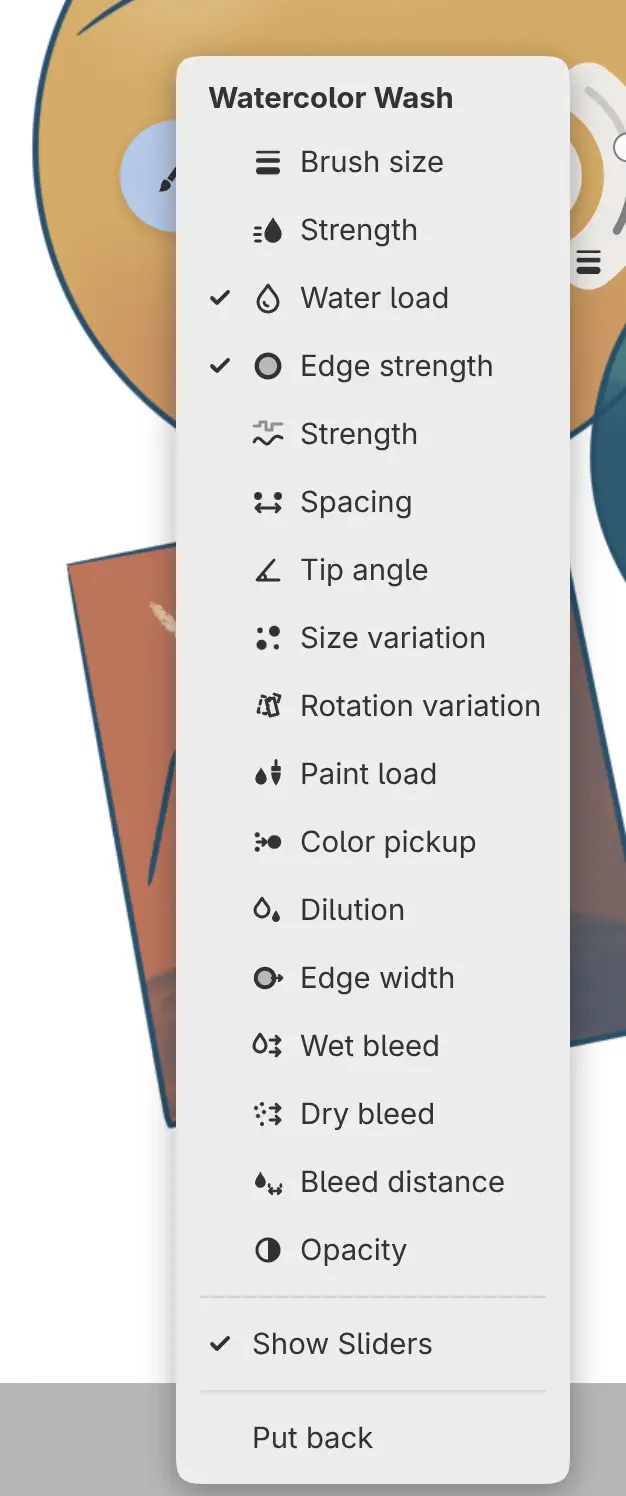
Hold the bubble or right-click it to open its menu. Its check items put settings in the halo, up to six for each brush.
Show Sliders
Turn off Show Sliders in a bubble’s menu to hide the settings arcs. The setting applies to tool, medium, brush, and Color Picker bubbles in the current workspace, and stays saved after you put them back. Choosing a tool or brush leaves its sliders hidden while this setting is off.
Color ring
You can pick a color on the ring as in the Color panel. A new ring is the wheel alone. Turn on Recent colors, Palette or Primary and secondary in its menu to add beads, and choose Small, Medium or Large for the size. Select a bead to use its color, and slide along a row of beads to scroll it. Select the palette bead to switch palettes or choose Edit palettes…. Pinch with two fingers to resize the ring.
Layers card
The Layers panel bubble opens as a card. Simple shows each layer’s eye, thumbnail and name, and Full shows the Layers drawer. Selecting anywhere else, or painting, folds the card to a square with the layer count; select the square to open it again. Turn off Fold when not in use to keep the card open until you choose Close.
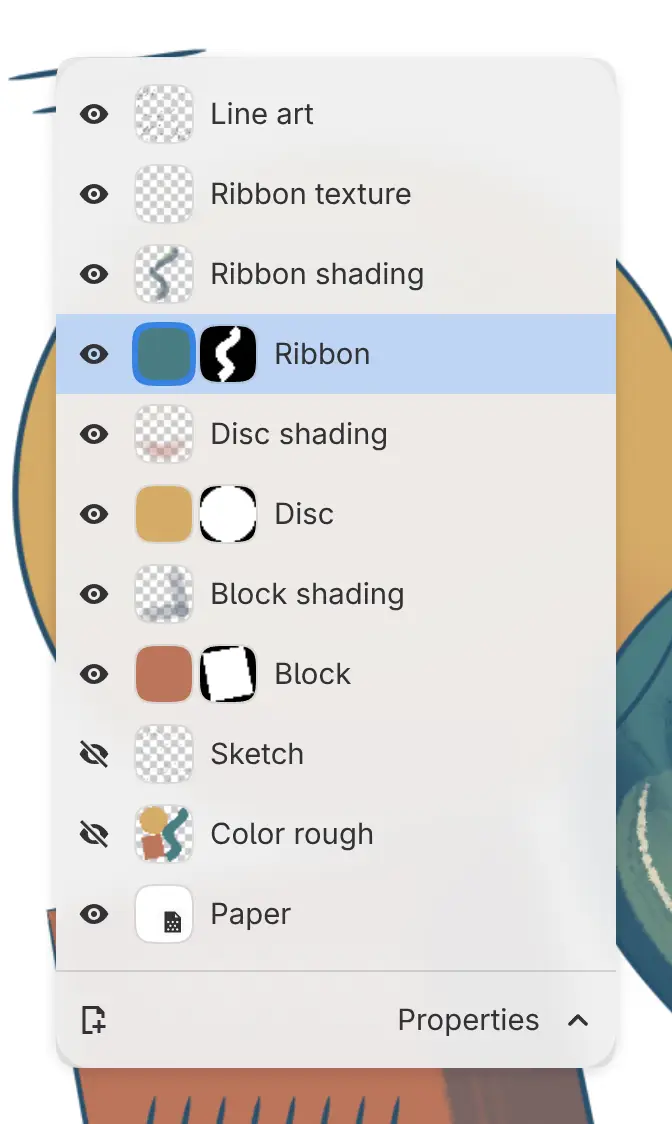
Moving and putting back
Drag the face of a bubble to move it, or the rim of the plate on the color ring. With touch, two fingers move a bubble from anywhere on it. Bubbles push each other aside.
To put a bubble back, do one of the following:
- Drop it on a toolbar, a panel or the title bar.
- Choose Put back in its menu.
- Choose View > Put back all bubbles.
Window > Undo Layout Change reverses taking, moving and putting back.
Painting and Zen mode
A stroke near a bubble fades the bubble and passes under it. Painting closes a chooser and folds a Layers card. Bubbles stay on screen in Zen mode.