Palettes
You can save colors in palettes and paint with them from the Palettes panel. Palettes and recent colors are the same in every workspace.
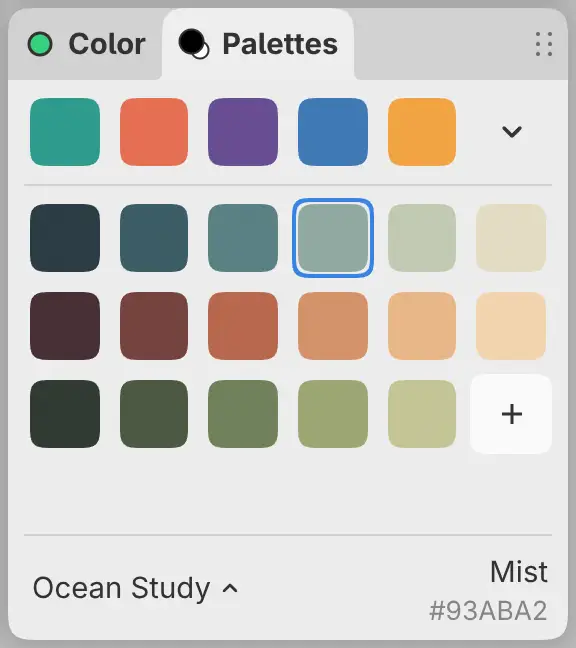
Opening the Palettes panel
Do one of the following:
- Choose Window > Palettes.
- Choose Palettes panel in command search.
- In Paint, select the Palettes tab next to Color.
- Select Brush color at the end of the Tools toolbar, or at the right end of the title bar in Sketch. Palettes is below the Color panel in the drawer.
- On Windows, Linux and Android, right-click or hold the foreground or background swatch in the Color panel and choose Palettes….
Recent colors
The top row shows up to 64 colors you used in the artwork, newest first. Select a recent color to paint with it. Select Expand color history (the arrow at the end of the row) to show up to four rows.
A color is added when a stroke, fill, gradient or figure uses it. Picking a color, erasing, painting a mask and using Blend or Liquify add nothing. Undo doesn’t remove a recent color.
Painting with a saved color
Select a swatch to paint with its color, or to set the mask color while you edit a mask. The swatch that matches the current color is outlined.
Adding a color
Select + after the last swatch to save the current paint color in the palette. The swatch keeps the exact color, including its color space, alpha and HDR intensity. + is unavailable while Transparent paint is selected.
Naming colors
The name of the current color is at the bottom right of the panel, with its hex code as an sRGB preview. A color with HDR intensity also shows the intensity, for example “+1.0 EV”. A color that isn’t saved shows a suggested name, such as “Teal” or “Umber”.
Select the name to type another one, then press Enter to confirm or Escape to cancel. An unsaved color gets the name when you save it with +. For a saved swatch, the new name replaces the old one.
Names have 1 to 64 characters and are unique within a palette.
Arranging and removing colors
Drag a swatch to move it. Release outside the grid or press Escape to cancel the move.
Right-click or hold a swatch (or press Shift+F10) for these commands:
- Rename Color…
- Remove Color
- Undo Color Reorder and Redo Color Reorder
While the panel has focus, Ctrl+Z and Ctrl+Shift+Z (or Ctrl+Y) undo and redo reorders. Adding or removing a swatch clears the palette’s reorder history.
Choosing a palette
Select the palette name at the bottom left of the panel to open the list of palettes. Type in Find a palette to filter the list, and select a palette to make it active.
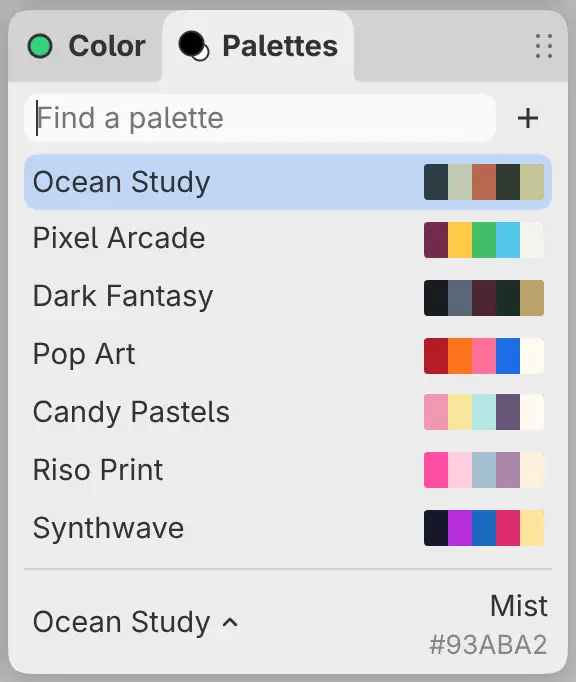
New palettes
Select + in the palette list and choose New Palette…. A palette left without a name is called “New palette”.
The library holds up to 64 palettes and 4,096 colors in all.
Renaming and removing palettes
Right-click or hold a palette in the palette list and choose Rename Palette… or Remove Palette…. You can’t remove the last palette.
Importing and exporting palettes
To import a palette file, select + in the palette list and choose Import
Palette…. Capy Canvas reads .capycolor, .aco, .cls, .swatches,
.ase, .afpalette, .gpl, .kpl and .json files up to 1 MB. The file
becomes a new palette with the name stored in the file, or the file name.
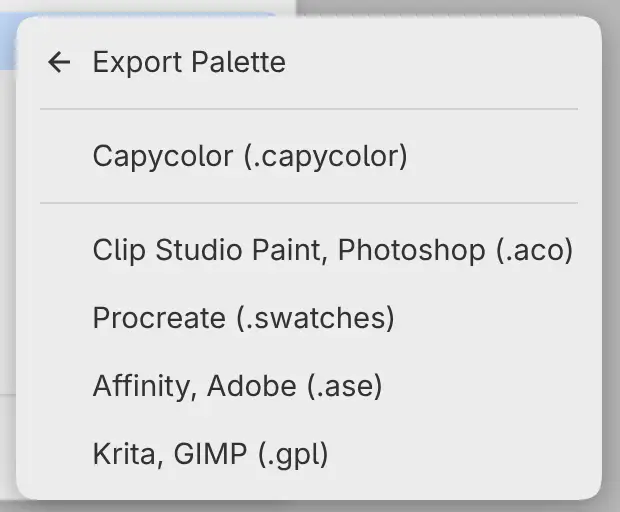
To export a palette, right-click or hold it in the palette list and choose Export Palette, then a format:
- Capycolor (.capycolor) keeps the exact colors, including color space, alpha and HDR intensity.
- Clip Studio Paint, Photoshop (.aco), Procreate (.swatches), Affinity, Adobe (.ase) and Krita, GIMP (.gpl) save opaque sRGB colors. Colors outside sRGB are clipped. A Procreate file keeps the first 30 colors.
The panel reports how many colors were clipped or made opaque.
Starter palettes
Capy Canvas comes with Ocean Study, Pixel Arcade, Dark Fantasy, Pop Art, Candy Pastels, Riso Print, Synthwave, Seventies Print, Woodblock and Ink. You can change starter palettes like any other palette. A removed starter palette doesn’t come back.