Vector layers
A vector layer holds paths instead of pixels. You can reshape its paths after you draw them (Editing paths).
Creating a vector layer
Do one of the following:
- Select New vector layer at the bottom of the Layers panel.
- Choose Layer > New > New vector layer.
- Press Ctrl+Alt+Shift+N.
- Type “line art” in command search.
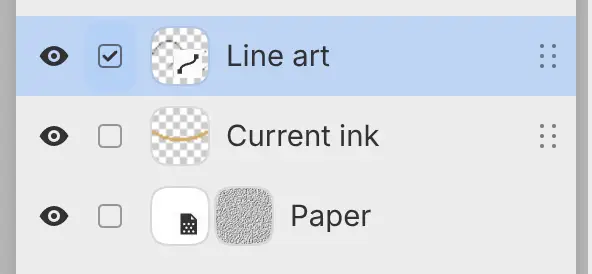
A path badge marks the thumbnail of a vector layer.
Drawing paths
You can draw paths with G-Pen, whose width follows pen pressure, and with Monoline, which keeps one width. Each stroke becomes one path. A stroke that starts at the open end of a selected path continues that path.
Selecting a vector layer switches to the last pen that drew paths, at first G-Pen. Selecting a paint layer again brings back the brush you had.
On a vector layer, Tool Set dims the brushes that can’t draw paths. A pen stops drawing paths when you lower its Hardness or Strength.

A stroke with another brush paints nothing, and a notice names the layer. Its actions are Use G-Pen, New Paint Layer (adds a paint layer above) and Rasterize Layer. When a setting stops the pen, Reset with the setting’s name, such as Reset Hardness, replaces Use G-Pen.
Shapes
With Figure, each Line, Rectangle, Ellipse, Polygon, Star and Path becomes a path, selected and in front of the others. See Figure.
Erasing paths
You can erase paths with the Eraser, with Transparent paint, or with the eraser end of a pen. While the Eraser is active on a vector layer, three modes appear above the eraser brushes in Tool Set. In Sketch, they head the Tools column of the Eraser drawer.
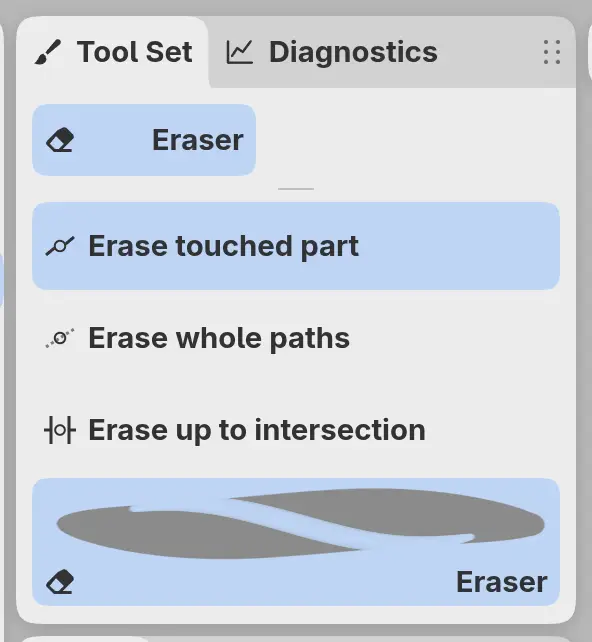
- Erase touched part cuts a path where the eraser touches it and leaves the rest of the path unchanged. This is the default.
- Erase whole paths removes every path the eraser touches.
- Erase up to intersection removes the touched part of a path out to the nearest crossings with other paths or with itself. A path that crosses nothing is removed entirely.
Erasing doesn’t remove filled area.
Fill
Fill colors the closed path you click, and Lasso fill adds a filled path. See Fill tools.
Rasterize Layer
Choose Layer > Rasterize Layer to turn a vector layer into a paint layer that holds what its paths show.
Merging
Merge Down keeps the paths when a vector layer merges into another vector layer. Every other merge turns the paths into pixels after a notice. See Merging layers.