Brush tools
You can paint with the Pen, Pencil, Paint Brush, Airbrush and Decoration tools, and erase with the Eraser. Each tool holds one or more groups of built-in brush presets.
Tools and presets
| Tool | Groups | Presets |
|---|---|---|
| Pen | Pen | G-Pen, Rough G-Pen, Calligraphy Pen, Antique Pen, Realistic Pen, Wet Ink, Blotty Ink, Realistic Brushed Ink |
| Marker | Marker | |
| Pencil | Pencil | Pencil, Pointy Pencil, Shading Pencil |
| Pastel | Charcoal, Chalk, Pastel Block | |
| Paint Brush | Paint | Paintbrush, Bristle Paintbrush, Textured Flat, Dry Scumble, Transparent Glaze, Opaque Gouache, Multiply Glaze |
| Watercolor | Watercolor Wash, Wet Watercolor | |
| Oil paint | Loaded Oil, Palette Knife, Wet Round | |
| Airbrush | Airbrush | Airbrush |
| Spray | Spray | |
| Eraser | Eraser | Eraser |
| Decoration | Texture | Dual Texture |
A tool and each of its groups keep the last preset you used. Presets have no color of their own; every brush paints with the current color in the Color panel.
Preset behavior
These behaviors are built into the presets and have no setting.
| Preset | Behavior |
|---|---|
| Calligraphy Pen, Antique Pen | Angled nib. |
| Marker | Chisel tip. |
| Pencil, Pointy Pencil, Shading Pencil, Charcoal | A wider mark when you tilt the pen. |
| Airbrush | Keeps adding paint while you hold the pen still. |
| Spray | Scatters its dabs around the stroke. |
| Multiply Glaze | Paints in Multiply mode. |
Selecting a brush tool
Do one of the following:
- Press P for Pen and Pencil, B for Paint Brush, Airbrush and Decoration, or E for the Eraser. Press P or B again to switch to the next tool on that key.
- In Paint, select the tool in the Tools toolbar at the left edge.
- In Photo, select Brush or Eraser in the Tools toolbar. Brush holds Paint Brush, Pen, Pencil, Airbrush and Decoration.
- In Sketch, select Brush or Eraser in the title bar.
- Search commands for a tool, a preset, or a group name followed by “brushes”, such as Pencil brushes.
A tool’s button shows the icon of the group you used last, and its tooltip names both, for example “Marker · Pen (P)”.
Presets, and the tools on P and B, have no key of their own. You can assign keys to them on the Keyboard Shortcuts page.
Tool Set panel
You can choose a group and a preset in the Tool Set panel.
Do one of the following:
- Choose Window > Tool Set.
- In Paint, select the Tool Set tab in the left column.
- In Photo, select Tool Set in the icon strip at the right.
- Select the active tool’s button again. The drawer that opens holds Tool Set and Tool.
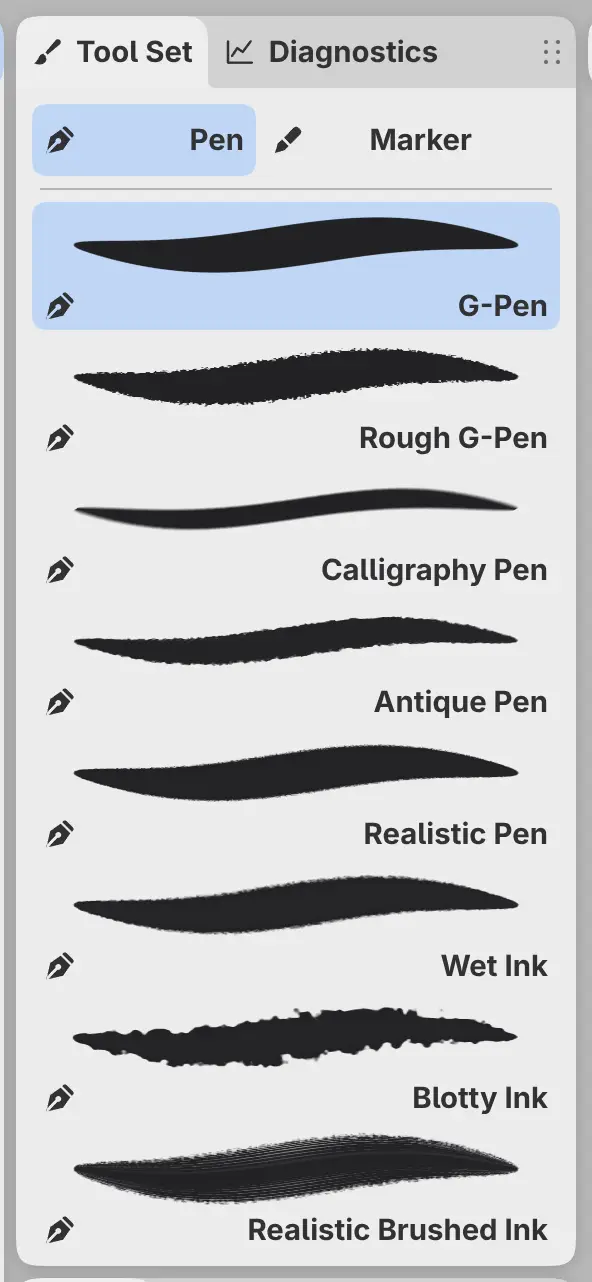
The top row lists the tool’s groups. For Brush in Photo, the top row lists the tools instead. Below it, each preset of the chosen group has a stroke preview.
Choosing a group from a button
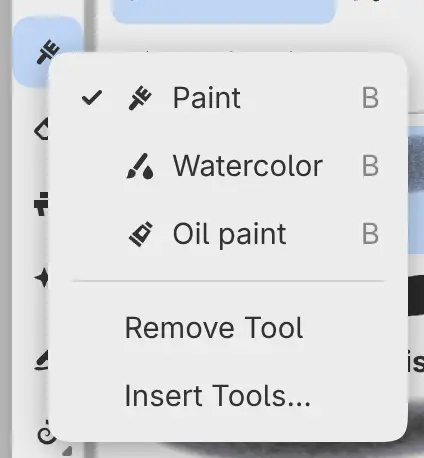
You can choose a group from the menu of a tool’s button. Right-click or hold the button to open the menu. The current group is checked.
A small triangle in the corner marks each button that has a menu.
Drawers in Sketch
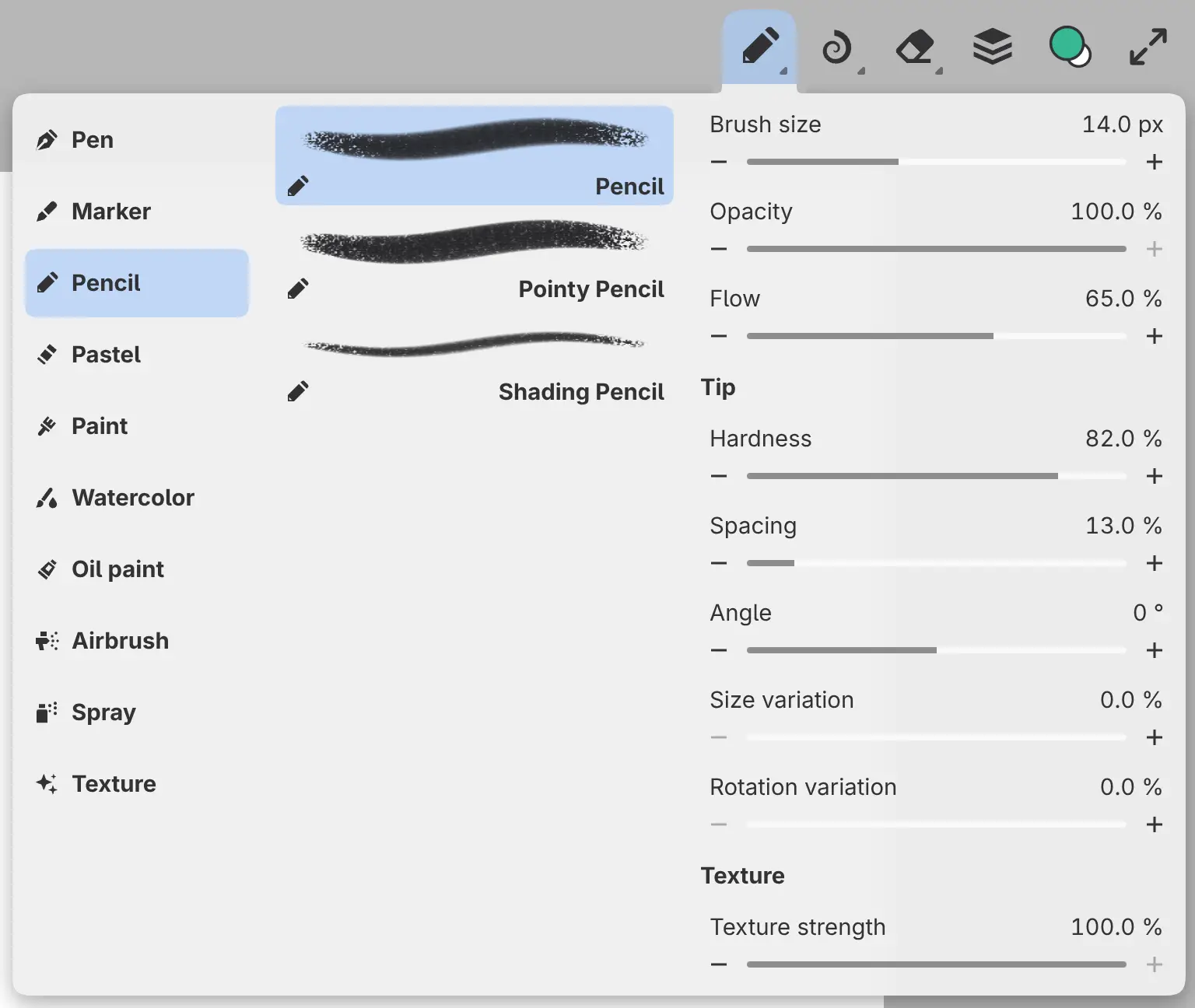
In Sketch, select Brush or Eraser in the title bar to use its last preset. Select it again to open its drawer, and once more to close the drawer.
The Brush drawer has three columns. Brushes lists the groups, Tools lists the presets of the chosen group, and Tool holds their settings. Choosing a group selects its last preset and leaves the drawer open. The Eraser drawer has only Tools and Tool.
Eraser
You can erase paint from the selected layer with the Eraser. Press E, or select Eraser in the Tools toolbar or, in Sketch, in the title bar.
While you edit a mask, the Eraser removes mask coverage.
With Transparent paint selected in the Color panel, every brush erases. The eraser end of a pen can also erase (Pen).
Erasing has no effect on a layer with Alpha lock on.
Which layer receives paint
A brush stroke paints the selected layer, or its mask while you edit the mask. On a filter layer, the stroke paints the filter’s mask. If the filter has no mask, the stroke goes to the layer the filter applies to, or to the next layer below (How filters apply).
An active selection limits paint to the selection.
On the following layers, a stroke paints nothing and a notice gives the reason:
- A group or a selection layer.
- A fill layer without a mask.
- A layer with Lock editing on, or inside a locked group.
- A filter layer without a mask, when the layer below it is locked or missing.
- A scaled or rotated layer, until you choose Apply Transform to Pixels (Move and Transform).
Wet, blending and watercolor brushes paint plain coverage on a mask. The first such stroke on each mask shows a notice.