Zen mode
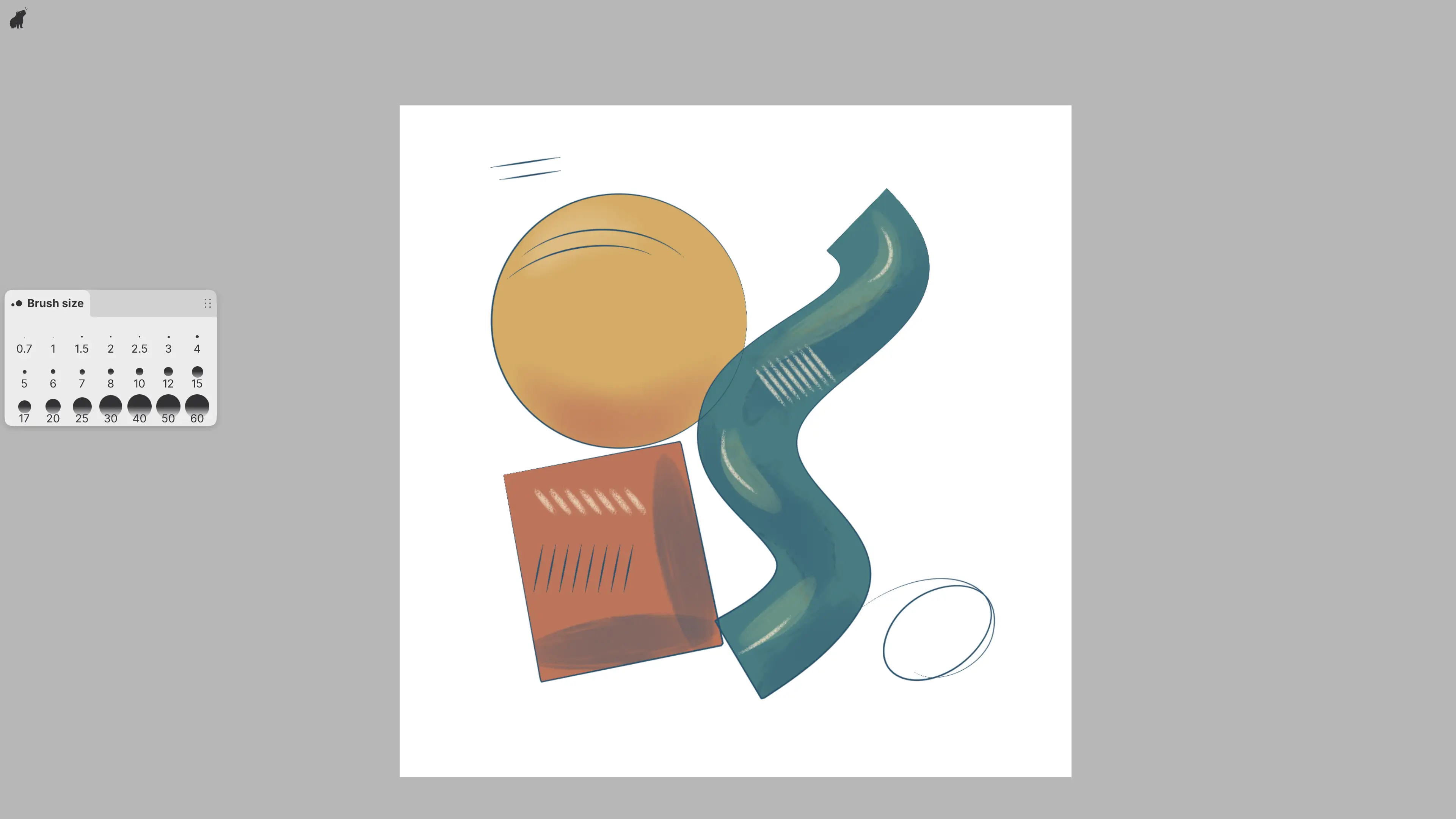
You can hide the title bar and the docked panels and toolbars in Zen mode. The canvas then fills the window.
Entering and leaving Zen mode
Do one of the following:
- Choose View > Zen mode.
- Press Tab.
- Select the Capy button at the left end of the title bar. In Zen mode, the button is in the top-left corner of the window.
- Type “Zen mode” in command search.
- With the Procreate Style keymap, tap the canvas with four fingers.
Do the same again to leave Zen mode. The Capy button looks pressed while Zen mode is on.
Zen mode is saved with each workspace and stays on after a restart. Customize Title Bar… turns Zen mode off.
What stays on screen
Zen mode also hides collapsed columns and the footer. These stay:
- floating panels
- the canvas action bar next to a selection or transform
- the Capy button, unless Show Capy in Zen mode is off
- notices
Keys and command search (Ctrl+K) work as usual.
Showing the controls for a moment
The hidden controls come back while a menu or dialog is open and while you drag or resize a panel. Press Escape to show them until the pointer moves.
With Reveal panels near screen edges turned on, they also come back while the pointer is near the top edge, or near an edge with docked panels.
On a touchscreen, the first tap on a hidden control shows the controls, and the second tap uses the control.
Docking in Zen mode
While docked panels are hidden, a floating panel you drag can join only other floating panels. With Reveal panels near screen edges on, dragging to an edge with docked panels shows them as drop targets.
Capy button menu
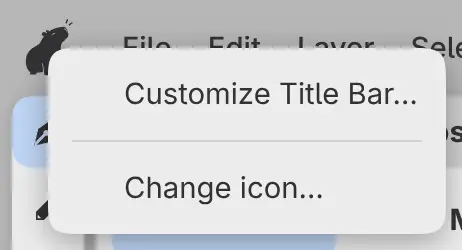
Right-click the Capy button, or hold it with a finger, to open its menu. Change icon… opens Preferences at Button icon. In the title bar, the menu also has Customize Title Bar….
Holding the Capy button with a finger doesn’t turn Zen mode on or off.
Zen mode preferences
Choose Edit > Preferences, select Appearance, and find the Zen mode group. These settings apply to every workspace.
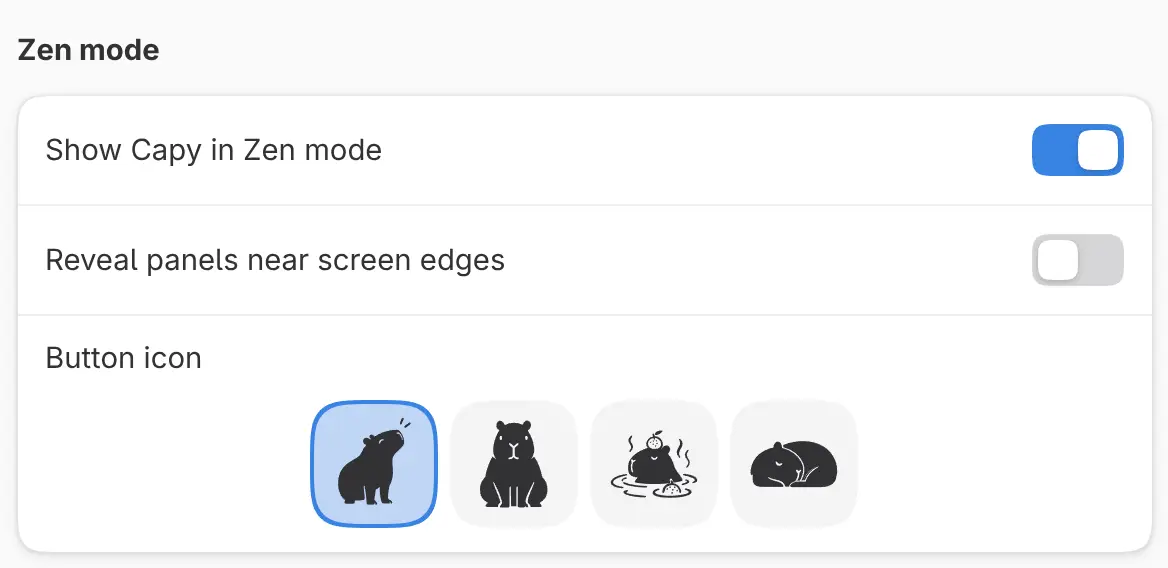
Show Capy in Zen mode
Keeps the Capy button in the top-left corner in Zen mode. On by default. While it is off, press Tab or use command search to leave Zen mode.
Reveal panels near screen edges
Shows the hidden controls while the pointer or a finger is near a screen edge with hidden controls. Off by default.
Button icon
Sets the Capy button’s picture: Looking up (the default), Facing forward, Bathing or Sleeping. A Zen mode button in a toolbar uses the same picture.