Saving and resetting brushes
You can change any setting of a built-in brush and return it to its original value later.
Brush changes
Every change to a brush setting is saved with its preset immediately.
- Changes are shared by every workspace, including workspaces you create.
- Changes stay after you restart Capy Canvas.
- Brush settings aren’t saved in
.capyfiles. - A change to a brush setting isn’t an undo step, and Layout History doesn’t list brush changes.
- A brush doesn’t keep a color. It paints with the current color in the Color panel.
Resetting one setting
You can return one setting to the brush’s built-in value. Double-click (or double-tap) the setting’s label or icon in the Tool Options bar (Size, opacity and flow).
The Tool panel has no reset. To reset Color mixing, select Oklab mixing, the built-in choice of every mixing brush.
Reset All Brushes…
You can return every brush to its built-in settings. Choose Window > Workspaces > Reset All Brushes…, then select Reset Brushes in the dialog.
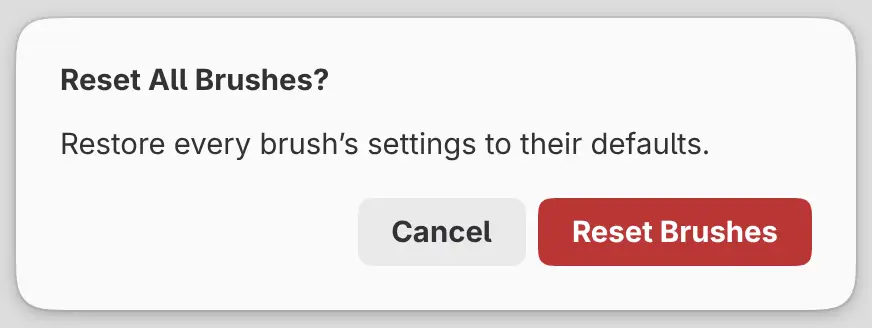
Every preset is reset, including presets you haven’t used. Colors, the selected tool, the layout and the drawing don’t change, and bookmarks on the Sketch sliders stay. Resetting all brushes can’t be undone.
Creating and importing brushes
You can’t create, duplicate, rename, delete, import or export brushes. The built-in presets are the only brushes, and there is no brush file format.