New drawings
Choose File > New…, press Ctrl+N where available, or select New… in the Commands toolbar. The new drawing opens in its own tab.
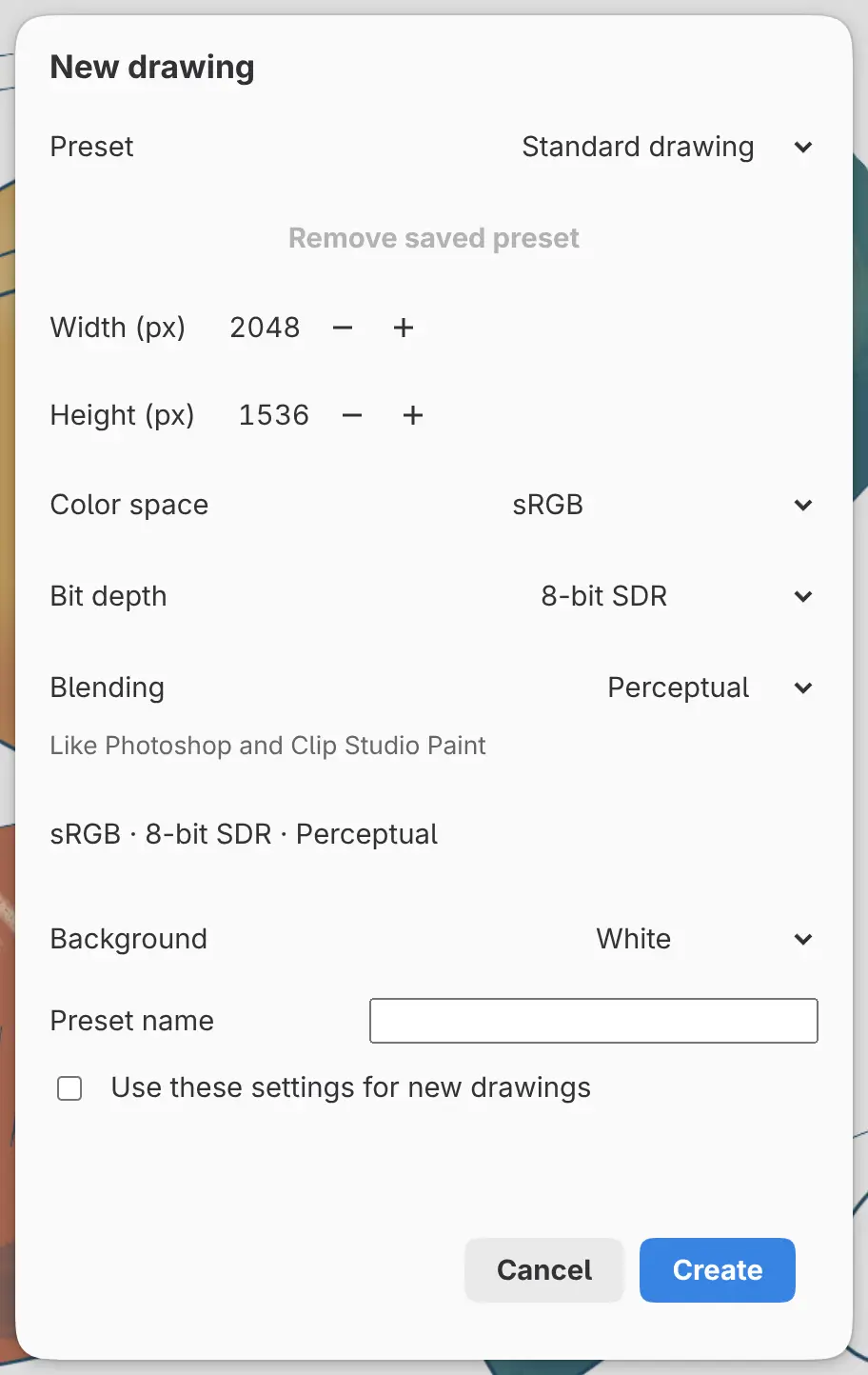
Presets
Choose a preset by category, search by name, or select a recently used preset. A preset fills the dimensions, resolution, color settings and Paper settings.
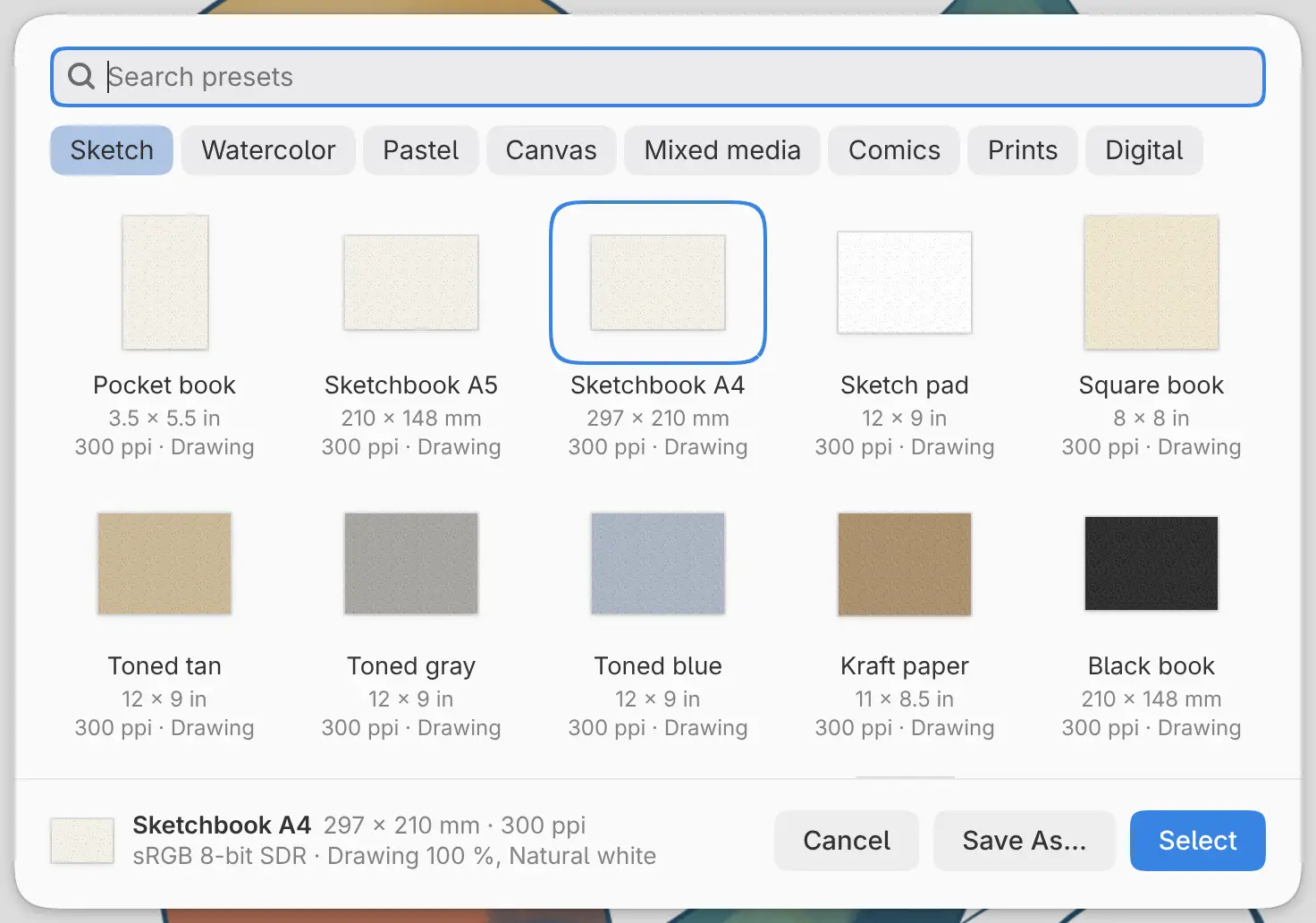
Save the current settings as a named preset for reuse. Open a saved preset’s menu to rename or delete it. Built-in presets cannot be renamed or deleted.
Sheet
The preview shows the sheet’s proportions and orientation. Enter a drawing name, then set W and H, and choose px, in, cm or mm as the unit. Use the link control to keep the current proportions, and the orientation control to exchange width and height.
Resolution sets the pixels per inch used for physical dimensions and Paper texture scale. Changing only the resolution changes print-size metadata without resampling the drawing.
The dialog shows the resulting pixel dimensions and estimated capacity. Settings beyond the device’s current drawing limit cannot be created; the limit depends on the dimensions, bit depth and available graphics resources.
Paper
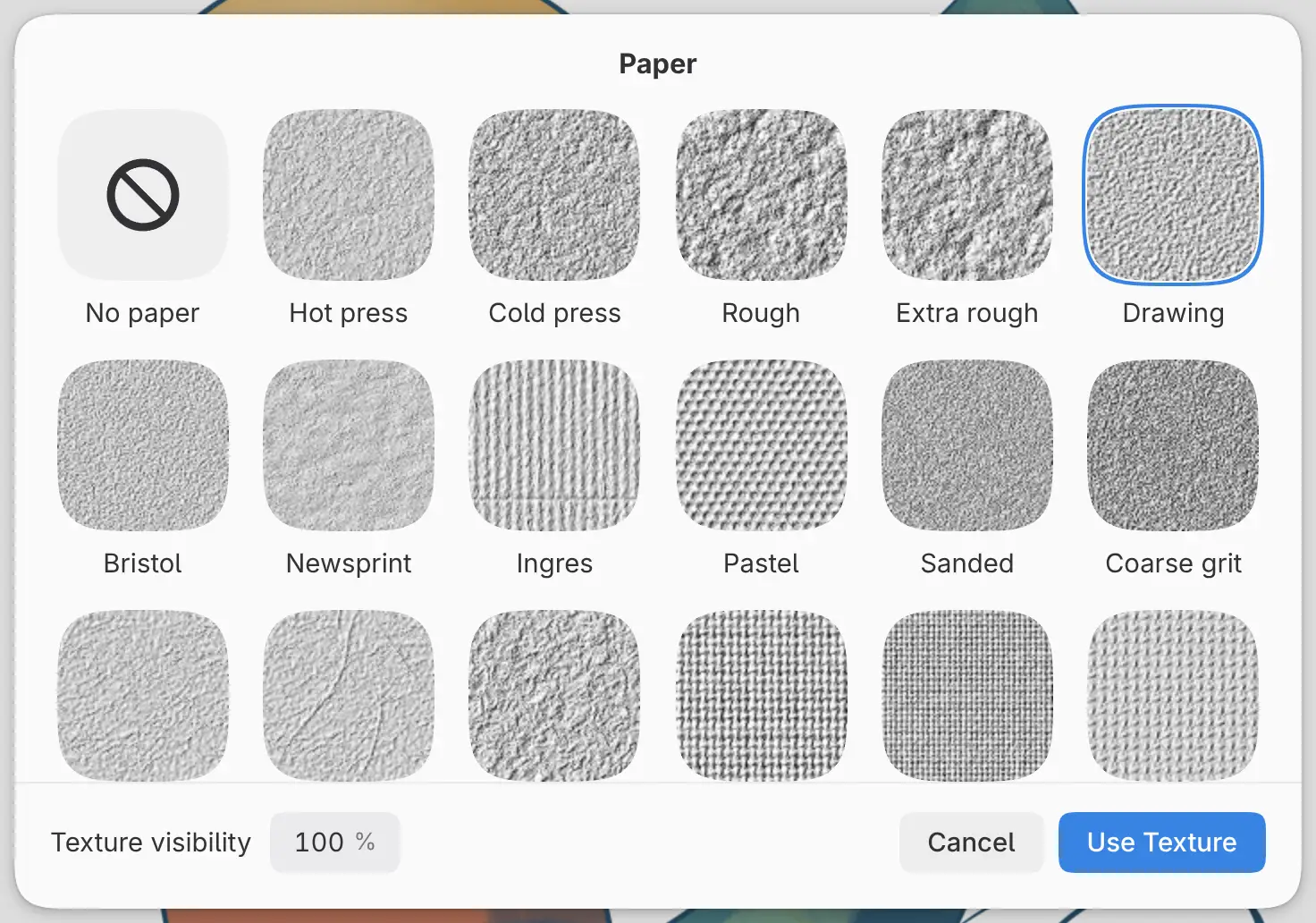
Select the texture tile under Paper to choose a built-in or imported Paper texture for the new drawing. Texture visibility at the bottom of the drawer sets the same value as in the Paper layer’s Properties, and the tile shows it under the texture’s name. Import… is the last tile. It adds an image to the paper library and selects it.
Choose No paper to create the drawing without a Paper layer. Texture visibility is then unavailable.
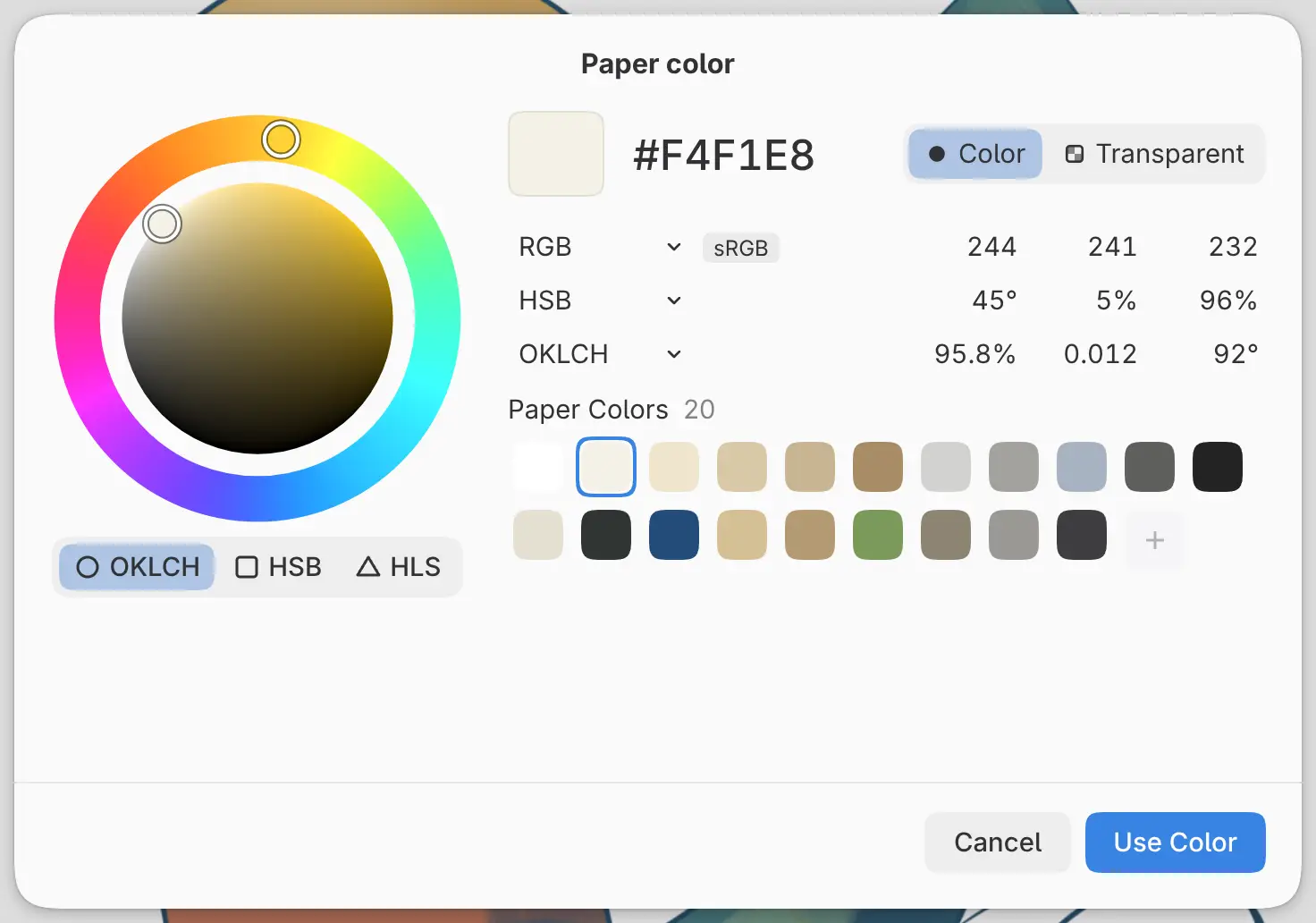
Color sets the Paper color. Transparent keeps the Paper layer but starts it hidden. This differs from No paper, which creates no Paper layer.
Color settings
Choose the drawing’s Color space, Bit depth and Blending. Float bit depths use Linear light blending. See Color space, bit depth and blending.
Creating the drawing
Select Create. The drawing starts with an empty paint layer, Current ink, above the chosen Paper when one was included.
The dialog retains the last choices used to create a drawing. Selecting a preset replaces them with that preset’s values.