Blend modes
You can set how a layer combines with the layers below it.
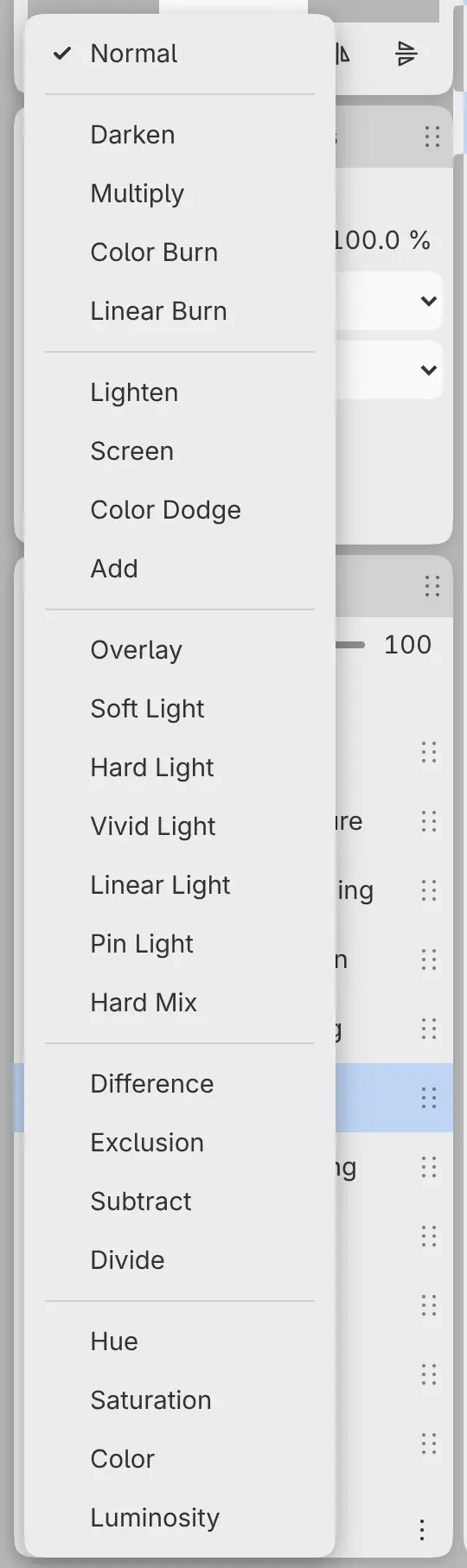
Choosing a blend mode
Do one of the following:
- Choose Layer > Blend Mode and a mode.
- Select Layer blend mode at the top left of the Layers panel header, then choose a mode.
- Choose a mode from Blend mode in the Properties panel.
- Type the name of the mode in command search.
The current mode has a check mark in the menu, and its name appears on the header button. The row’s subtitle shows the mode when it isn’t Normal. New layers use Normal.
You can’t change the blend mode of a selection layer or a locked layer. Merge Down needs both layers set to Normal. Blend modes mix colors in the blending space of the drawing, set with Edit > Blending (see Color space, bit depth and blending).
Modes in the blend menu
The blend menu lists the modes in these sections:
- Pass Through (groups only, see Pass Through), Normal
- Darken, Multiply, Color Burn, Linear Burn
- Lighten, Screen, Color Dodge, Add
- Overlay, Soft Light, Hard Light, Vivid Light, Linear Light, Pin Light, Hard Mix
- Difference, Exclusion, Subtract, Divide
- Hue, Saturation, Color, Luminosity
Modes in HDR drawings
In an HDR drawing, the blend menu leaves out Overlay, Soft Light, Hard Light, Color Burn, Color Dodge, Vivid Light, Hard Mix and Exclusion. These modes are defined only for colors between black and white. A layer that already uses one of them keeps it, and the menu still lists that mode for the layer.
Opacity
Do one of the following:
- Drag Layer opacity in the Layers panel header, or type a value from 0 to 100.
- Change Opacity in the Properties panel.
- Type “Layer opacity” and a value in command search.
The row’s subtitle shows the opacity when it is below 100%. You can’t change the opacity of a selection layer or a locked layer, or while Quick Mask is on.