Select by brightness
You can select pixels by brightness with the Tonal range tool. Brightness is measured in stops relative to reference white (0). The tool reads the visible image, all layers together, and makes a soft-edged selection.
Choosing Tonal range
Do one of the following:
- Type “Tonal range” in command search.
- In Sketch, select Select in the title bar, select it again to open the drawer, and select Tonal range.
- Press a key you assigned to Tonal range in Keyboard shortcuts.
- Select Tonal range on a toolbar where you added it with Insert Tools… (see Toolbars and title bar).
Tonal range has no default key and no button on the Paint or Photo toolbars. While it is the tool, the Tool Set panel lists every selection tool.
Tones
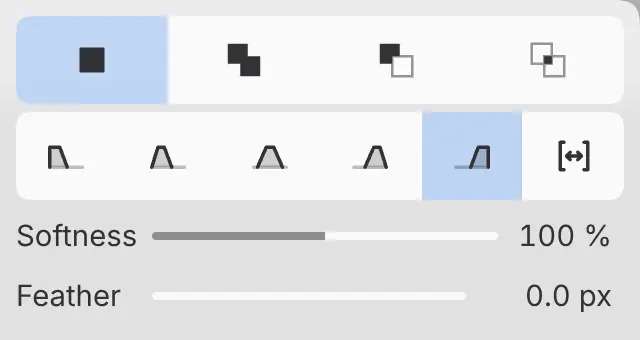
Select a button in the Tones · stops relative to reference white row to select that band of brightness. The band combines with the current selection according to Mode (see Selection tools).
Each button’s tooltip names its band:
- Shadows · below −5 stops
- Mid-shadows · −5 to −3.5 stops
- Midtones · −3.5 to −1.5 stops
- Mid-highlights · −1.5 to −0.5 stops
- Highlights · above −0.5 stops
- Bright HDR · above +1 stop, in HDR drawings only
- Custom · set or sample a range in stops
While a tone button is selected, the selection follows changes to Softness, Feather, From and To. Choosing another tool or Mode deselects the tone button.
Custom range
You can set the band yourself, or sample it from the canvas.
Do one of the following:
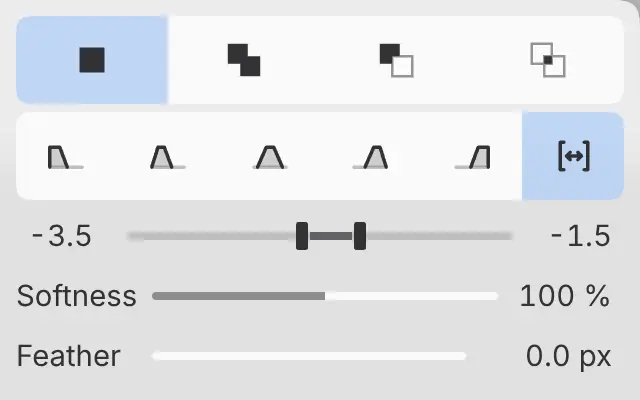
- Select Custom · set or sample a range in stops and set From and To, in stops. The defaults are −3.5 and −1.5.
- Drag across an area of the canvas to use the range of brightness in that area.
- Click the canvas to center a band on the brightness there. The band keeps the current Custom width, or is 1 stop wide when another tone was selected.
Sampling on the canvas switches the tone to Custom. In the web editor, From and To share one range control.
Softness
Widens the soft falloff at both ends of the band, from 0 to 200%. The default is 100%.
Feather
Softens the edge of the selection by up to 100 px.
Mode and held keys
Tonal range has the same Mode buttons as the other selection tools, and no Anti-aliasing. Hold Shift, Alt or Shift+Alt as you click or drag to add, subtract or intersect.
Quick Mask and selection layers
Tonal range works in Quick Mask and while you edit a selection layer, and changes that mask. Its canvas bar is the selection bar, at the bottom edge of the canvas.