HDR
You can paint colors brighter than SDR white in an HDR drawing. A drawing at 16-bit float HDR or 32-bit float HDR is an HDR drawing.
HDR drawings
To get an HDR drawing, do one of the following:
- In File > New…, choose the HDR drawing preset or a float Bit depth.
- Choose Edit > Change Bit Depth… and a float depth.
- Open an HDR PNG (BT.2020 PQ) or HDR AVIF file (16-bit float HDR), or an OpenEXR file (32-bit float HDR).
- Set Bit depth to a float depth on the Color page of Preferences to make new drawings HDR.
In an HDR drawing:
- The Color panel and Edit Color set the paint’s intensity in EV.
- Blending is always Linear light.
- Overlay, Soft Light, Hard Light, Color Burn, Color Dodge, Vivid Light, Hard Mix and Exclusion aren’t offered as blend modes.
- Curves has a Log HDR domain and an HDR range.
- The Tonal range tool offers Bright HDR · above +1 stop.
- The Histogram marks SDR white.
- Export offers HDR formats.
In the web editor, an HDR drawing larger than 12 megapixels can’t be opened.
HDR on screen
On a screen that can show HDR, the canvas and the Navigator show an HDR drawing in HDR while Off is selected in the Proof panel and the gamut warning is off. Otherwise they show the drawing’s SDR version, and so do the color controls. In the web editor, HDR needs a browser that reports an HDR screen.
A chip at the left of the footer shows which version you see. Select it for details.
| Chip | Shown when |
|---|---|
| “HDR” | The drawing is shown in HDR. |
| “SDR preview” | The drawing is in SDR mode on a screen that shows HDR. |
| “Showing SDR” | The screen doesn’t show HDR. |
SDR version
Each HDR drawing has a saved SDR version. It is used:
- on screens without HDR, and in SDR mode;
- for layer thumbnails;
- for print proofing;
- for SDR exports and the SDR base of HDR JPEG and HDR AVIF exports.
You can adjust the SDR version without changing the HDR pixels. Do one of the following:
- Choose View > Proof SDR (not on Windows).
- Choose Proof SDR in command search.
- Select SDR at the top of the Proof panel.
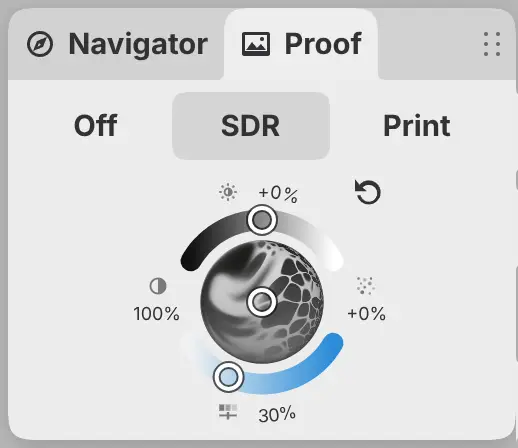
The dial in the panel sets four values. Its center shows a fixed illustration, not the drawing. Double-click or double-tap a part of the dial to reset its values, or select Reset SDR appearance at the upper right to reset all four. With the dial focused, the arrow keys step a value, and Shift takes larger steps. Escape cancels a drag. Each drag is one undo step and is saved with the drawing.
Balance
Drag the center of the dial left or right, from −100% to +100%. Left favors broad shapes, and right favors fine texture.
Contrast
Drag the center of the dial down or up, from 50% to 200%.
Brightness
Drag the top arc, from −50% to +50%.
Color intensity
Drag the bottom arc, from white at 0% to full color at 100%. The default is 30%.
Preview SDR
You can switch between HDR and the SDR version without opening the Proof panel. Choose Preview SDR in command search, or assign it a key on the Keyboard Shortcuts page.
Preview SDR works only for an HDR drawing on a screen that shows HDR, with print proofing and the gamut warning off.