Panels, toolbars and title bar
Move panels to the places you use them and put frequent commands within reach. Layout changes have their own history, so restoring an arrangement does not undo your painting.
These concise guides follow the current web editor. Native controls may differ while the ports are being completed.
What you'll learn
- Dock, float, tab and collapse panels.
- Configure toolbar contents and the title bar.
- Undo layout changes separately from artwork edits.
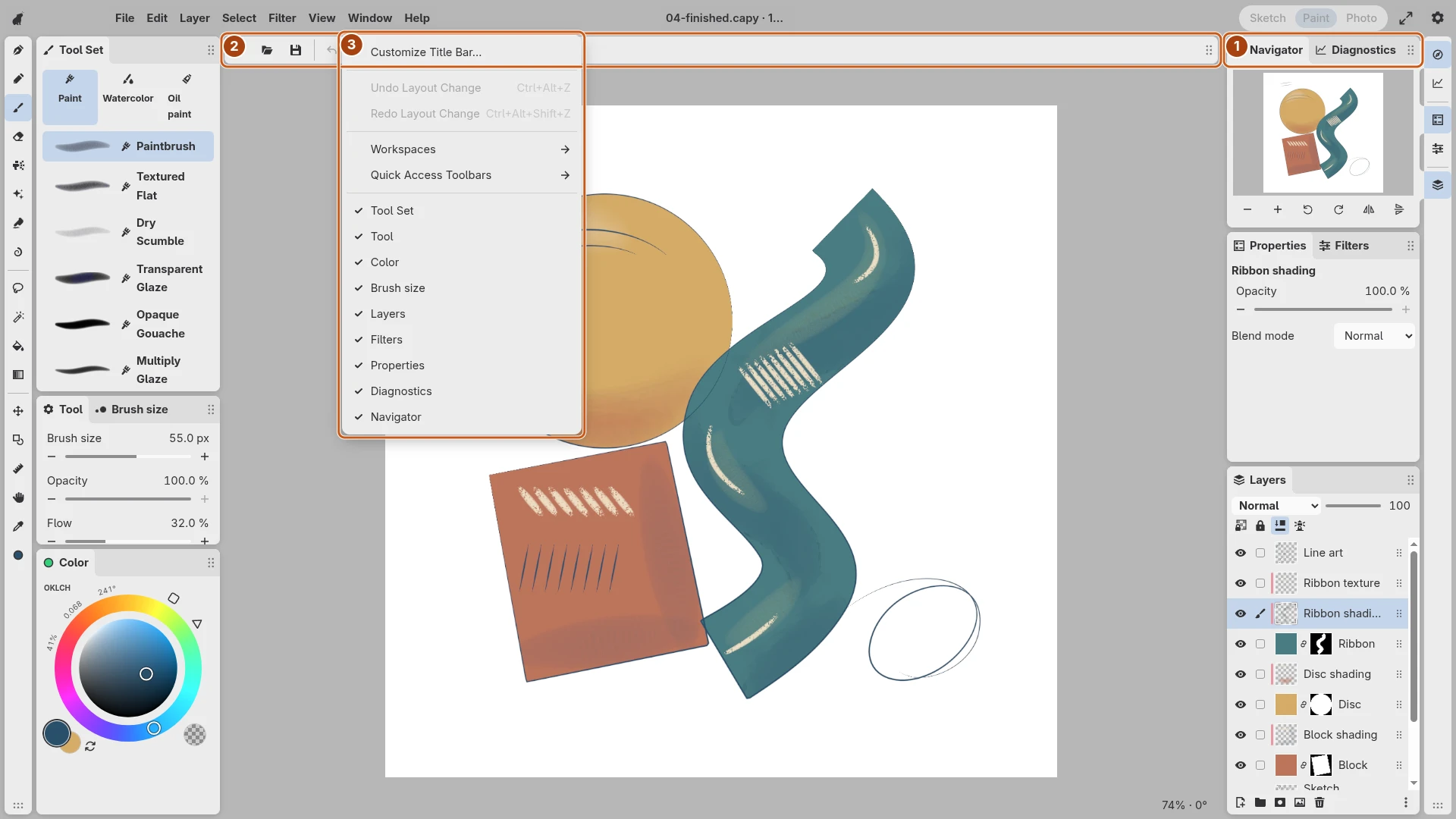
Open the image to inspect the controls. Numbered outlines identify the controls described in the caption.
Place the panels
Drag a panel by its title, tab or grip. Docking indicators show where it can attach; a free position leaves it floating. Panels can share a tab group, and a collapsed column opens them as drawers. Resize the panel edges to balance controls and canvas space.
Title bars and grips drag immediately after movement starts. Reorderable tool tiles require a press and hold before dragging, including with a mouse. Lists can differ: touch and pen generally hold a row, while its grip starts immediately.
Choose the controls
Open a panel or toolbar’s context menu to configure its contents and presentation. Manage Toolbars… handles reusable toolbar containers. Customize Title Bar… opens an explicit editor for positioning individual controls in the bar.
In that title-bar editor, drag items and component-bank chips directly; the bank uses drag placement rather than click-to-add. Finish the edit to keep it, or cancel the preview.
Recover an arrangement
Use Undo Layout Change or Redo Layout Change for placement changes. Ordinary undo still belongs to the drawing. Restore Starting Layout… previews a return to the workspace’s starting arrangement while retaining working brush settings.
Create another workspace when you want to preserve a distinct arrangement for another task.