Manage workspaces
A workspace stores its arrangement and working tool settings. Sketch, Paint and Photo are editable starting points; your document stays open when you switch between them.
These concise guides follow the current web editor. Native controls may differ while the ports are being completed.
What you'll learn
- Switch or copy a workspace.
- Pin and reorder entries in the top bar.
- Restore layout without resetting brushes.
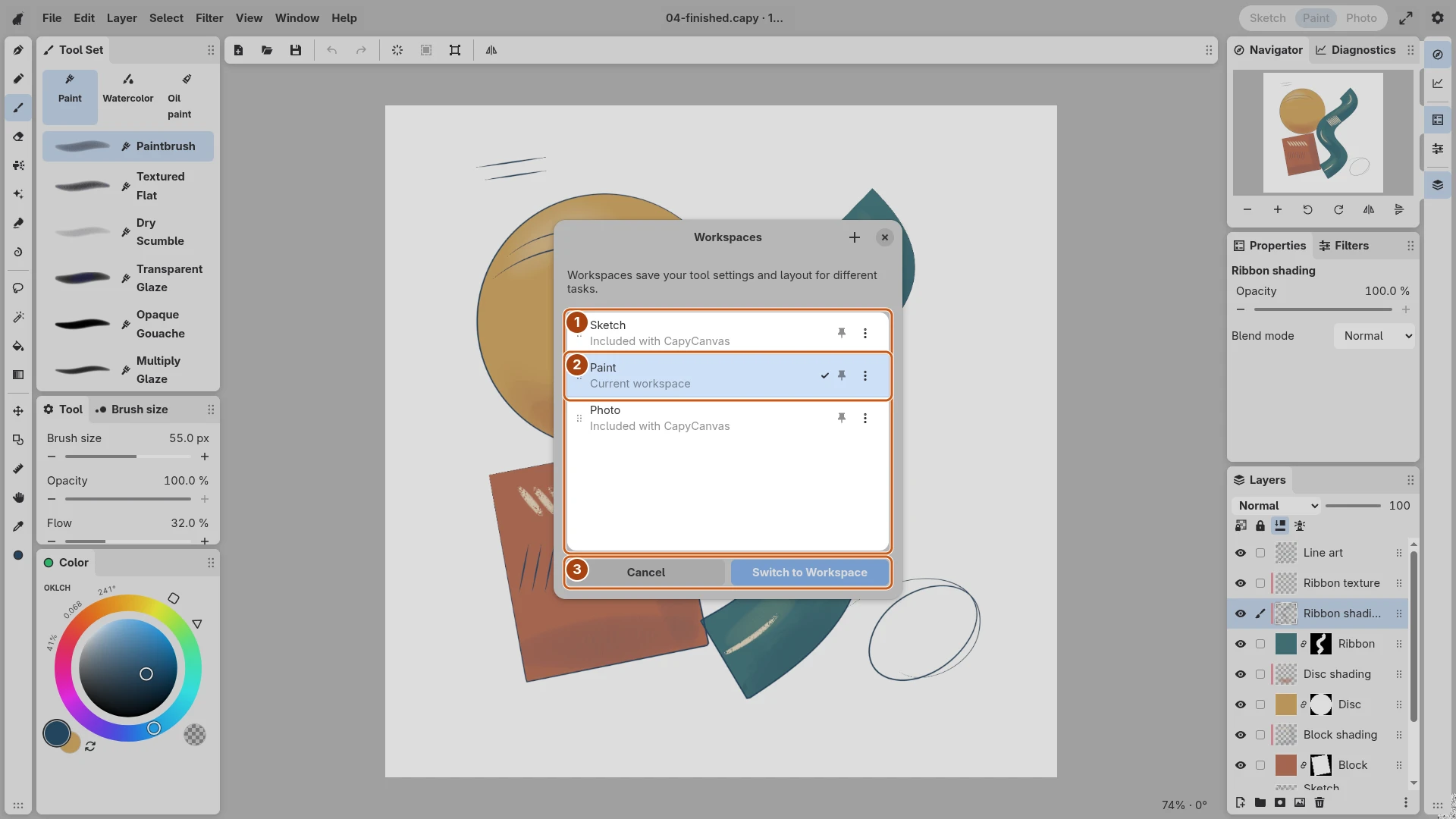
Open the image to inspect the controls. Numbered outlines identify the controls described in the caption.
Switch or make a copy
Use the top-bar choices to switch among Sketch, Paint and Photo. Each restores its latest saved settings, rather than reapplying its original preset every time. Choose New Workspace to copy the current arrangement and tools under another name.
Manage Workspaces lets you preview an entry before choosing Switch to Workspace. Cancel leaves the current arrangement in place. If a workspace is already in use in another window, switching can focus that window.
Choose the top-bar entries
In the manager, use a row’s menu and Show in top bar to pin or hide it. Reorder rows to change their order in the switcher. Touch or pen can drag the grip directly; holding the row also permits dragging. Mouse can drag the row directly.
Pinning and ordering save immediately. Canceling a preview does not undo those preferences. Included workspaces retain their identities and cannot be renamed or deleted.
Restore the right part
Restore Starting Layout… restores the latest shipped arrangement for an included workspace, or the saved starting arrangement for a custom one. It preserves working tool settings. Reset All Brushes… restores brush overrides instead.
These changes save separately from your drawing. Use Save to keep an editable .capy project.