Color and eyedropper
The Color panel controls the color used by drawing tools. Foreground, background and transparent paint serve different purposes; selecting transparent paint changes the next mark into an erasing operation.
These concise guides follow the current web editor. Native controls may differ while the ports are being completed.
What you'll learn
- Choose a color in the wheel and its inner field.
- Switch foreground, background and transparent paint.
- Sample the editing layer or visible image with Eyedropper.
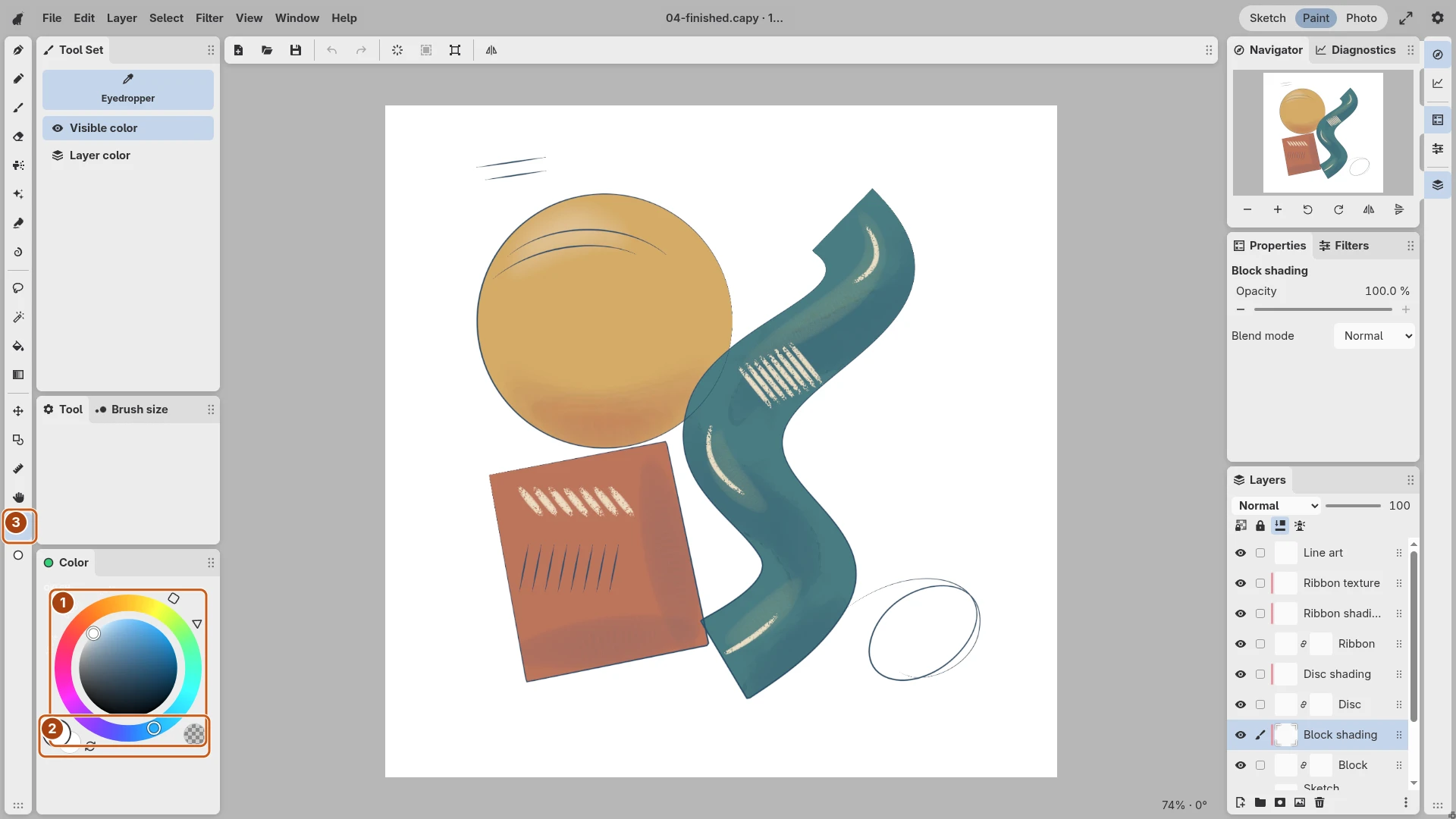
Open the image to inspect the controls. Numbered outlines identify the controls described in the caption.
Choose the hue and its variation
In Color, drag around the outer ring to choose a hue, then use the inner field to adjust its variation. The available field shapes use different color coordinates; their readout identifies the active model. Choose the shape that makes the color easiest to select.
Keep a short test stroke beside the image. A color can look different against a white background, existing paint, or a partially transparent brush.
Keep two colors available
Use the foreground and background swatches to choose which color to edit. Swap them when you need the alternate color. Gradient uses this pair, and a Figure with Outline + fill uses both colors.
The checkerboard swatch selects Transparent paint. A drawing tool then erases instead of adding the foreground color. Return to the foreground swatch before painting a new color.
Sample from the document
Choose Eyedropper and select whether it reads the editing layer or the visible image in Tool Set. Sample the desired area, then return to your drawing tool. Sampling the visible image includes the appearance of the composed layers; the editing-layer option isolates that source.
For repeated color areas, keep them on separate layers so later changes remain manageable.